---
title: April 2022 - Redesign
description: Introducing the new ProjectManager designed for today's hybrid teams
---
[Skip to content](https://learn.projectmanager.com/april-2022#main-content)
English
Show submenu for translations
[Ask a Question](https://learn.projectmanager.com/kb-tickets/new)

- [ProjectManager Knowledge Base](https://learn.projectmanager.com/)
Open main navigation
Close main navigation
- [ProjectManager Knowledge Base](https://learn.projectmanager.com/)
- English
Show submenu for translations
- [Ask a Question](https://learn.projectmanager.com/kb-tickets/new)
How can we help you today?
- There are no suggestions because the search field is empty.
1. [ProjectManager Knowledge Base](https://learn.projectmanager.com/)
2. [Latest releases](https://learn.projectmanager.com/latest-releases)
3. [2022 Releases](https://learn.projectmanager.com/latest-releases#2022-releases)
# April 2022 - Redesign
## Introducing the new ProjectManager designed for today's hybrid teams
Hybrid work is here to stay and ProjectManager is here to help your teams—wherever they are and however they work—to deliver timely projects, better manage resources, and derive the essential data insights necessary to be successful together.
Our April release includes three major enhancements, all of which allow for increased flexibility, collaboration and easy access to powerful data:
1\. A new user interface that provides 30% more workable area and faster access to key features
2\. Integration with Zoom
3\. Guest licenses at no additional cost for Business and Enterprise customers
And so much more! This is only the beginning of exciting updates and features. Make sure to read below to learn more about our April release.
### Redesigned Navigation
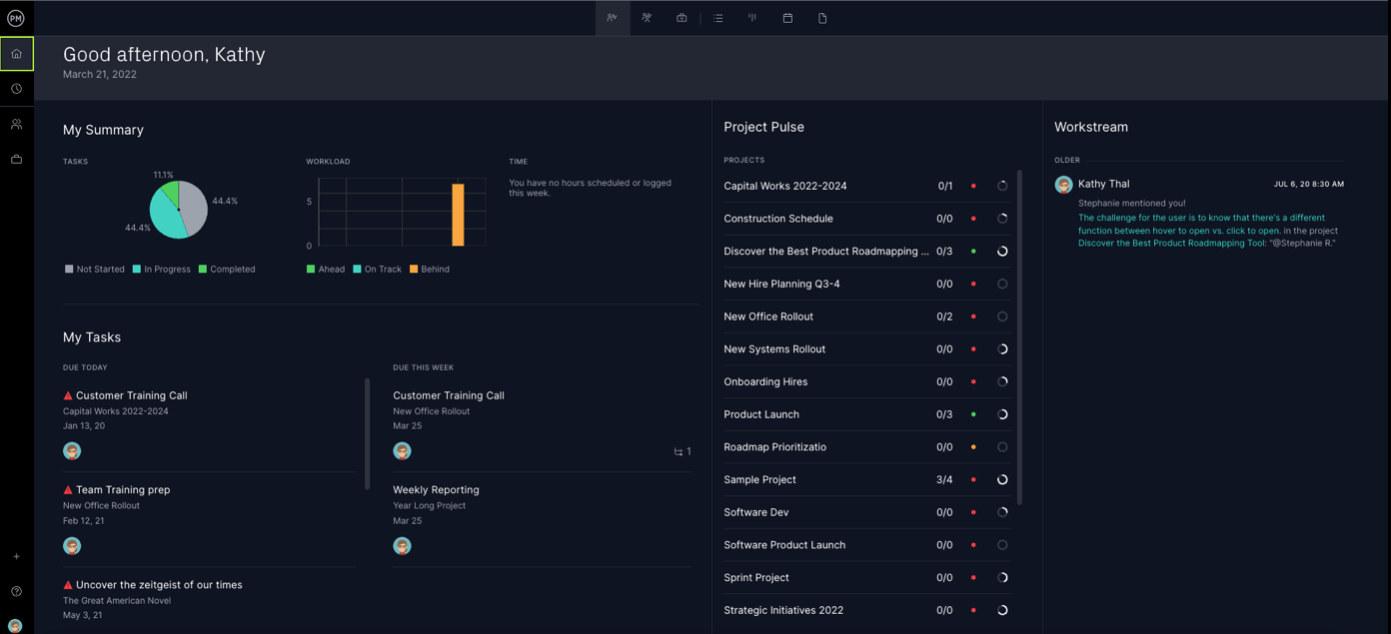
We've improved our navigation to give you 30% more workable area and faster project access. Our new navigation features an extensible navigation bar located on the left-hand side of the screen. Here, you'll see new icons in both the primary and secondary navigation menus.
**Tip!:** Your MyWork page is now called "Home." Here, you will see three new views in addition to List, Board, Calendar and Files. Additions include **My Summary, Team Summary** and **Portfolio Summary**, all of which are outlined below.
#### Primary Menu
You'll find these functions in the top left navigation bar:
- Home (previously called MyWork)
- Three new views include My Summary, Team Summary and Portfolio Summary
- Notifications
- Time
- Team
- Portfolio view (previously called Overview)
- Includes the sub-list of your projects starting with your favorite projects
The bottom-left menu shows your:
- Global Add menu
- Help menu
- Account menu
**Note:** We now offer **dark mode** to support user preference and accessibility options. To change between modes, navigate to the Account menu \> Theme popup to change it.
#### 
#### Secondary Menu
You'll see three new icons for the secondary menu for each view which includes three new icons for Home Summary views.
### Three Personalized Home Views
### My Summary
The first new view within "Home" is My Summary. Here, you'll find your personal task and work summary that includes a section dedicated to tasks, workload and logged time.

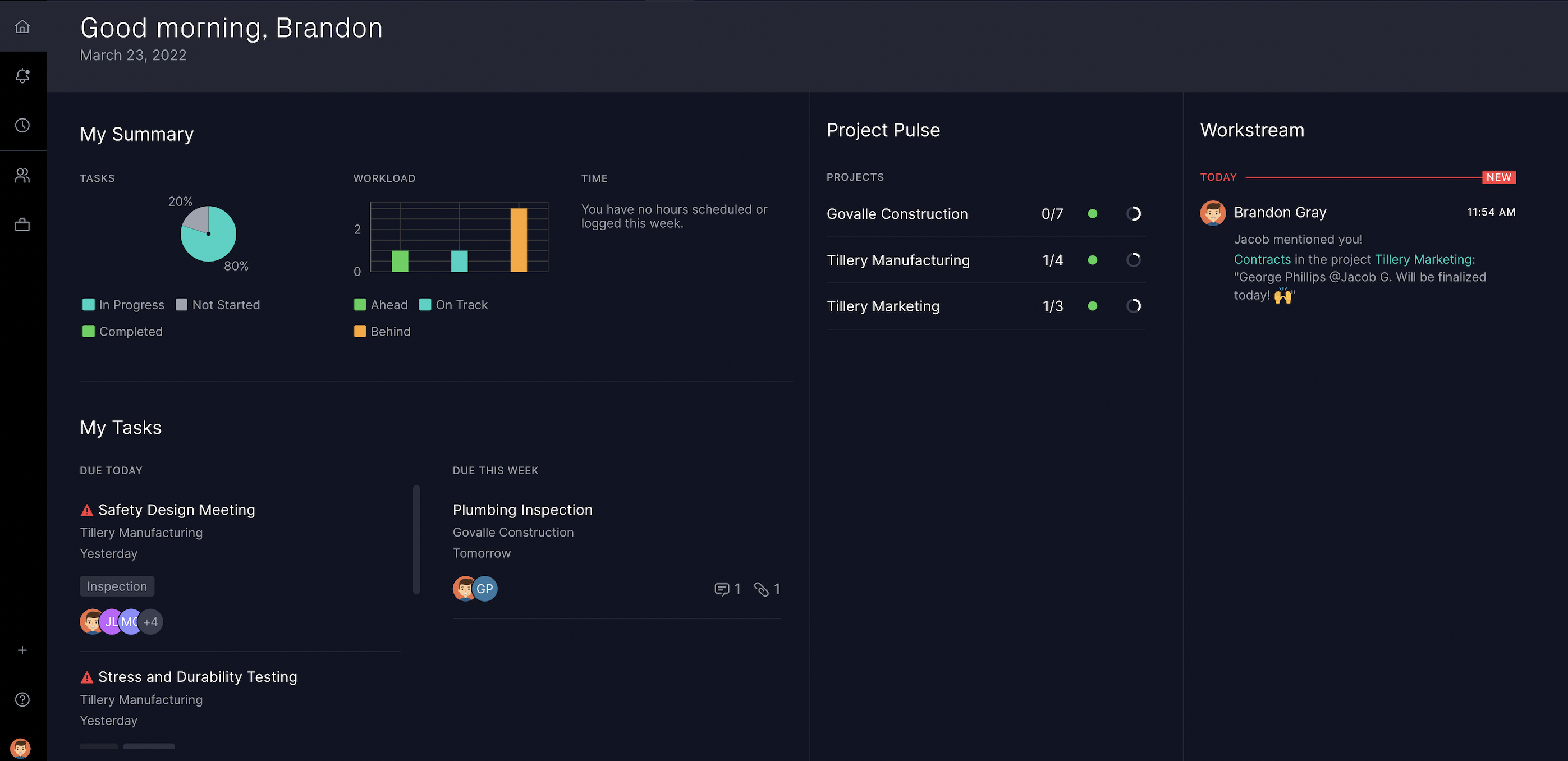
The data reflected on the My Summary page directly corresponds to your role. It reflects relevant information for your current projects and makes it easy to take action to resolve project issues. Hover over different widgets for a quick status update on projects. This view also includes Project Pulse and Workstream, two new features discussed below. You can read more specifics of the My Summary page on our corresponding Knowledge Base article.
### Team Summary
Another home view is Team Summary. Here, you can see a summary of your team's status, allowing managers to oversee workload and progress. Hover over the Tasks and Workload widget to see what tasks are in progress, completed or haven't been started.

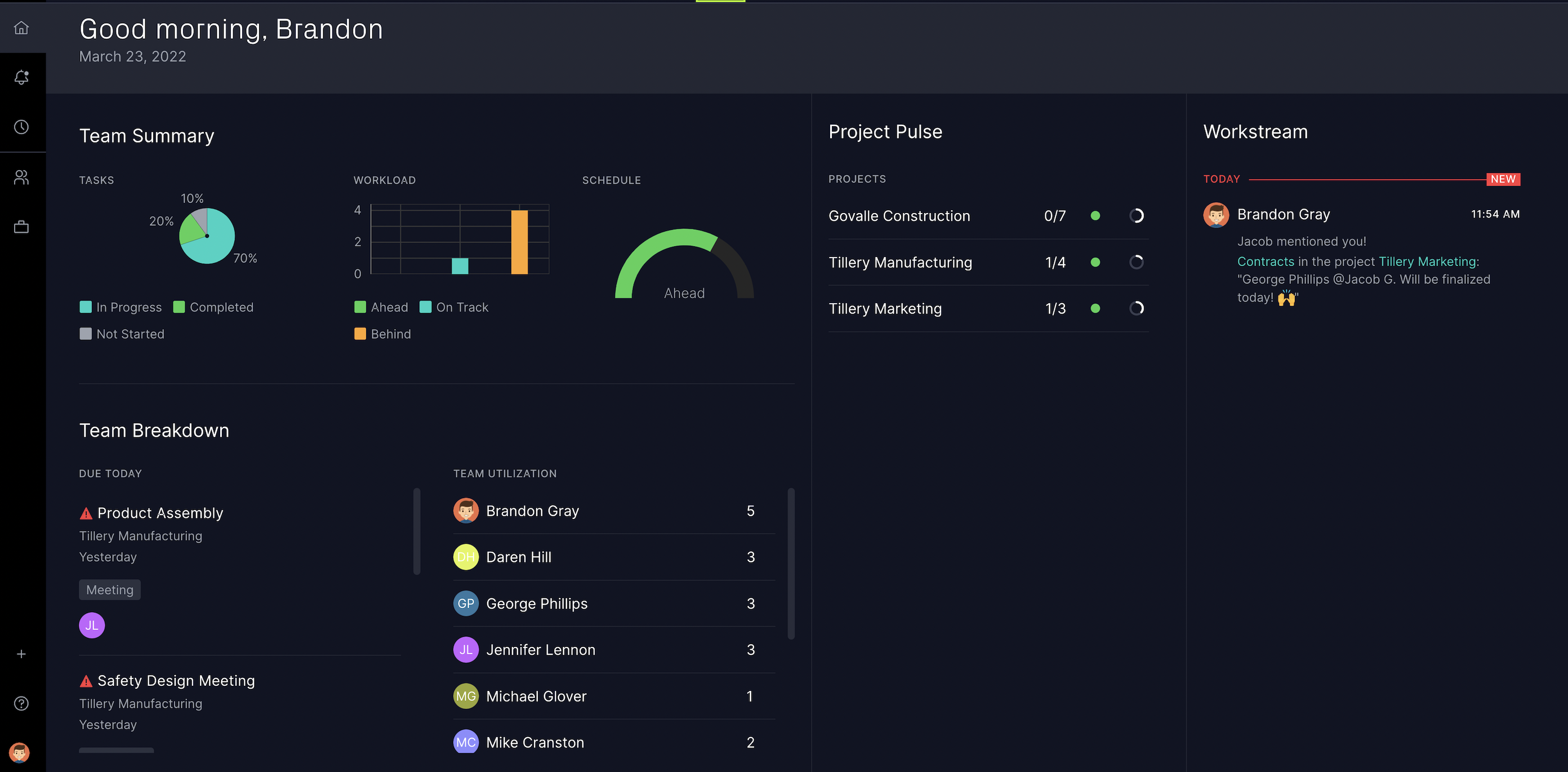
The Team Breakdown section alerts you of what tasks are due today and makes it easy to see what tasks are overdue (represented with a red caution symbol). You'll see Team Utilization on this page which represents how many tasks are on each team member's plate and whether or not they are on holiday.
### **Portfolio Summary**
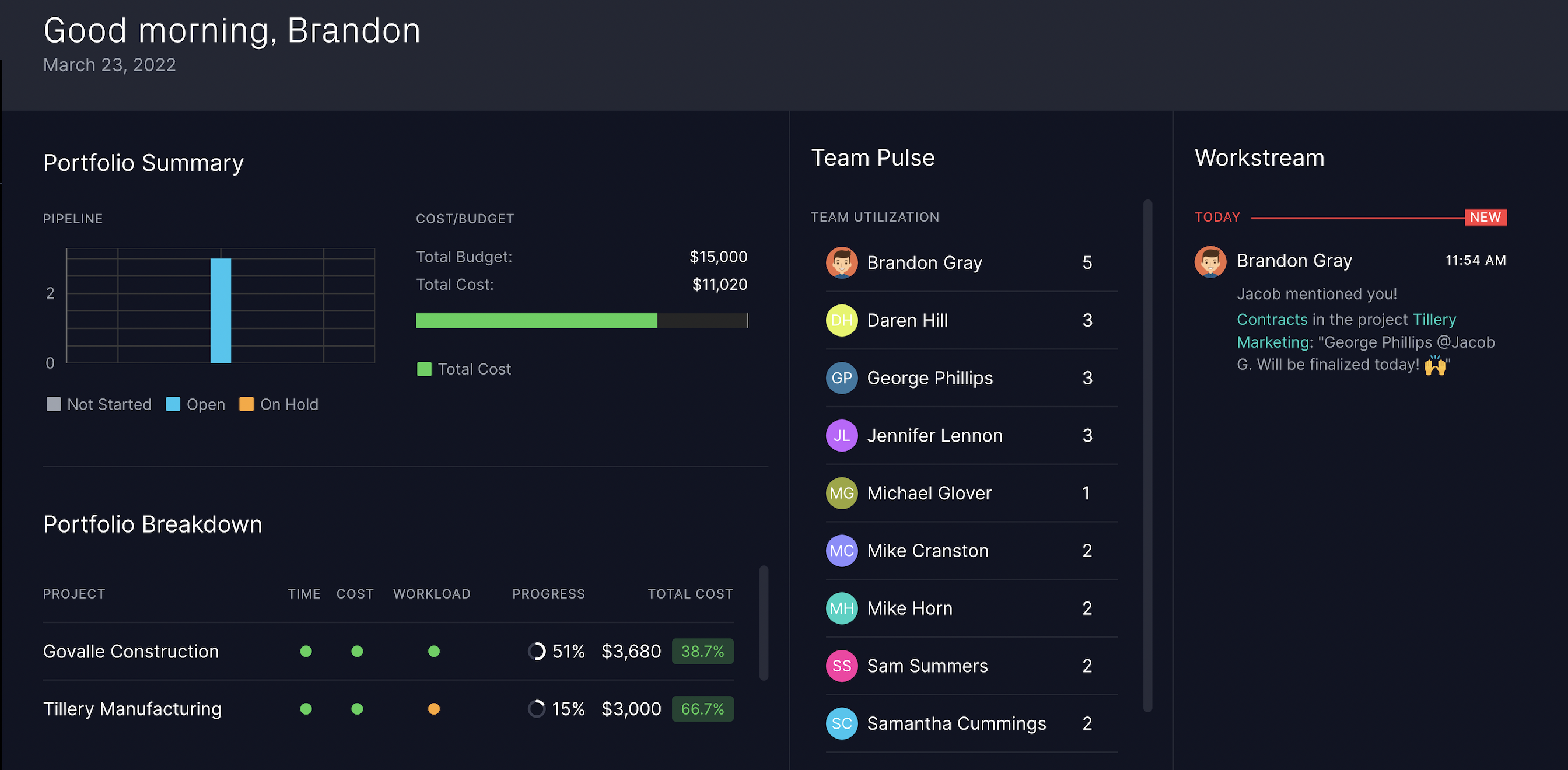
The final third Home view is Portfolio Summary. This provides a snapshot of your entire portfolio, breaking it down by which projects are open, haven't been started and are on hold.

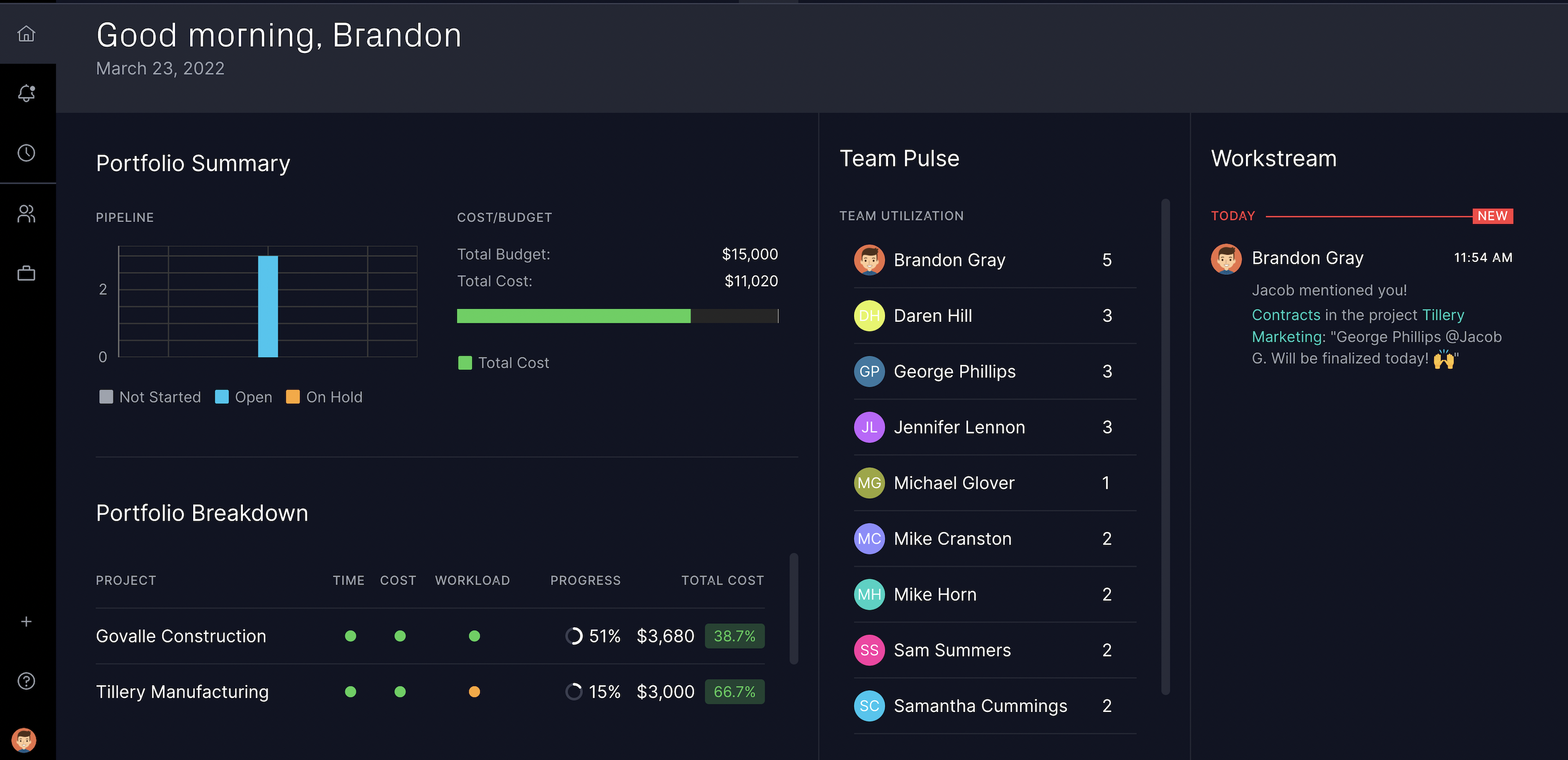
Hover over the Pipeline graph to see how many open projects are currently in your Portfolio. This view also has a cost/budget breakdown to give you a quick update on resource allocation. The Portfolio Breakdown is an excellent place to see data across your projects, focusing on time, cost, workload, progress and total cost. The Portfolio Summary view also includes Team Pulse, a new feature in our April release.
### Team Pulse
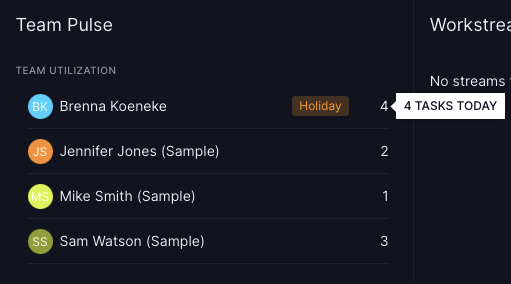
We haven't forgotten about our executive stakeholders who need relevant portfolio data insights for forecasting and planning at an organizational level. Team Pulse is a widget on the Portfolio Summary view. It allows managers or stakeholders to see a snapshot of their teams' utilization. Here, you can hover on the number to see how many tasks are due today for each team member. If anyone is on holiday, a badge will appear in the Team Pulse section. Browse our Team Pulse page for additional information on this feature!
### Workstream
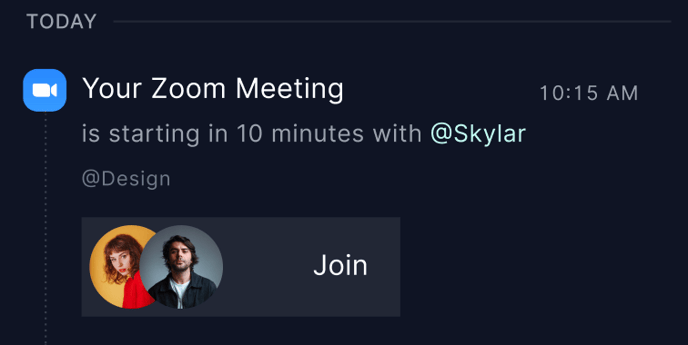
Our new Workstream feature provides a real-time feed for collaboration. With an active timeline of key conversations and meetings across your team, you can work at the same time, on your own, remotely, in person and across geographies. It appears on the right-hand side of each Home view. Notifications include @mentions, comments on tasks where you are the creator or assignee and Zoom meeting reminders.
**Note:** Clearing notifications does not clear Workstream. It will always maintain a chronological list of specific notifications.

We have a corresponding Workstream page with additional information!
### Project Pulse
Project Pulse is another new feature in our April release that allows teams members to see a snapshot of all projects to which they belong. It appears on all Home views and it's used to keep team members informed on project progress.
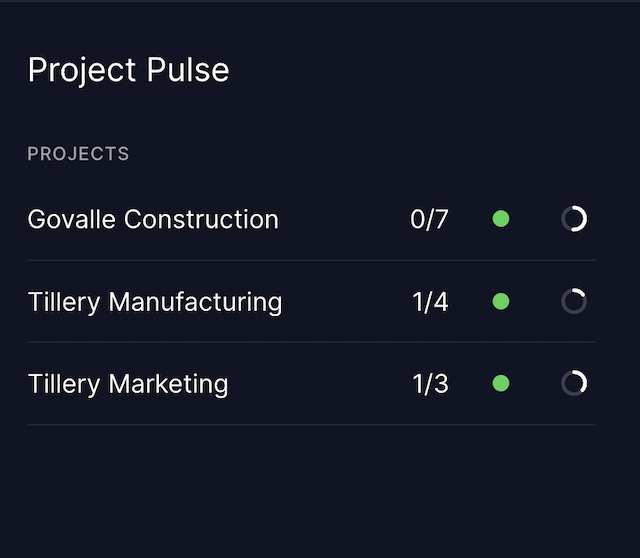
Hover over the numbers to see how many tasks have been completed out of the total number of assigned tasks. The second column of Project Pulse is a color-coded dot. Green dots indicate projects are ahead of schedule, orange dots indicate that a project is on schedule and red dots indicate that a project is behind schedule. The circles to the right of the dots indicate the percentage of the project that is complete.
Read more on Project Pulse on our corresponding Knowledge Base page.
### Zoom Integration
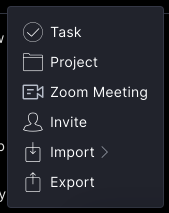
Those on our Business edition and above will now be able to access our Zoom integration. It allows you to schedule and launch Zoom meetings directly from ProjectManager. Global admins can enable Zoom integrations in two ways: via Zoom's marketplace or in the integrations popup. Any role except guests can start a Zoom call with other account members via the Global Add button.
**Note:** Zoom invites or upcoming Zoom calls will appear as a notification in the Workstream.
### Guest Licenses
Business and Enterprise customers will now receive guest licenses. This feature allows customers to share a read-only view of project information with clients and stakeholders without consuming a paid license. Guest licenses give read-only access; to collaborate on the project directly, they will need a paid license. Users can invite guests through the Invite People popup.
- Business customers receive up to 5 guest licenses
- Enterprise customers receive unlimited guest licenses
-png.png)
For more information on Guest Licenses, head to our corresponding Knowledge Base article.
#### Email Validation
Now, every user is required to enter a valid email address to ensure that account admins have valid contact information. Upon your first login to ProjectManager, a validation link will be sent to the associated user's email address. The email contains a link for verification that expires after 24 hours.
#### SAML Improvements
As soon as security assertion markup language (SAML) is enabled for an account, the ProjectManager login authentication for all users except the Global Admin will be disabled. This means that Global Admins can still log in if they need to make configuration changes or if their SAML SSO is not working correctly. This update still requires all non-global admin users to log in via SAML.
#### Password Reset Improvements
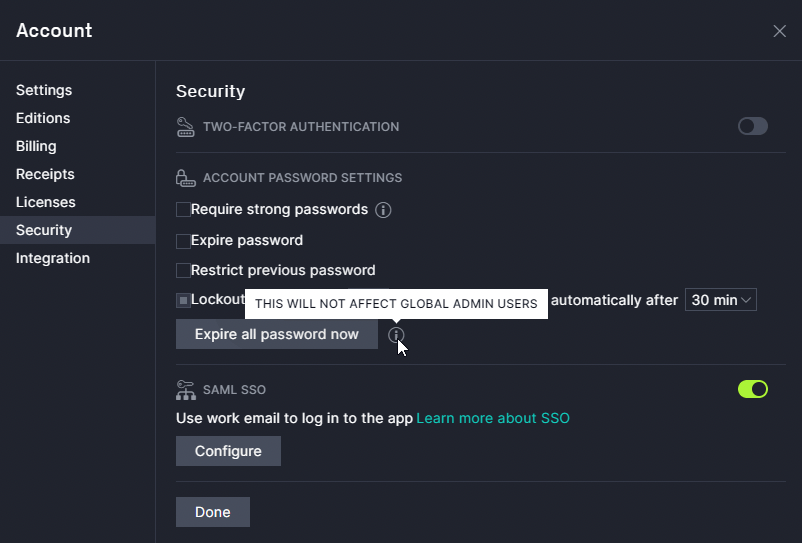
Global admins will now have the ability to force their user's passwords to expire (other than other Global admins) when configuration changes are made. To do so, navigate to the Account Popup \> Security Tab \> Password Settings and click "expire all passwords now."
#### Minor Bug Fixes & Improvements
We've also made minor bug fixes and improvements in this release to improve the overall performance of our software.
### Questions on Our April Release?
With so many changes, we know you may have questions. Our knowledgeable Support Team is happy to help you with your questions! Email support@projectmanager.com with any questions or concerns.
- [Training walkthroughs](https://learn.projectmanager.com/training-walkthroughs#main-content)
- [Setting Up Your Account](https://learn.projectmanager.com/training-walkthroughs#setting-up-your-account)
- [Resource Management](https://learn.projectmanager.com/training-walkthroughs#resource-management)
- [Team Management](https://learn.projectmanager.com/training-walkthroughs#team-management)
- [Gantt Chart](https://learn.projectmanager.com/training-walkthroughs#gantt-chart)
- [Dashboards](https://learn.projectmanager.com/training-walkthroughs#dashboards)
- [Portfolio Management](https://learn.projectmanager.com/training-walkthroughs#portfolio-management)
- [Integrations](https://learn.projectmanager.com/training-walkthroughs#integrations)
- [Getting started](https://learn.projectmanager.com/getting-started#main-content)
- [Software Basics](https://learn.projectmanager.com/getting-started#software-basics)
- [Account Basics](https://learn.projectmanager.com/getting-started#account-basics)
- [Making Your First Project](https://learn.projectmanager.com/getting-started#making-your-first-project)
- [Preferences & Notifications](https://learn.projectmanager.com/getting-started#preferences-notifications)
- [Managing projects](https://learn.projectmanager.com/managing-projects#main-content)
- [Project Management](https://learn.projectmanager.com/managing-projects#project-management)
- [Project Settings](https://learn.projectmanager.com/managing-projects#project-settings)
- [Templates, Imports & Exports](https://learn.projectmanager.com/managing-projects#templates-imports-exports)
- [Project views](https://learn.projectmanager.com/project-views#main-content)
- [Our Project Views](https://learn.projectmanager.com/project-views#our-project-views)
- [List, Board & Calendar Views](https://learn.projectmanager.com/project-views#list-board-calendar-views)
- [Gantt View](https://learn.projectmanager.com/project-views#gantt-view)
- [Sheet View](https://learn.projectmanager.com/project-views#sheet-view)
- [Risk View](https://learn.projectmanager.com/project-views#risk-view)
- [Tasks & teams](https://learn.projectmanager.com/tasks-teams#main-content)
- [Task Management Basics](https://learn.projectmanager.com/tasks-teams#task-management-basics)
- [Advanced Task Management](https://learn.projectmanager.com/tasks-teams#advanced-task-management)
- [Team Organization](https://learn.projectmanager.com/tasks-teams#team-organization)
- [Team Management](https://learn.projectmanager.com/tasks-teams#team-management)
- [Resource management](https://learn.projectmanager.com/resource-management#main-content)
- [Resource Availability](https://learn.projectmanager.com/resource-management#resource-availability)
- [Time Management](https://learn.projectmanager.com/resource-management#time-management)
- [Dashboards, reports & PPM](https://learn.projectmanager.com/dashboards-reports-ppm#main-content)
- [Dashboards](https://learn.projectmanager.com/dashboards-reports-ppm#dashboards)
- [Project Portfolio Management](https://learn.projectmanager.com/dashboards-reports-ppm#project-portfolio-management)
- [Reports](https://learn.projectmanager.com/dashboards-reports-ppm#reports)
- [Account, security & users](https://learn.projectmanager.com/account-security-users#main-content)
- [Account and Project Security](https://learn.projectmanager.com/account-security-users#account-and-project-security)
- [User Management](https://learn.projectmanager.com/account-security-users#user-management)
- [Account Management](https://learn.projectmanager.com/account-security-users#account-management)
- [Integrations](https://learn.projectmanager.com/integrations#main-content)
- [ERP / Accounting](https://learn.projectmanager.com/integrations#erp-accounting)
- [Collaboration](https://learn.projectmanager.com/integrations#collaboration)
- [Development](https://learn.projectmanager.com/integrations#development)
- [Analytics](https://learn.projectmanager.com/integrations#analytics)
- [API](https://learn.projectmanager.com/integrations#api)
- [Customer resources](https://learn.projectmanager.com/customer-resources#main-content)
- [Training Academy](https://learn.projectmanager.com/customer-resources#training-academy)
- [Listen & Learn Videos](https://learn.projectmanager.com/customer-resources#listen-learn-videos)
- [By industry](https://learn.projectmanager.com/by-industry#main-content)
- [Construction](https://learn.projectmanager.com/by-industry#construction)
- [Manufacturing](https://learn.projectmanager.com/by-industry#manufacturing)
- [Professional Services](https://learn.projectmanager.com/by-industry#professional-services)
- [Latest releases](https://learn.projectmanager.com/latest-releases#main-content)
- [Phased Releases](https://learn.projectmanager.com/latest-releases#phased-releases)
- [2026 Releases](https://learn.projectmanager.com/latest-releases#2026-releases)
- [2025 Releases](https://learn.projectmanager.com/latest-releases#2025-releases)
- [2024 Releases](https://learn.projectmanager.com/latest-releases#2024-releases)
- [2023 Releases](https://learn.projectmanager.com/latest-releases#2023-releases)
- [2022 Releases](https://learn.projectmanager.com/latest-releases#2022-releases)
- [Mobile app](https://learn.projectmanager.com/mobile-app)
[](https://www.projectmanager.com)
Get organized. Do amazing things.
[mailto:support@projectmanager.com](mailto:support@projectmanager.com)
[Login](https://software.projectmanager.com/login) | [Ask a Question](https://learn.projectmanager.com/kb-tickets/new) | [Tutorial Videos](https://www.projectmanager.com/product-videos)
```json
{
"@context" : "https://schema.org",
"@type" : "VideoObject",
"contentUrl" : "https://6111124.fs1.hubspotusercontent-na1.net/hubfs/6111124/Tutorial%204_1.mp4",
"dateModified" : "2022-11-10T18:22:55.475Z",
"duration" : "PT42S",
"height" : 2160,
"name" : "Tutorial 4_1",
"thumbnailUrl" : "https://6111124.fs1.hubspotusercontent-na1.net/hubfs/6111124/Tutorial%204_1.mp4/medium.jpg",
"uploadDate" : "2022-04-01T16:13:08.860Z",
"width" : 3840
}
```