
Gantt is only available on Team and above, learn more.
Import your Asana Gantt chart as a CSV file
First, you’ll need to export your Asana Gantt chart as a CSV file as shown in the example below.
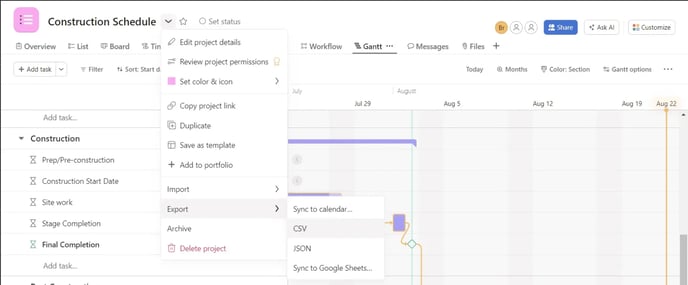
Tip: To use ProjectManager to open and edit your Asana Gantt chart, you’ll need to start a free 30-day trial if you don't already have an account.
Once your trial ends, note that Gantt is only available on Team and above. Need access? Upgrade your plan today!
Import your Asana Gantt chart CSV file into ProjectManager
Once you’ve logged into ProjectManager, create a new project by clicking “New” and then selecting “Project” from the options in the pop-up menu.
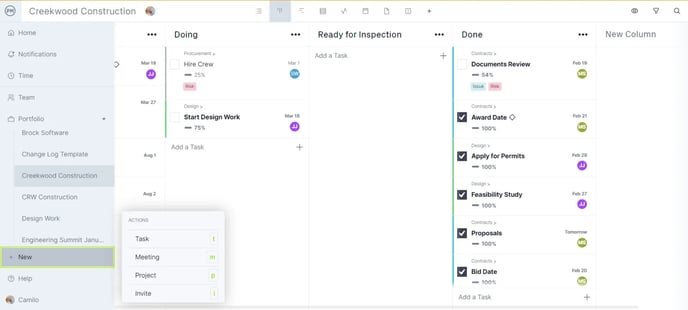
Next, name your project and import your Asana Gantt chart CSV file.

The Asana Gantt chart CSV file contains several columns with data. Select which data you’d like to display in your Gantt chart by matching the CSV file columns with a category from the dropdown menus as shown below.
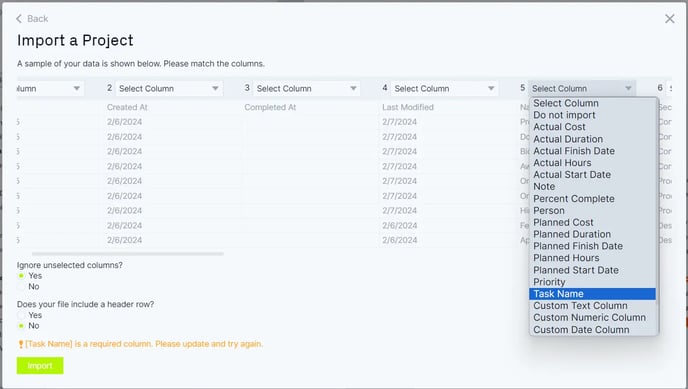
We suggest importing the task name, planned start date and planned finish date columns at this time. Select those three columns and then click “Import.” From here, you’ll be able to add more data about your project tasks to your Gantt chart in the next step.
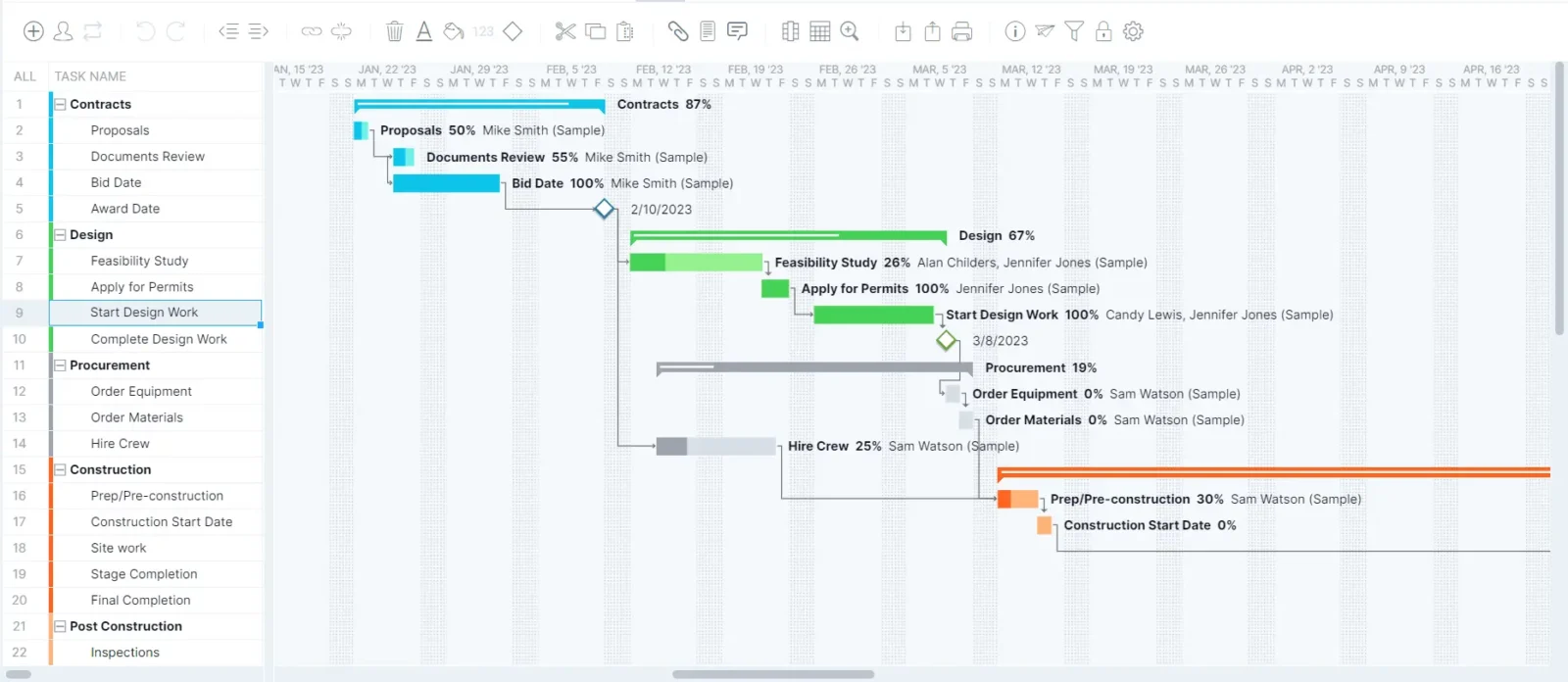
That's it! If you have any questions about this process, please email us!