
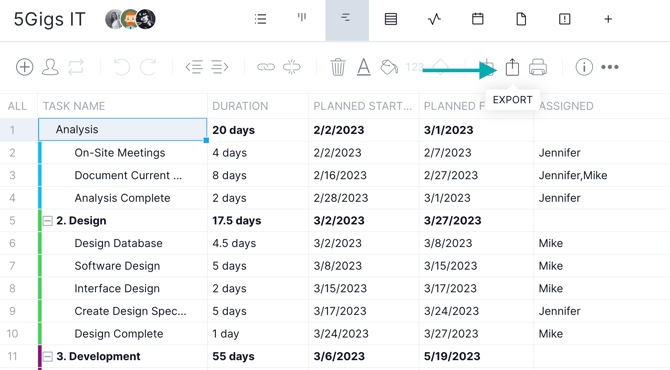
You can export tasks or timesheets to an XML, MPP, Excel, CSV or PDF using the export icon on the top Gantt or sheet ribbon.
Watch our short video to learn more about exporting your projects.
Export your plan by clicking the export icon on the Gantt or sheet. You'll be directed to a popup where you can choose the information and format for export. If you want to export the Gantt only, select "print" on the Gantt ribbon to save it to a PDF.
Tip: You can only export from an existing project in either the gantt or sheet views.
Example of an Exported Project
Here's an example of a Gantt chart exported to Excel:

And a more zoomed-in example:

Assignees
Choose to see tasks assigned to everyone or a specific person or team.
Format
We support export to XML, MPP, Excel, CSV or a PDF file. If you export to an MPP file, all data will export accurately but you will see a custom column in MSP for percent complete or work. This column is called percent complete planned work. This records the percent complete from the software. If you import the project back into the software, this column will map to percent complete unless you change the value and the software will automatically use your data.
Columns
If exporting to CSV or PDF you can choose which columns you'd like to include.
If exporting to MS Project all data is included by default, you just have one column option: whether or not to include actual dates. Most versions of MS Project override planned dates with actuals when present, so this option allows you to remove actuals and preserve your planned data.
Run
If you choose offline, your plan will be emailed to you.
Special Import and Export Cases
Blank Rows
You can create blank rows in your project plan, importing and exporting blank rows except for Excel. This includes MPP, XML and PDF Print.
Custom Columns
You can create six custom column types including text, number, currency, checkbox and dropdown. These custom columns can be imported and exported. Custom column import and export are supported for XML and MPP files. On import, the dropdown custom column will appear in Excel as comma-delimited.
Actual Hours and Timesheets
Import actual hours seamlessly using any supported file type. However, actual hours won’t automatically map to timesheets. Imported actual effort must be manually added to the timesheet (or entered manually on the Gantt) to map it to the timesheet. Learn more about exporting timesheets.
You can learn more about importing and exporting projects in our Listen & Learn below.