
We are excited to announce our first February release that includes powerful Automation features. Automation can help your team reduce manual effort and save time. Our February release also includes minor items and bug fixes. Keep reading to learn more about our February 2022 release.
Introducing Powerful Automation
Business and Enterprise customers now have access to Automation within the Custom Workflow feature. Automation can be used in conjunction with Custom Workflows and Task Approvals or on its own to automate actions when defined triggers occur on the task level.
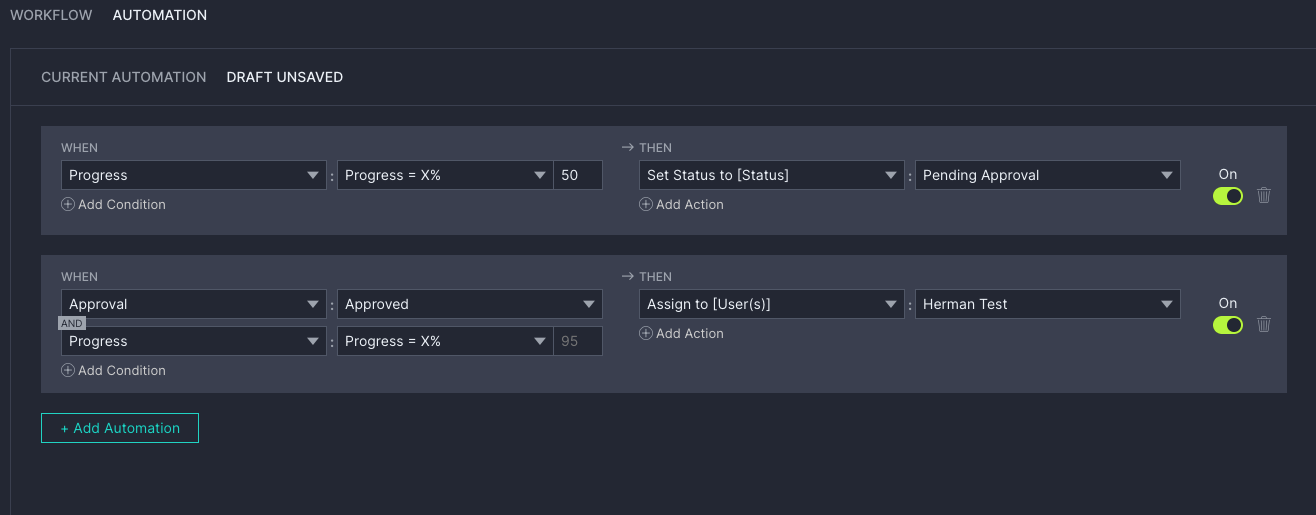
Our Automation uses simple “when” and “then” language called triggers and actions. For example, when approval is granted, assign the task to Bob Smith. Our Automation capability has a variety of triggers and actions to fit any use case whether they’re simple or complex. Please note that Business customers get 5 automation rules per workflow while Enterprise customers get 20 automation rules per workflow. Feel free to implement as many triggers and actions in one automation rule to maximize functionality and flexibility.
The supported triggers and actions are listed below:
Triggers
-
Status
-
Priority
-
Progress
-
Tag added/removed
-
Approval
-
Assignee added/removed
-
Planned hours
-
Actual hours
-
Remaining hours
-
Planned cost
-
Actual cost
-
Planned resource cost
-
Actual resource cost
-
Planned duration
-
Actual duration
Actions
-
Set status to [status]
-
Assign to [user(s)]
-
Remove [user(s)]
-
Set priority to [priority]
-
Set progress to [%]
-
Add tag
-
Remove tag
How to Set Up Automation
Project creators and users with "manage access" can update workflows from any project view via the Project Settings menu under “workflow.” All other project members have read-only access. If you’ve already set up Custom Workflow and Approvals, you’ll notice that there is a new tab called Automation in the Workflow configuration.
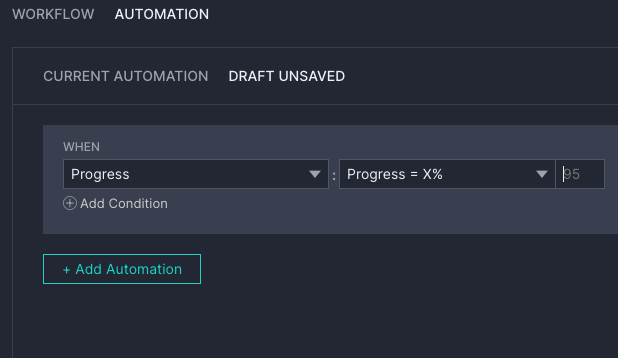
To set up a new rule, select an option from the “When” dropdown, the parameter and an option from the “Then” dropdown and the parameter. The parameter will change based on the option that you first select. For example, when Progress equals 50%, set Status to Ready for Approval. When you are done adding your custom rules, either save them as a draft or publish it.
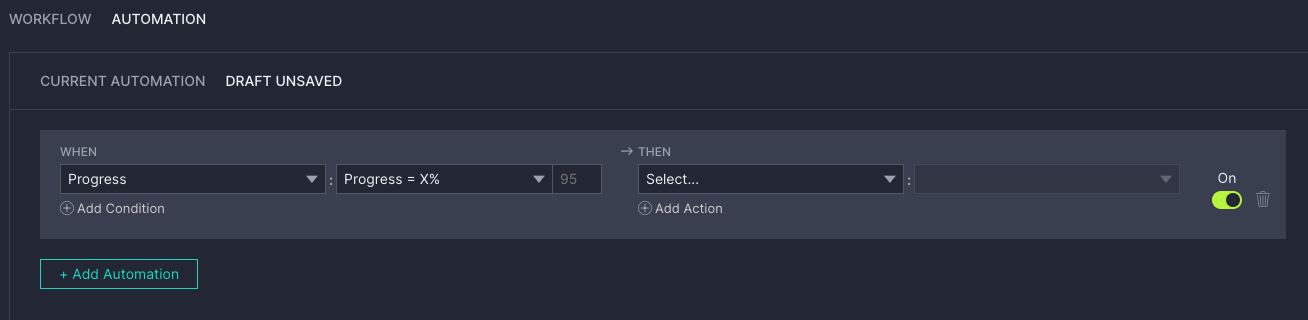
All Automation rules are evaluated in order. If the automation includes multiple trigger actions, all must be true for the rule to be completed. Similarly, if the Automation rule includes multiple actions, all actions are applied if the rule is true. However, if the Automation rule results in an action for which the user doesn’t have the appropriate security, the action is skipped.
We’re Here to Help!
Check out our Automation article for more information on these powerful new features. If you have any questions about Automation, don’t hesitate to contact us at support@projectmanager.com.