
To access the task info panel, right-click on the name of a task on the Gantt or Sheet, where you can select "show task info."
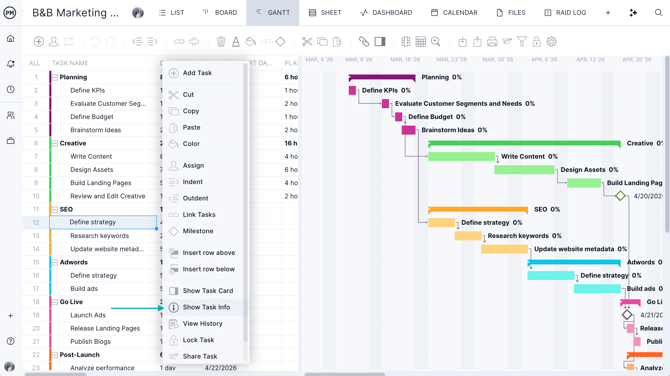
The panel will then appear at the bottom of your screen.
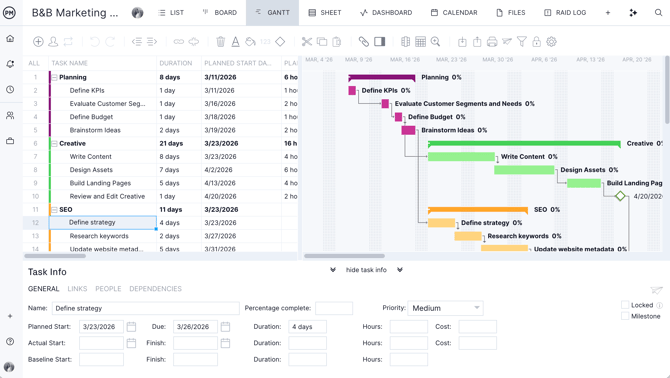
General Tab
On the general tab, you can change any of the core data relating to each task.
This includes the following:
Name
The name of the task in your project. The name of the task will appear in the Task Name column.
Percent Complete
The progress of a task in a percentage.
Priority
You can use the dropdown to change the level of priority: critical, very high, high, medium, low, very low or none.
Locked
Locking a task prevents users from making changes to planned task data.
Milestone
The box will be checked when you have added a milestone on the Gantt.
Share
Allows you to send a link to the task to another user in your account.
Planned Start Date
The estimated date that a task is planned to start.
Planned Due Date
The estimated date that a task is planned to finish.
Planned Duration
The number of days scheduled for a task including the first day and last day.
Planned Hours
The number of hours that have been estimated for a task.
Actual Start Date
The actual start date will populate once you change the percent complete from 0 in the board, list, Gantt or timesheet. The actual start date will be the planned start date unless changed manually.
Actual Finish Date
The actual finish date will populate once a task is marked 100% complete in the board, list, Gantt or timesheet.
Actual Duration
The actual duration will calculate automatically once the actual finish date and actual start date are populated. This column indicates the number of days the task actually took to complete, including the first day and last day.
Actual Hours
The number of hours that have been actually logged for a task.
Planned Cost
The estimated task cost, not including resource costs.
Actual Cost
The actual task cost, not including resource costs.
Baseline Finish Date
The date that a task was originally planned to finish, at the time you set your baseline.
Baseline Start Date
The date that a task was originally planned to start, at the time you set your baseline.
Baseline Duration
The number of days between the baseline start date and the baseline finish date.
Links Tab
You can create and update task dependencies using the links tab of the task info panel.
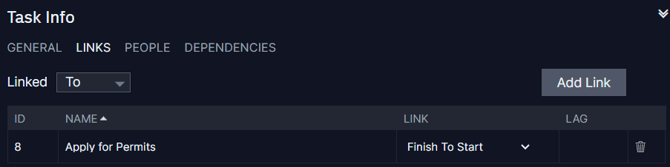
Choose whether to display the to or from links using the dropdown menu. Add a link to a task by clicking add link. You can then select which task to link it to, and what type of link it will be. By default, the link will be finish to start.
For each link, you can change its type using the dropdown menu, which displays the current type selected. You can see how much lag or lead time there is associated with the link. Select the trash can icon to delete the link.
People Tab
You can manage task assignments, hours and allocation on the people tab of the task info panel. The add person button will allow you to invite new users into your account and assign them to the task.
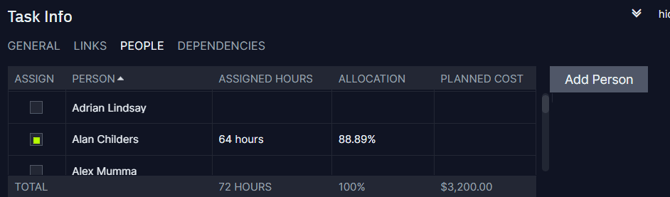
You can assign a user to a task by selecting the checkbox next to their name. You can update their assigned hours for the task in the assigned hours column.
The allocation column shows the percentage of time a resource is allocated based on its assigned hours. If a user has a resource cost assigned, or if the project has a default cost configured in the project settings, the planned cost will populate automatically.
Dependencies Tab
You can manage inter-project dependencies on the dependencies tab of the task info panel. Add an inter-project dependency by selecting the add dependency button. Select the project the dependency is in, then select the task.
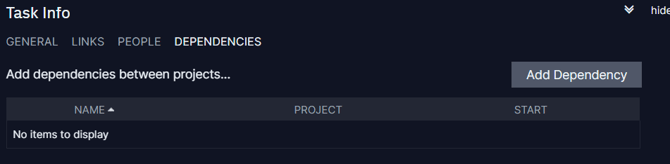
You can use the search fields to search by project or task name. Select whether the dependency is to or from the selected task. Finally, select add to create the dependency.
In the grid, you can view whether the dependency is to or from, the name of the dependency, which project its in, and its start date. Select the trash can icon to delete the dependency.
Task Allocation
You have the ability to change the allocation of single tasks on the task info panel. For example, your account has a default planned effort of 8 hours for everyone. You create a task with two assignees over a duration of two days.
The software will automatically split the 32 hours evenly between the two resources. However, there may be situations where you need to change this default allocation.
First, highlight the task and click the three ellipses to the far right and click show task Info. Navigate to the "people" tab and you will see the task assignees with the number of hours assigned and current allocation. You can adjust the allocation by typing directly into the cell. Once the percentage is changed, the hours will automatically adjust.
Looking for more Gantt chart articles? Visit the Gantt chart category.
Contact Us with Questions!
Please email us at support@projectmanager.com with any questions on the task information panel.