
The home screen is a great starting point for navigating ProjectManager and getting fast insights into individual and team progress. Whether you're a team member, manager or executive, you'll find a useful dashboard for your work in the home view. This space has customized data applicable to your projects and allows you to take action directly from each dashboard to make updates. To access the home screen, click on the "home" icon.
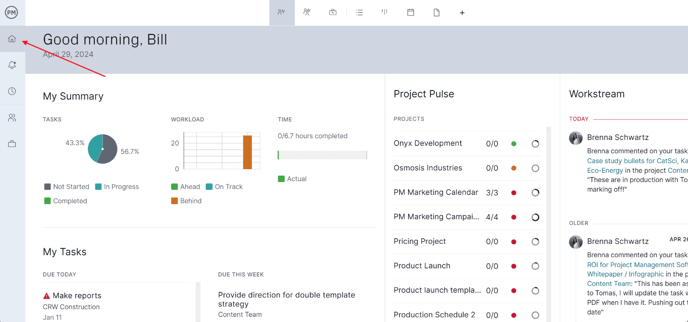
Across the top, you'll see various icons that represent different sections of the home view including My Summary, Team Summary, Portfolio Summary, List, Kanban, Calendar and Files. We've outlined them below.

You can also customize the views that show up in your home view by clicking the "+" on the top menu navigation.
My Summary
My Summary is a dashboard that houses a personal summary of your tasks. This is based on your project role and pulls data from all accessible projects, including any projects on one-off tasks you've created for yourself. There's a section that visually keeps track of your tasks and workload, a "my tasks" section, Project Pulse and Workstream.
The Project Pulse section is a snapshot of your current projects, outlining how many tasks have been completed, if the project is on schedule and the percentage complete of the project. The Workstream section is a live collaboration feed. Click on different data points to be taken directly to the project. View our My Summary page for additional information.
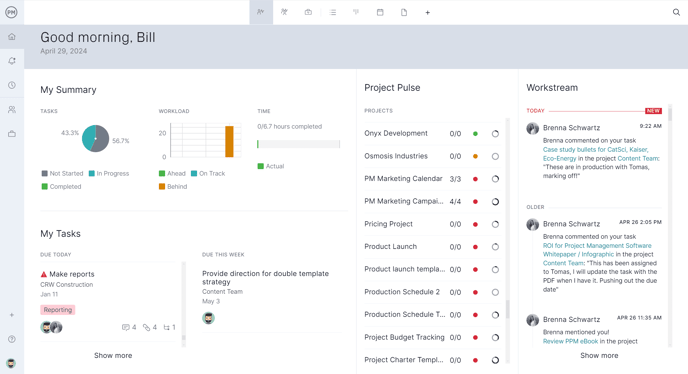
Tip: On your home views, click on a task without leaving the home view to make updates. These changes will be reflected for everyone who has access to the project.
Team Summary
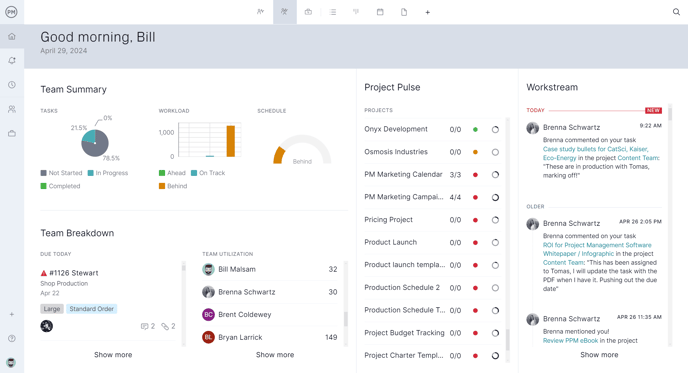
Team Summary is a great place for project managers to see digestible data on team progress. Similar to the My Summary page, there's information on your team's progress, workload and schedule as well as a team breakdown. Here, there's also a Project Pulse and Workstream section. View our Team Summary page for more information.
Portfolio Summary
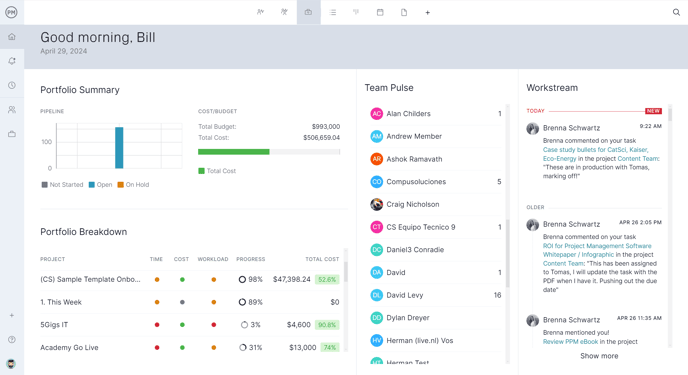
Portfolio Summary is a great place for executive stakeholders who need to track multiple projects. It contains portfolio data insights to help with forecasting and planning on an organizational level. This dashboard provides a pipeline overview and a cost and budget breakdown as well as team pulse and workstream sections. View our Portfolio Summary page for more information.
Note: The task list, kanban board, calendar and files section of the home view only render the tasks assigned to you. This is separate from the team view that houses shared project information. As you make progress in your projects, the data in your home view will automatically adjust.
Task List
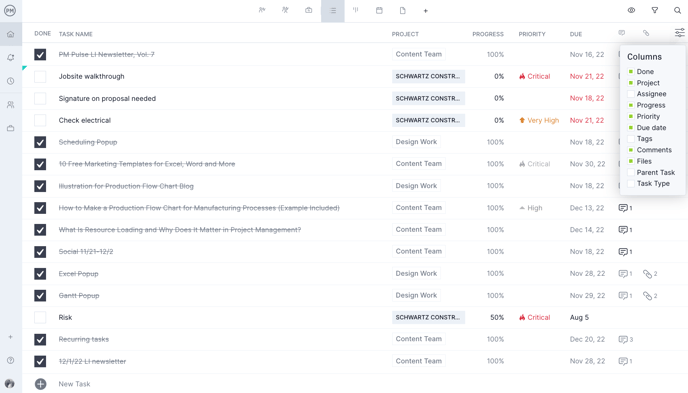
The home view's task list lists all your assigned tasks, including private tasks and the tasks you're assigned across projects. You can adjust the columns that show by using this icon in the upper right-hand corner. Click the eye icon to show or hide completed tasks. Read more about task lists.
Kanban Board
The home view's kanban board is a kanban board that outlines all of your current tasks across projects.
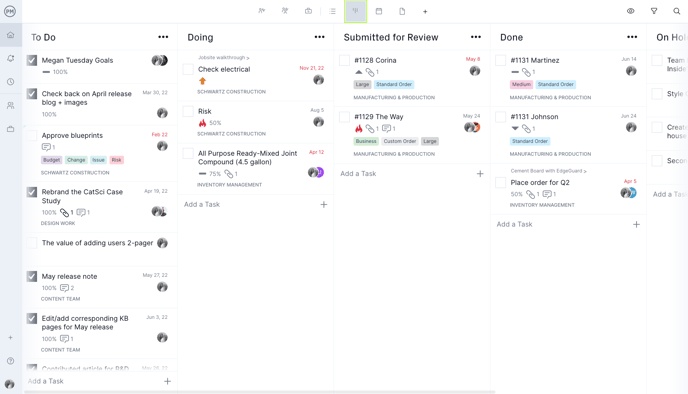
Each task contains relevant information and the name of the project to make it easy to stay organized. Read more about kanban boards.
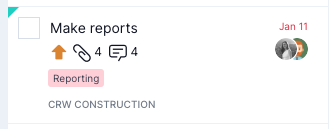
The columns (statuses) shown on this board are not the same as project statuses. This view is intended for each team member to organise all their work across multiple projects in a way which suits them.
Some highly structured teams prefer their members always use project statuses, especially if they take advantage of project-level workflows or automations. In these cases you can hide the personal board completely with the “View personal board” permission.
Calendar
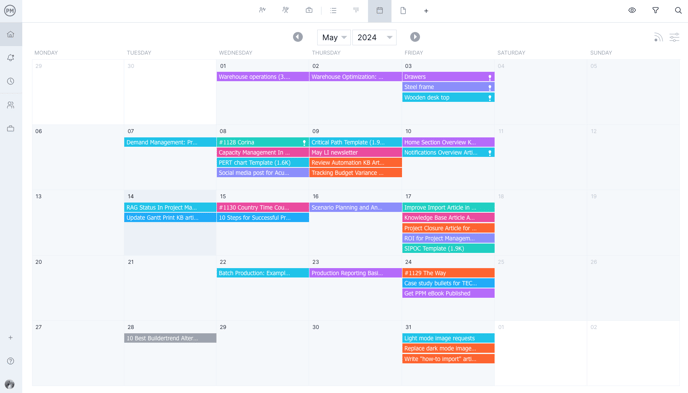
If you prefer to use a calendar to keep track of your tasks, you can do so using the home view calendar. It outlines your tasks across projects. Click on each task for additional information or to navigate to the project. With the two upper-righthand icons, you can add filters or copy the calendar link to view it in Outlook, Google Calendar or iCal. Read more about project calendars.
Files
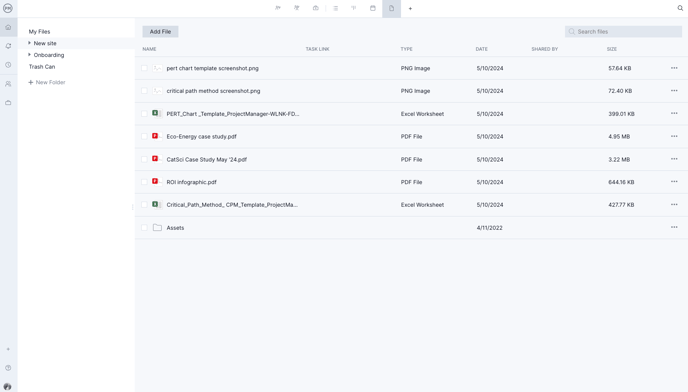
It's easy to keep track of the files you've uploaded or deleted in your files section. Use the search bar to find specific files. Read more about project files.
Please email support@projectmanager.com if you have any questions!