
Some team management features are only available on certain editions, learn more.
Watch our video below for more information on how to invite your team to the software and edit their availability.
How to Set Working Hours
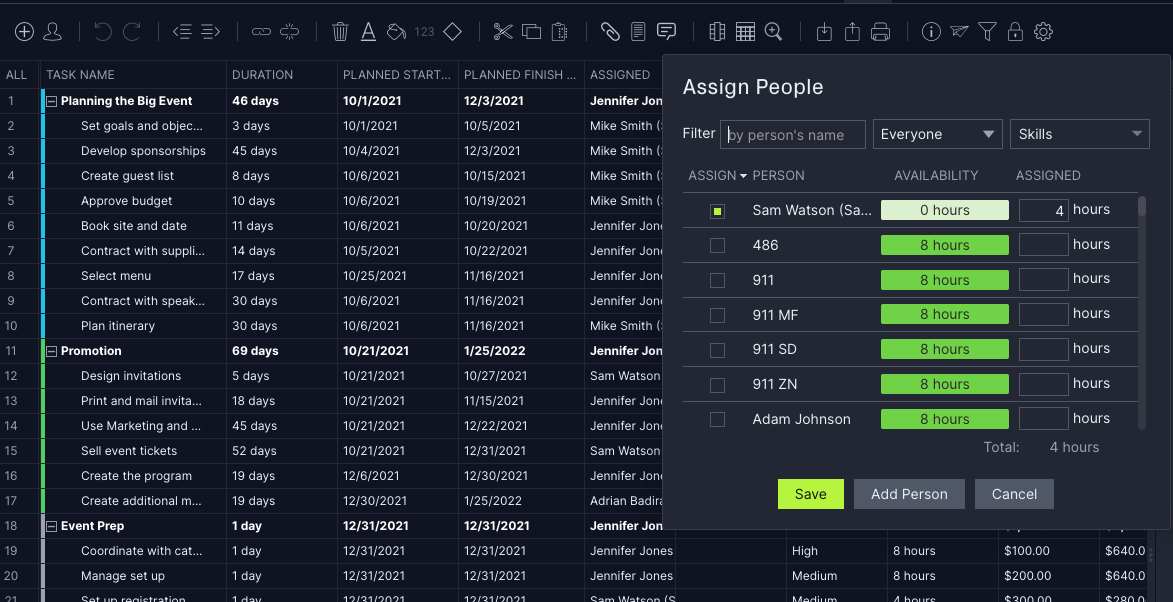
If you want to update your team’s availability, you need to first adjust their working hours and holidays using the holidays tab. Once you have set your team availability, you'll be able to see if a team member can take on a new task when assigning on the Gantt.
To set the availability, first, navigate to the main settings menu by clicking on your profile icon in the bottom left-hand corner of your screen. Then, click on "holidays" where you'll see the below pop-up.
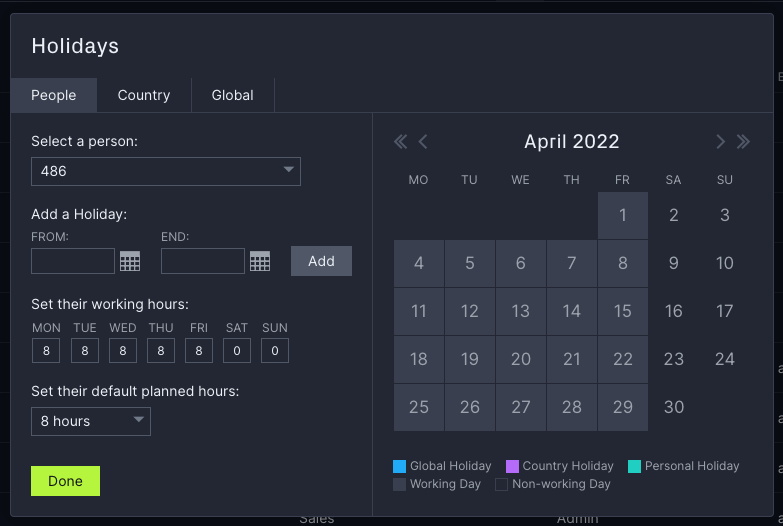
To set your team’s availability, go to the "people" tab as showcased above. Then, select a person from your team and update their holidays, working hours and default planned hours.
Terms to Define Your Team's Availability
It’s helpful to know how these terms are defined:
Holidays
The days that a user will be out of the office. If holidays are set, you will see reduced availability when you assign hours in the Gantt.
Working Hours
The number of hours that can be assigned per day. If a user is assigned more hours than the set number, they will be over-allocated on the workload tab.
Default Planned Hours
Typically speaking, this is the number of hours that a user normally works in a day and is used to divide the number of hours evenly across the duration. For example, a 40-hour task with a 5-day duration would take 8 hours a day with default planned hours of 8 hours.
Tip! The "people" tab will overwrite any hours set under the global tab.
Once you have the holidays set for your team, you will see availability populate on the Gantt as you assign tasks to your team.
Setting Global Working & Planned Hours
If your team typically works the same amount of hours, you can opt to set global working and planned hours instead of setting resources for each person.
If only a few people on your team work custom hours, you can set those hours under people and use the global tab for everyone else on your team.
As always, email us at support@projectmanager.com with any questions that you have.