
The kanban board is available on all editions
Since the board is a visual planning method, you'll always be able to see how work is progressing through each stage and uncover possible bottlenecks.
On the Gantt, tasks are often created in date order. On the Board, you want to think about how work moves from status to status. You can sort tasks by dragging and dropping them, or you can order board columns automatically based on due date, progress, resource or WBS structure.
It's worth noting that we refer to a Board column as Status and this is reflected in the custom workflow popup.
Define Your Workflow
Here are a few examples of board statuses for different types of projects:
- IT Operations: Plan, ready to start, in progress, on hold, completed, abandoned
- Product Development: Ready to start, development, testing, sign off, done
- Digital Marketing Team: To do, in progress, needs approval, published
- Sales: Qualification, presentation, evaluation, negotiation, complete
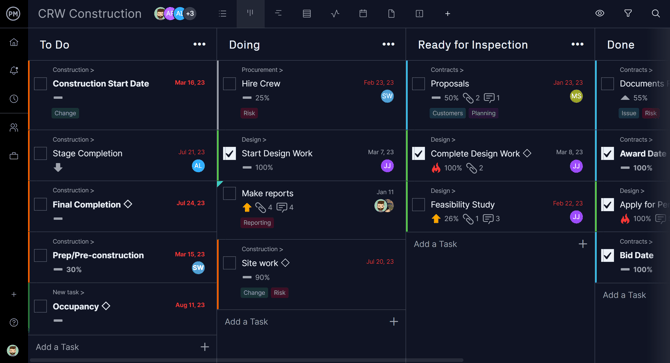
In addition, you can also use the default configuration of to do, doing and done to manage your projects from beginning to end.
Once you've defined your workflow, you can enter data on the task cards so your project runs as efficiently as possible.
Invite Your Team
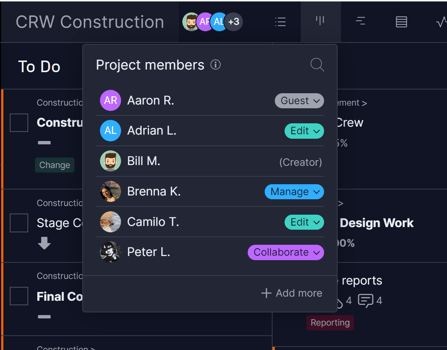
Unless you are the only person working on tasks, and no one else on your team needs visibility into your work, you’ll need to invite your team to view and edit the project.
Click the person icon to the right of the project name to give a team member access to your project and decide their access level.
Assign Tasks
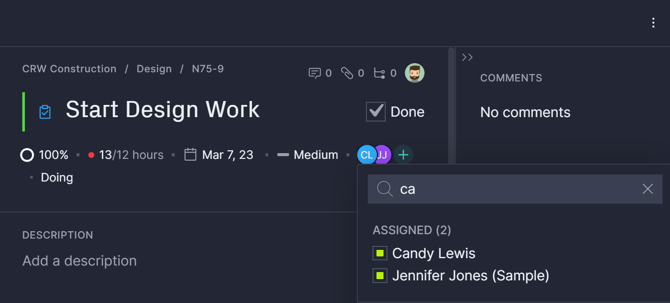
It’s important to assign tasks to team members on the board so that work moves smoothly from one stage to the next. If a task involves multiple steps with different team members or departments, you can assign everyone to the task initially so everyone knows work needs to be done.
Team members can use @ mentions to communicate progress amongst the team so that work passes easily from one person to another.
Set Priority Level and Due Dates
Priority levels and due dates are displayed on the task card so everyone knows the task's due date and urgency. Critical and high priority levels are indicated by color, so it’s easy to see higher priority tasks versus lower priority tasks.
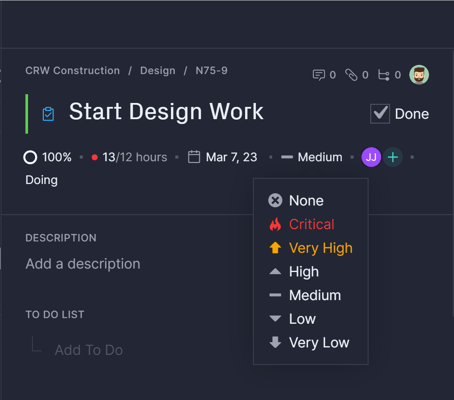
Once dates and priority levels are set, you can use the filters to see the types of tasks.
Create More Statuses as Needed
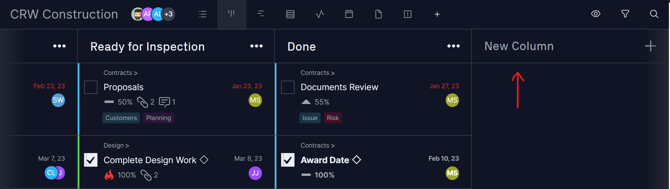
You may find that you need to add more statuses as your project progresses, or that your original columns weren’t specific enough. Go to the far right of your board and click "New Column" and type in the name of your new status.
For example, you can also add a “stuck” or “bottleneck” column to see blocked tasks.
Board Sorting
You can order your board columns automatically, in addition to the traditional drag-and-drop sorting. Sorting options are:
- Drag & drop → Our default freeform ordering.
- Due date → Tasks due soon are brought to the top so you can focus on deadlines.
- Progress → Focus on in-progress tasks and get them over the line.
- Resource → See who's overloaded or which tasks are under-resourced.
- WBS → Matches the Gantt structure.
Click the Filter & Sort button at the top right of any project board and click the Sort column, where you can change the sort order:

Board Progress
See how your project is tracking with Board Progress indicators. Each column shows task counts, total hours, and a visual progress bar that updates live as work moves forward, making it easy to spot which stages are on track and which need attention.
 Each column header now shows:
- Task count → The total number of tasks in the column.
- Hours summary → If your team uses Planned Effort or Actual Effort, you’ll see these totals beside the column name (for example, 12 / 16 hrs). If actuals exceed planned, the actual value turns orange to flag an overrun.
- Progress bar → A visual indicator showing the average % complete of all tasks in the column. Hover over it to see the exact percentage.
This gives teams a quick, visual way to understand progress without needing to open each task — especially useful for managers monitoring multiple columns or stages.
Use Custom Workflows and Automation
Business and Enterprise customers can also use the board to set up custom workflows and automation to cut back on manual, tedious processes.
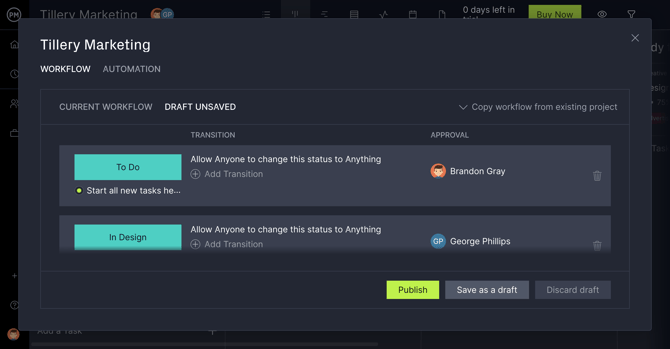
Make sure to visit the custom workflows and automation pages to see more in-depth information about how to use these features on the Board view!