
Custom roles are only available on Enterprise plans, learn more.
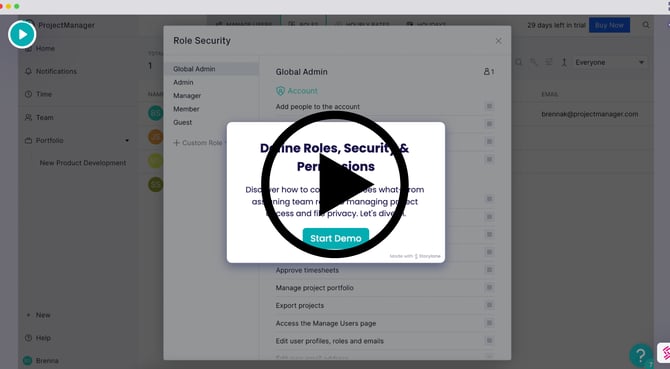
To get started, watch our brief video below on the types of roles that we offer.
You can also click below for step-by-step instructions.
Use Cases
Custom roles are useful for many different types of teams. You may have multiple departments working in the software, clients working alongside you, or certain users who need restricted access. You may not want a client to see hourly rates, costs, and budgets throughout the software. All of these settings can be adjusted within a custom role.
Why Can't I See Custom Roles?
Custom roles are available by default on the Enterprise edition. If you’re not on the Enterprise edition and want to enable custom roles, contact our sales team for information on how you can add them to your plan.
How to Add Custom Roles
To set up custom roles, click your name at the bottom left of any screen, then Users & Teams, then Roles.
If custom roles are enabled, you'll see a plus button on the left-hand side. Give your new custom role a name and select the areas that you would like the user to have access to. Learn more about role settings.
Once the custom role is created, you can assign an existing user to the custom role on the users & teams page.
If you're inviting a new user, you'll be able to see the custom role in the role dropdown menu. If you delete an existing custom role, all users with that role will be given member-level permissions.
Contact support@projectmanager.com with any questions you have on custom roles!