
Some users create individual non-project tasks when managing work. While these tasks can live outside of an assigned project indefinitely, sometimes users want to add them to a particular project. In other cases, users may need to move tasks between projects.
Keep in mind that users cannot turn project tasks into non-project tasks.
Permissions
- Admins, project owners, project managers and task creators can add tasks that aren't part of a project into a project or move a task between projects
- Users can only add tasks to projects to which they have access
- Users cannot turn project tasks into non-project tasks
How to Move Tasks Between Projects
Open up the task card of the task that you'd like to move. In the upper corner, you'll see ellipses where you can click "move to project."
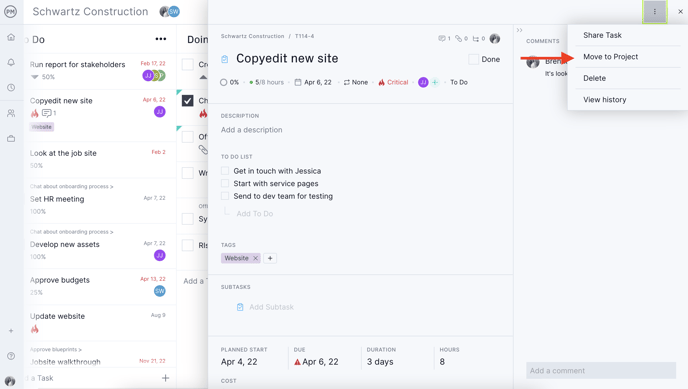
From there, you'll see a list of all of the projects to which you have access. Simply click on the project you'd like to move the task to.

Note: Adding a task that has an assignee then grants that assignee(s) access to that project.
How to Move Non-Project Tasks
If you have an individual task unassigned to a project, the process of moving them into the project is the same. You can access your unassigned by clicking on the "home" icon on the top navigation menu. Then, click on the list view to see a summary of your tasks. Any tasks with an unassigned project will appear here.
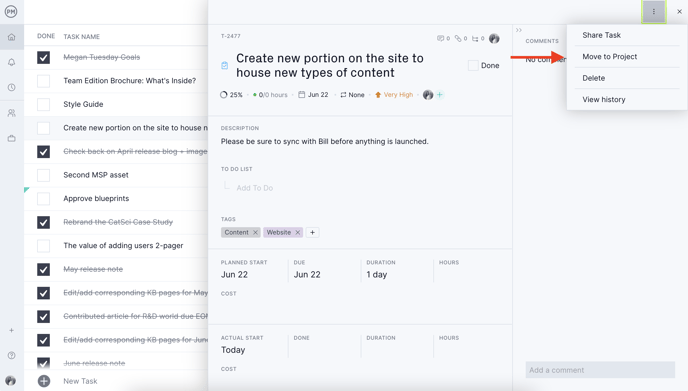
Non-project tasks added to a project should retain all entered data. If a start date hasn't been added, it should be set to the date the task is added to a project.
Moving Recurring Tasks
If a recurring task is moved to a new project, only that task is moved. It becomes an exception in the current project and the remainder of the task series remains unchanged. You'll see a popup appear for clarity.

Please email support@projectmanager.com if you have questions about moving tasks.