---
title: How to View a Timesheet
description: Ditch your third-party time tracking tools and log hours directly in our software.
---
[Skip to content](https://learn.projectmanager.com/how-to-view-a-timesheet#main-content)
English
Show submenu for translations
[Ask a Question](https://learn.projectmanager.com/kb-tickets/new)

- [ProjectManager Knowledge Base](https://learn.projectmanager.com/)
Open main navigation
Close main navigation
- [ProjectManager Knowledge Base](https://learn.projectmanager.com/)
- English
Show submenu for translations
- [Ask a Question](https://learn.projectmanager.com/kb-tickets/new)
How can we help you today?
- There are no suggestions because the search field is empty.
1. [ProjectManager Knowledge Base](https://learn.projectmanager.com/)
2. [Resource management](https://learn.projectmanager.com/resource-management)
3. [Time Management](https://learn.projectmanager.com/resource-management#time-management)
# How to View a Timesheet
## Ditch your third-party time tracking tools and log hours directly in our software.
*Timesheets are only available on Business and above, [learn more](http://app.projectmanager.com/go/pricing).*
### How to View Timesheets
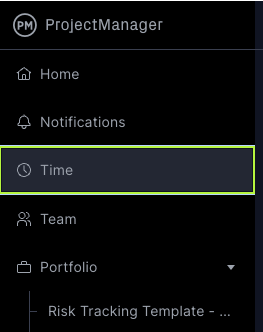
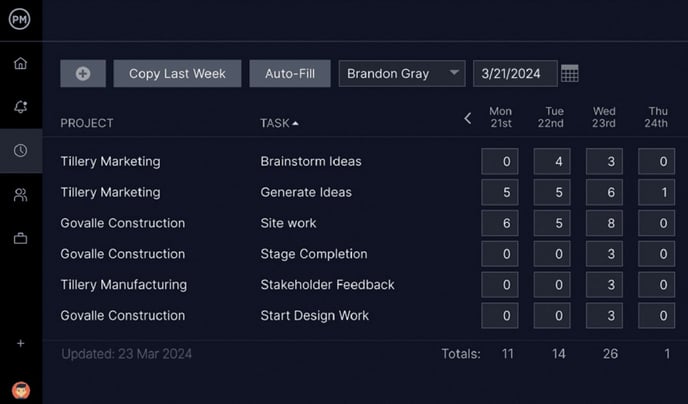
You can view current and past timesheets by navigating to the time tab on your main navigation menu. The time page allows you to view and log hours for yourself and other team members.
To view a timesheet, click on the time section.
The page will automatically default to this week’s timesheet. You can easily view another person’s timesheet or another date range by clicking the dropdown menus next to your name and date.
If portfolio features are a part of your plan, you can also pull a [timesheet report](https://learn.projectmanager.com/how-to-pull-a-timesheet-report). The timesheet report allows you to segment and customizes your data, whereas the Time page represents hours logged for a particular week.
***Tip!** You will only be able to see other users’ timesheets if you are given access to Security.*
To navigate to another weekly timesheet, select the week and the user you would like to see the timesheet for. Once selected, the submitted time will appear.
If you have a timesheet approver in place and the timesheet has been approved for the given week, you can’t add new time to the sheet. If you don’t have a timesheet approver in place, you can add new time to a past timesheet and click "save."
### [Timesheet Reports](https://learn.projectmanager.com/how-to-pull-a-timesheet-report)
If portfolio features are a part of your plan, you can view a timesheet under reports. To access reports, click on portfolio on the left menu and select the reports icon at the top.
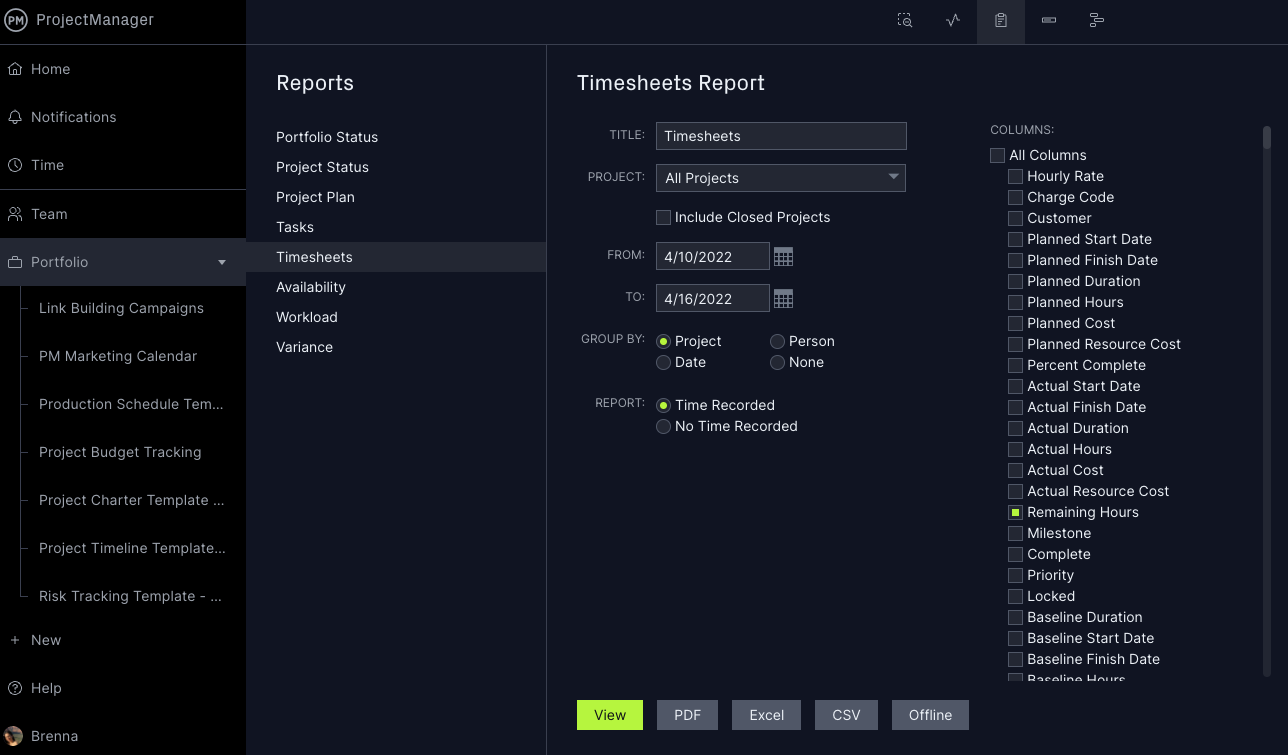
This is helpful if you want to see additional information such as approval status, approved by, last updated, tags and more. You can also choose to group by project, person or date.
For example, you may want to see the timesheet for a specific project for a certain team. If you want to see more specific information, it may be easier to pull a timesheet report than to view timesheets individually.
### Email Support with Questions
If you still need guidance on how to view timesheets, please email us at support@projectmanager.com.
- [Training walkthroughs](https://learn.projectmanager.com/training-walkthroughs#main-content)
- [Setting Up Your Account](https://learn.projectmanager.com/training-walkthroughs#setting-up-your-account)
- [Resource Management](https://learn.projectmanager.com/training-walkthroughs#resource-management)
- [Team Management](https://learn.projectmanager.com/training-walkthroughs#team-management)
- [Gantt Chart](https://learn.projectmanager.com/training-walkthroughs#gantt-chart)
- [Dashboards](https://learn.projectmanager.com/training-walkthroughs#dashboards)
- [Portfolio Management](https://learn.projectmanager.com/training-walkthroughs#portfolio-management)
- [Integrations](https://learn.projectmanager.com/training-walkthroughs#integrations)
- [Getting started](https://learn.projectmanager.com/getting-started#main-content)
- [Software Basics](https://learn.projectmanager.com/getting-started#software-basics)
- [Account Basics](https://learn.projectmanager.com/getting-started#account-basics)
- [Making Your First Project](https://learn.projectmanager.com/getting-started#making-your-first-project)
- [Preferences & Notifications](https://learn.projectmanager.com/getting-started#preferences-notifications)
- [Managing projects](https://learn.projectmanager.com/managing-projects#main-content)
- [Project Management](https://learn.projectmanager.com/managing-projects#project-management)
- [Project Settings](https://learn.projectmanager.com/managing-projects#project-settings)
- [Templates, Imports & Exports](https://learn.projectmanager.com/managing-projects#templates-imports-exports)
- [Project views](https://learn.projectmanager.com/project-views#main-content)
- [Our Project Views](https://learn.projectmanager.com/project-views#our-project-views)
- [List, Board & Calendar Views](https://learn.projectmanager.com/project-views#list-board-calendar-views)
- [Gantt View](https://learn.projectmanager.com/project-views#gantt-view)
- [Sheet View](https://learn.projectmanager.com/project-views#sheet-view)
- [Risk View](https://learn.projectmanager.com/project-views#risk-view)
- [Tasks & teams](https://learn.projectmanager.com/tasks-teams#main-content)
- [Task Management Basics](https://learn.projectmanager.com/tasks-teams#task-management-basics)
- [Advanced Task Management](https://learn.projectmanager.com/tasks-teams#advanced-task-management)
- [Team Organization](https://learn.projectmanager.com/tasks-teams#team-organization)
- [Team Management](https://learn.projectmanager.com/tasks-teams#team-management)
- [Resource management](https://learn.projectmanager.com/resource-management#main-content)
- [Resource Availability](https://learn.projectmanager.com/resource-management#resource-availability)
- [Time Management](https://learn.projectmanager.com/resource-management#time-management)
- [Dashboards, reports & PPM](https://learn.projectmanager.com/dashboards-reports-ppm#main-content)
- [Dashboards](https://learn.projectmanager.com/dashboards-reports-ppm#dashboards)
- [Project Portfolio Management](https://learn.projectmanager.com/dashboards-reports-ppm#project-portfolio-management)
- [Reports](https://learn.projectmanager.com/dashboards-reports-ppm#reports)
- [Account, security & users](https://learn.projectmanager.com/account-security-users#main-content)
- [Account and Project Security](https://learn.projectmanager.com/account-security-users#account-and-project-security)
- [User Management](https://learn.projectmanager.com/account-security-users#user-management)
- [Account Management](https://learn.projectmanager.com/account-security-users#account-management)
- [Integrations](https://learn.projectmanager.com/integrations#main-content)
- [ERP / Accounting](https://learn.projectmanager.com/integrations#erp-accounting)
- [Collaboration](https://learn.projectmanager.com/integrations#collaboration)
- [Development](https://learn.projectmanager.com/integrations#development)
- [Analytics](https://learn.projectmanager.com/integrations#analytics)
- [API](https://learn.projectmanager.com/integrations#api)
- [Customer resources](https://learn.projectmanager.com/customer-resources#main-content)
- [Training Academy](https://learn.projectmanager.com/customer-resources#training-academy)
- [Listen & Learn Videos](https://learn.projectmanager.com/customer-resources#listen-learn-videos)
- [By industry](https://learn.projectmanager.com/by-industry#main-content)
- [Construction](https://learn.projectmanager.com/by-industry#construction)
- [Manufacturing](https://learn.projectmanager.com/by-industry#manufacturing)
- [Professional Services](https://learn.projectmanager.com/by-industry#professional-services)
- [Latest releases](https://learn.projectmanager.com/latest-releases#main-content)
- [Phased Releases](https://learn.projectmanager.com/latest-releases#phased-releases)
- [2026 Releases](https://learn.projectmanager.com/latest-releases#2026-releases)
- [2025 Releases](https://learn.projectmanager.com/latest-releases#2025-releases)
- [2024 Releases](https://learn.projectmanager.com/latest-releases#2024-releases)
- [2023 Releases](https://learn.projectmanager.com/latest-releases#2023-releases)
- [2022 Releases](https://learn.projectmanager.com/latest-releases#2022-releases)
- [Mobile app](https://learn.projectmanager.com/mobile-app)
[](https://www.projectmanager.com)
Get organized. Do amazing things.
[mailto:support@projectmanager.com](mailto:support@projectmanager.com)
[Login](https://software.projectmanager.com/login) | [Ask a Question](https://learn.projectmanager.com/kb-tickets/new) | [Tutorial Videos](https://www.projectmanager.com/product-videos)
```json
{
"@context" : "https://schema.org",
"@type" : "VideoObject",
"caption" : {
"@type" : "MediaObject",
"contentUrl" : "https://learn.projectmanager.com/media-transcripts/71644823065/en.vtt",
"inLanguage" : "en",
"name" : "en Captions"
},
"contentUrl" : "https://6111124.fs1.hubspotusercontent-na1.net/hubfs/6111124/Redesign%202022/Videos/(outdated%20task%20card)%20Time%20Tracking%20-%20New-1.mp4",
"dateModified" : "2026-06-03T19:40:08.001Z",
"duration" : "PT2M56S",
"height" : 2160,
"name" : "(outdated task card) Time Tracking - New-1",
"thumbnailUrl" : "https://6111124.fs1.hubspotusercontent-na1.net/hubfs/6111124/Redesign%202022/Videos/(outdated%20task%20card)%20Time%20Tracking%20-%20New-1.mp4/medium.jpg",
"uploadDate" : "2022-04-21T19:40:30.876Z",
"width" : 3840
}
```