
New Global Search Bar
Users can now take advantage of our powerful global search capabilities across the software. Customers can quickly and efficiently search for tasks or projects they’ve recently worked on or quickly find items in the software.
This is an elastic search bar, meaning that search results will appear in real time as users type. While users will see a limited set of search results initially but they can opt to “show more” for each defined category. You’ll notice that the global search menu will default to your recent searches, making it easy and fast to locate relevant data. You’ll also be able to see recently viewed tasks, recent collaborators and recent projects.
Users can search by:
- Task, task ID, project, description, files and people
- All results, tasks, project files and people and can also filter by various values within tasks
- Pressing TAB in the search input field and using arrow keys to move up and down in the filter dropdown or in the result panel
- Pressing ENTER to make a selection from the dropdown or search panel will automatically open the task
If a user is in the global search bar, they can press the Esc key which closes the global search mode. If no search results are found, you’ll see the below screen appear which gives you an opportunity to clear the filters.
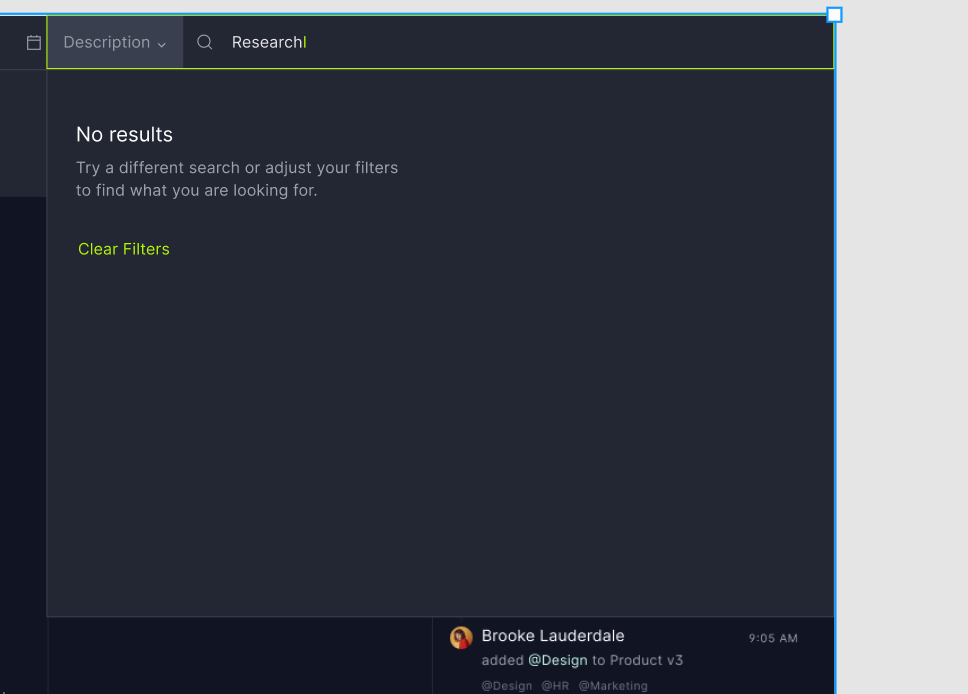
Global Search Filters
Users can also take advantage of the filter dropdown on the search bar to further refine the results for a targeted search. Available filters include:
- All (default)
- Tasks
- Projects
- Files
- People
Improvements to the Project View Customizer
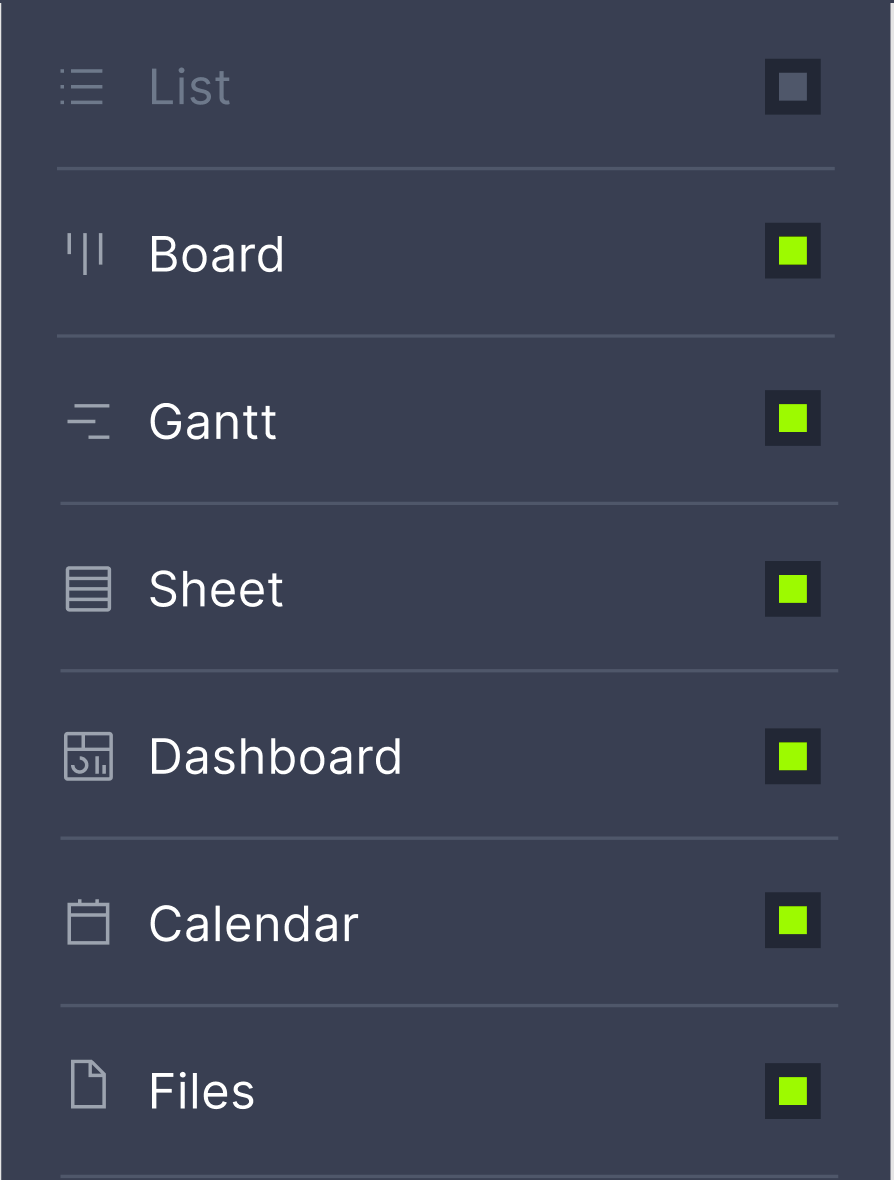
In our previous release, we introduced new customized project views for our users. This release prevents customers from deselecting all views which can interfere with usability. Now, users are required to see the List view at a minimum. In the case that you click on a link that takes you to a project view that you have turned off, we’ll automatically turn on that view to show you the corresponding link or view.
Move Task & Copy/Paste Improvements
We know how important it is to preserve your project data and ensure it aligns with your user intent. Now, when you cut/paste (move the task), it retains all actuals. Using copy/paste commands in our software doesn’t copy actuals. When you need to move tasks, no data is lost.
If you have any questions about our May 2022 release, don’t hesitate to reach out to us at support@projectmanager.com.