
Editions notated next to each section
The portfolio section of our main menu allows you to manage your complete project portfolio. It has a dedicated section for overall project health, a dashboard to display data across your projects, reports to send key data and workload and roadmap features.
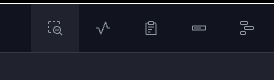
Here's what the top menu looks like once you click "portfolio." We've broken down each portfolio view below.
Portfolio Projects [Available on all editions]
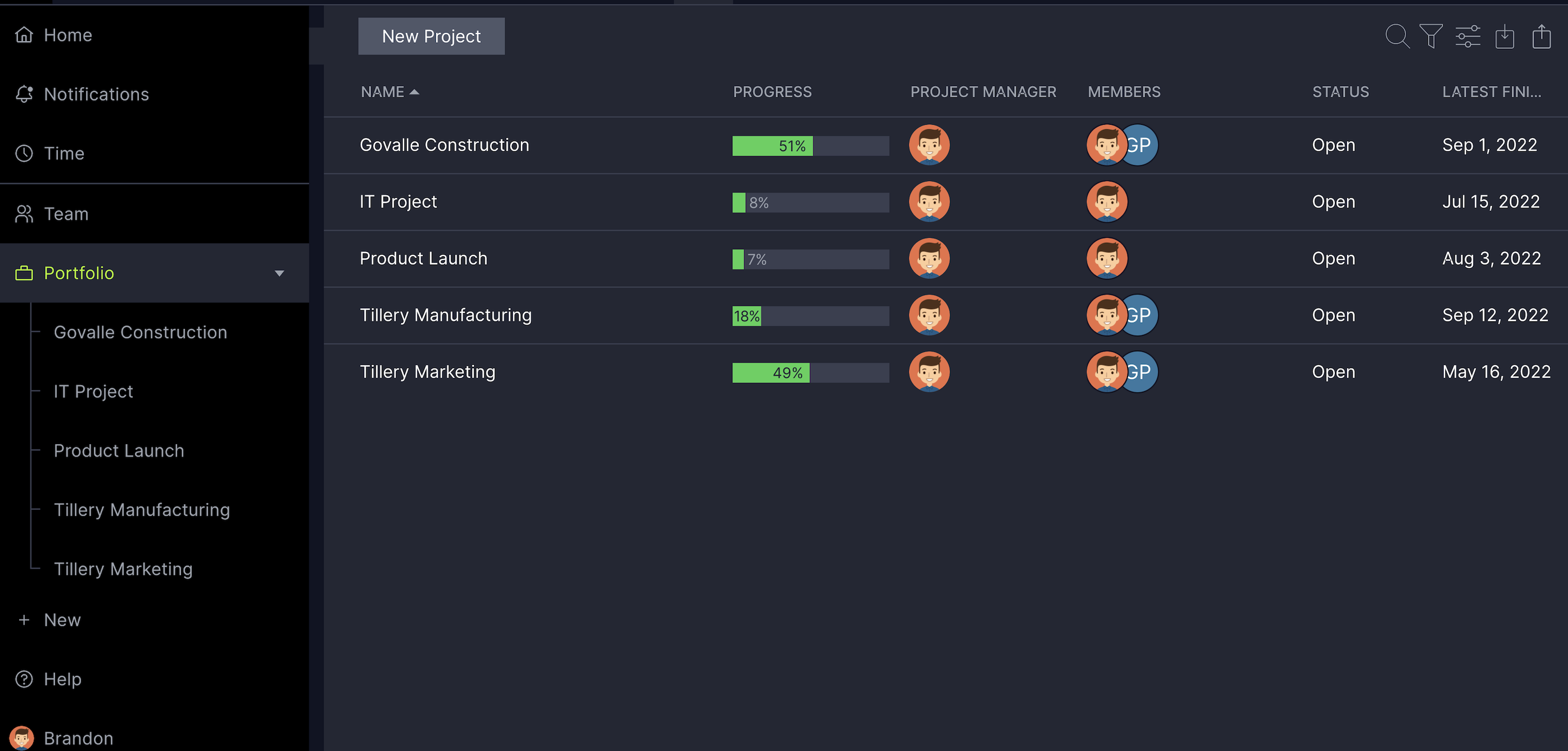
The portfolio projects view is a compilation of your projects. Use the folders on the left-hand side to filter through different categories. Click on each project name to be taken to the project, and you can hover over the progress bar to learn more about the data. Use the filter tools on the upper right-hand portion of the page to adjust the columns. Learn more about portfolio projects on our corresponding page.
Portfolio Dashboard [Available on Business & Enterprise editions]
The portfolio dashboard gives you a high-level view of all of your projects and is available for our Business and Enterprise customers. The portfolio dashboard shows six charts related to your project: health, time, cost, workload, tasks and progress.
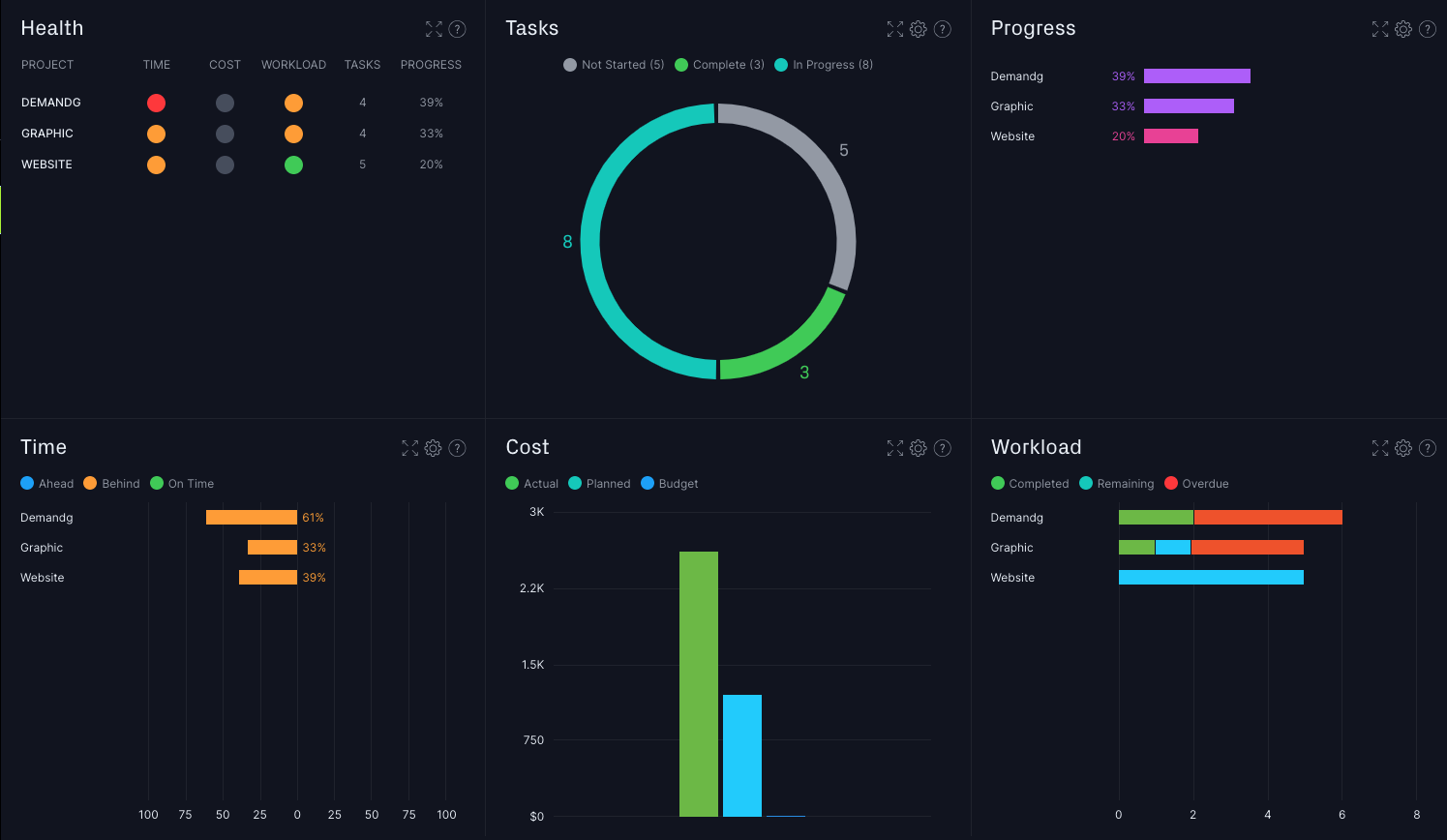
The health, workload, and progress charts will display the short name of the project, which can be changed in the project settings. If you hover over the project with your mouse, you will see its full name. Check out our corresponding portfolio dashboard page for in-depth information!
Reports
Available on certain editions only, learn more
We offer eight different customizable reports: portfolio status, project status, project plan, tasks, timesheets, availability, workload and variance. These reports allow you to easily collect and analyze specific data from your projects and portfolios.
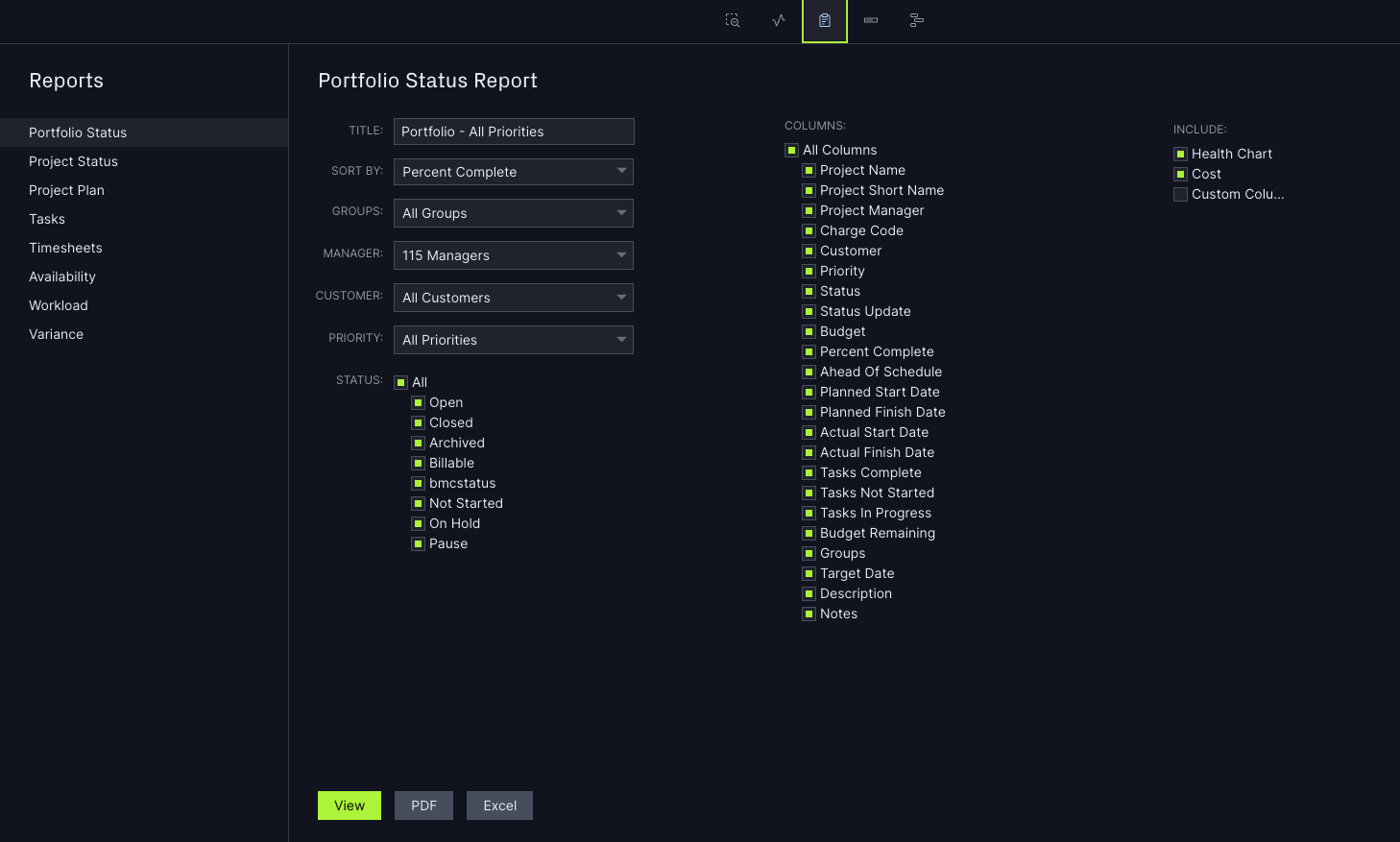
After you run a report, you can view the report in your browser. You can also print the report or download it to Excel or PDF. You can find a summary of each report with additional information on our reports Knowledge Base article.
Workload [Available on Business & Enterprise editions]
The workload page shows you a list of all the users in your account and whether they are over-allocated, under-allocated, on vacation or assigned to a task.
On the left, you can see all of the people on your team. If you click on a person, you will see the specific projects and tasks they are assigned to. On the right, you can tell if there are people under or over-allocated by the colors displayed on the chart.
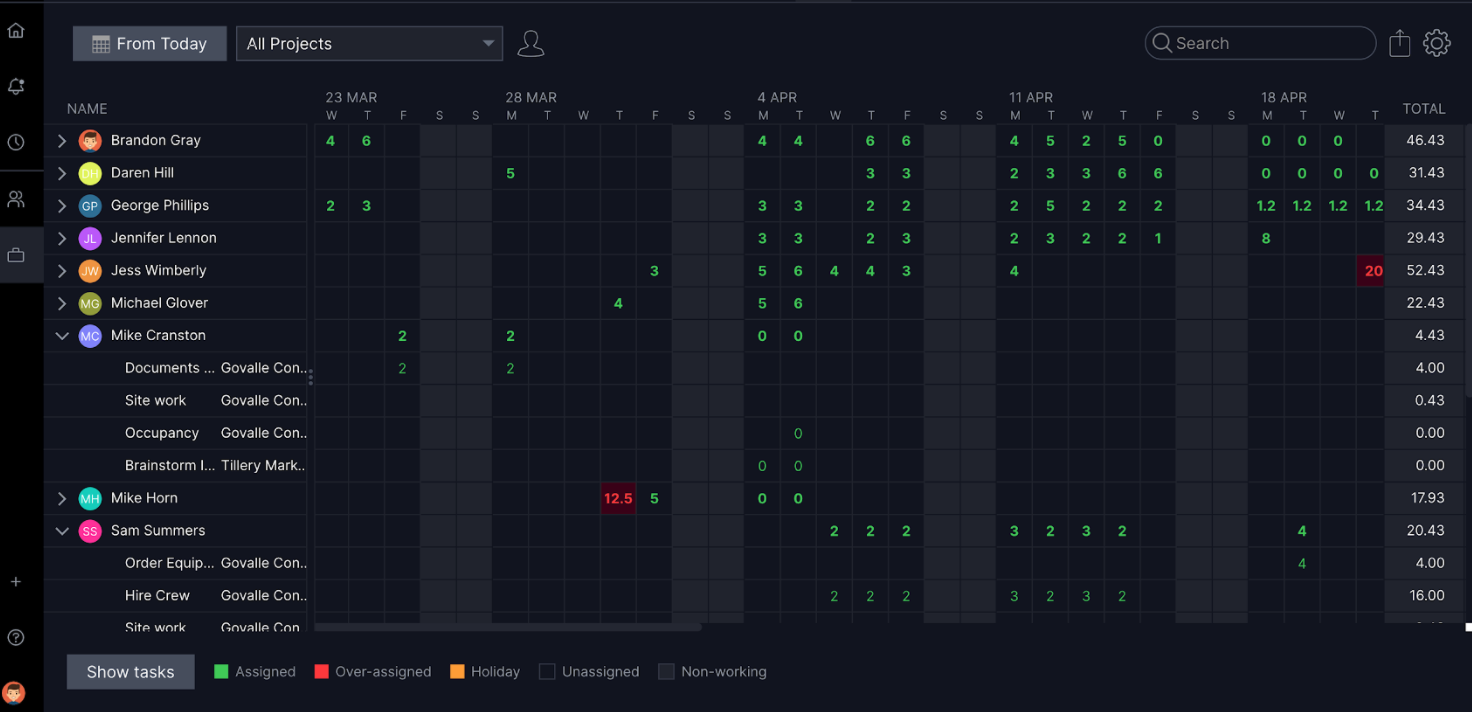
If you're not seeing any data, it means you haven’t assigned users to tasks. If you have assigned users to tasks, you will see the green and red boxes appear with the number of hours the user is assigned.
You can easily move hours to another person or edit the number of planned hours directly in this view. If you click the box that displays the total amount of hours over a given day, a popup will appear so you can allocate the hours to another team member. If you have the user’s tasks expanded, click on the box to manually change the number of hours.
Roadmap [Available on Business & Enterprise editions]
The roadmap view shows you all of the projects that you have access to within your account on a Gantt chart view. The roadmap view is helpful because it shows a visual timeline of your projects, allowing you to see when your projects are scheduled to start and end across your portfolio.
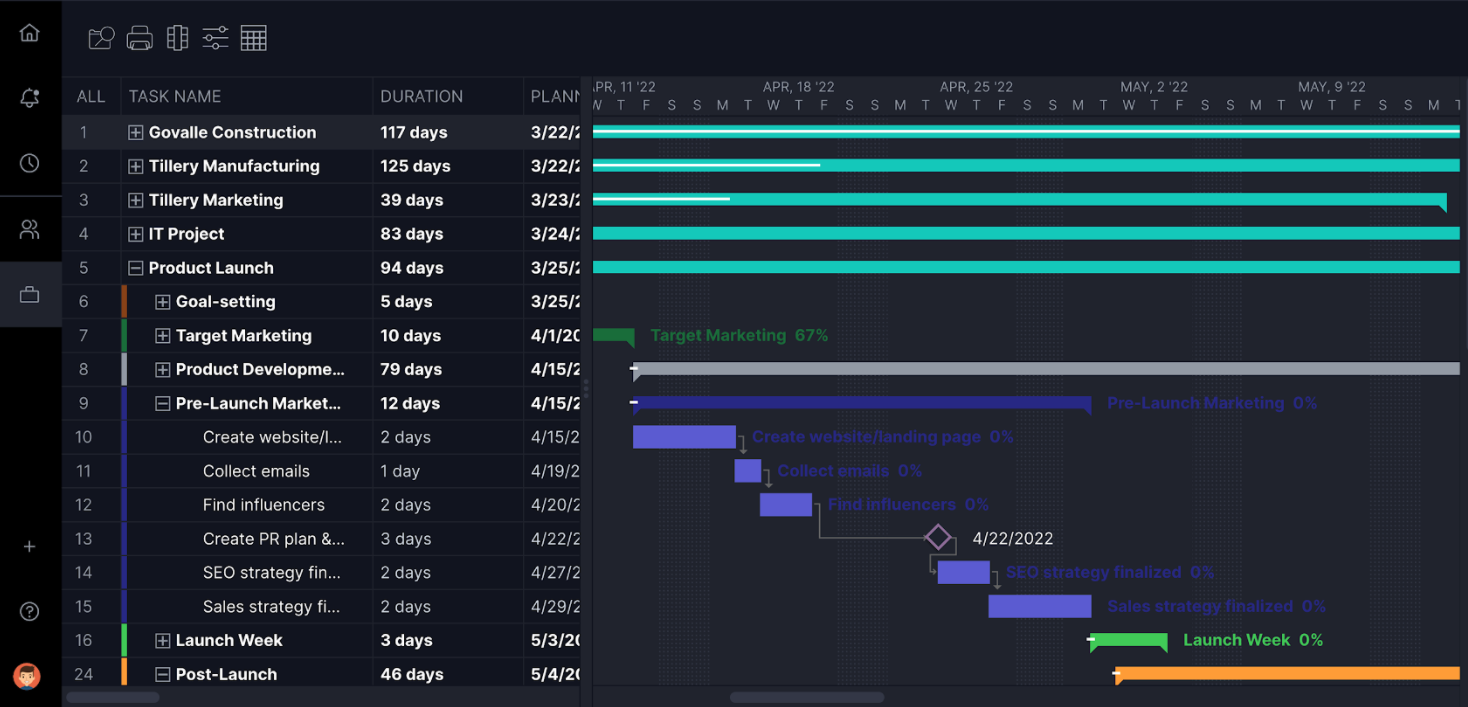
You can customize the roadmap view by filtering, selecting a custom date range or selecting additional columns to see in this view. For example, you may want to see all open projects assigned to a certain project manager on a timeline view. You can print the roadmap view or save it to a PDF on your computer as you can with the project-level Gantt chart.
Tip! If you have custom columns added on the project level, you won’t see them in this view.
If you have any questions about our portfolio views, please email us at support@projectmanager.com.