
Custom templates are only on Business and above, learn more
The ways to set up a project are nearly limitless. If you don't see a featured template that applies to your needs, you can create your own custom templates and save them to your account using an existing project.
In terms of who can access your custom templates, you and anyone else you've added to the account will be able to create a new project from the template. To create a new project with your new template, simply click the "+ New" text in the bottom left and click "project."
Follow the below steps for more information.
1. Open the Project Menu & Click "Save as Template"
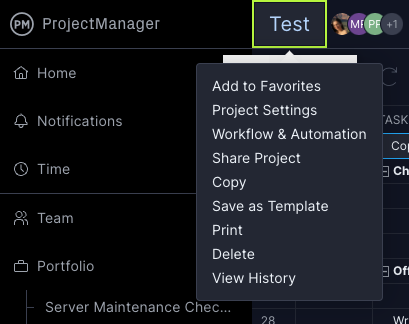
Saving a new custom template is easy! To start, navigate to the project that you want to use as your new template. No matter the view you're using, you'll see the project name at the top of the screen. Click the project name to see a drop-down menu appear where you'll select "save as template."
2. Customize the details you want to save as part of the Template
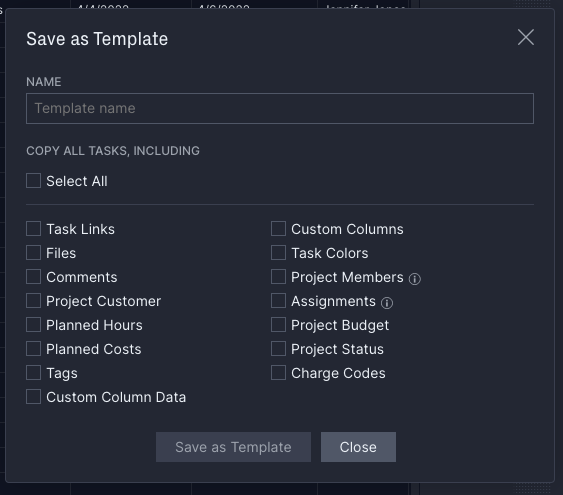
Once you click "save as template," you'll see a pop-up box appear. Here, you can determine the specifics of the project including the name as well as the specific fields that you want to copy. You can copy all in one click or you can customize your template.
The Template already includes the Task Name and the Task Description by default, but you can customize many additional Task-specific options, including:
- Assignments
- Comments
- Files
- Dependencies & Links
- Planned Hours and Costs
- Custom Columns and/or Custom Column Data
- Tags
- Task Colors
And you can also copy over Project-specific data into the template, including:
- Project Members
- Project Customer/Client
- Budget
- Charge Codes
- Project Status
Once you've determined the specifics you want to copy, click "save as template." You'll get a confirmation that your template has been saved. You can close this pop-up before starting your new project.
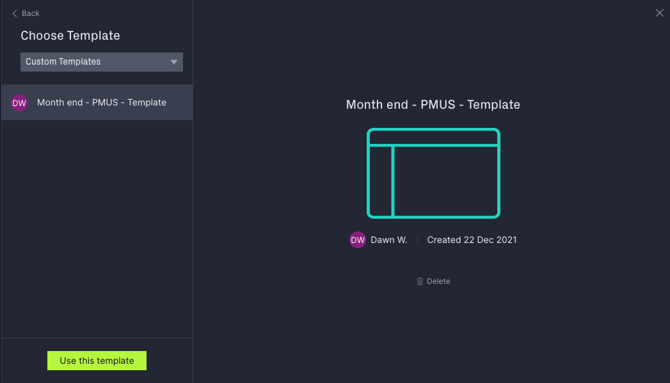
Once it's saved, you can find it in the "Custom Templates" section of the Create Project popup. You can see who created the template and what date it was created.
Tip: Custom templates are only available on Business and above.
Need access? Upgrade your plan today.
3. Create a New Project from your new Custom Template
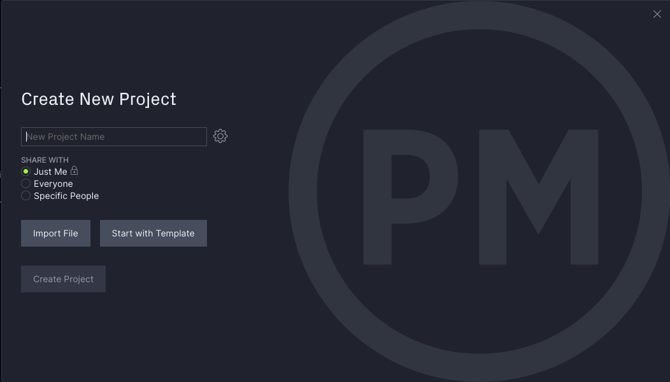
When you want to create a new project from any template, you simply click "start with template" on the Create New Project popup:
The view lands on the list of Default Templates you can use to create projects. Click the top left option dropdown and toggle to "Custom Templates" to find the template that you previously saved.
4. Click "Use This Template"
Once you've chosen the correct template, simply click "use this template" to start your next project. It's that easy!
How to Delete a Custom Template
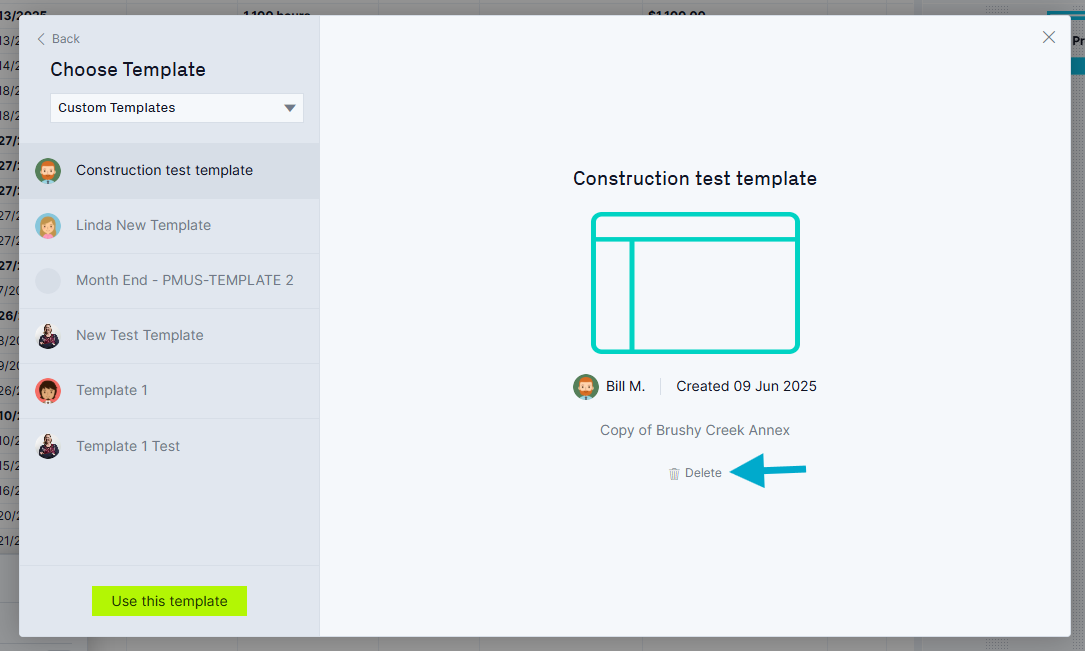
To delete a custom template, try and create a new project via a template. Choose "custom templates" in the drop down. Highlight the custom template you wish to delete, and then there should be a delete button beneath the illustrative graphic.
FAQ
Q: Is there a limit to how many custom templates I can make?
A: No! Those with Business and Enterprise plans can create as many custom templates as they'd like. They give an elevated level of customization and usability that pre-built templates do not.
Q: Is saving a project as a template the same thing as copying a project?
A: No, saving a template and copying a project are two different action items in our software. When you copy a project, you are replicating it without saving it as a future template that will appear in the drop-down menu.
Q: Who can access the custom templates that I make?
A: Any user in the account can access the custom template. However, only users with permissions to "create and edit important project information" will be able to save new custom templates.
For more information on templates, go to our templates overview page. You can also email support@projectmanager.com with any questions.