
Use formatting options on the Gantt and sheet to customize color, font and certain numerical options.
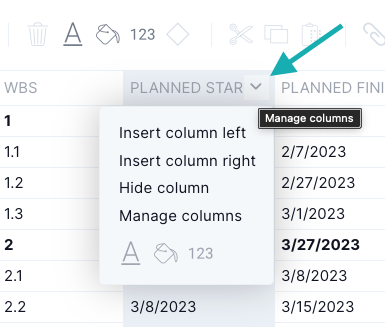
- Insert column left, insert column right, hide column or manage columns
- Adjust the text format, color or number format (including currency)
Formatting is applied on a project level, so all users will see any formatting changes. Collaborators can’t change task data, but they can apply color, text and numerical formatting changes. Any formatting changes made on the Gantt apply to the sheet and vice versa.
How to Format the Gantt and Sheet
Three icons on the Gantt ribbon (“A,” paint and 123) allow you to format color, text and certain numbers. You can also access these icons by clicking the down arrow on any column. You can format text, cells or rows using the “A,” paint and 123 icons.
Color Formatting

The paint icon and the “A” icon can apply color to text, cells or rows. The “A” icon allows you to change text color. You can select an entire row, multiple rows or an individual cell. Text colors will only change the text color, not the cell color or Gantt bars.
The paint icon allows you to change cell background colors and Gantt bars. If you customize the Gantt bars, you will see that color represented on the Board, List and Calendar.
Text Formatting

Change the font, font size, style and alignment by clicking the “A” icon. You can select an entire row, multiple rows or an individual cell.
Numerical Formatting

Select the 123 icon for numerical columns that can be formatted. You can format date, percent, decimal and currency columns. The following columns can’t be formatted, and the 123 icon will be greyed out when the column is selected:
-
Info column
-
Task name
-
Assigned
-
Non-numeric field (Includes custom columns: text, checkmark and dropdown)
-
Link from and link to
-
Priority
-
Milestone
-
Tags
-
WBS
Date
To change your date settings, highlight the column and press the 123 icon. For date columns, you can choose from one of the following formatting options:
-
M/D/YYYY
-
MM-DD-YYYY
-
D/MM/YYYY
-
DD-MM-YYYY
Decimal
To change your decimal settings, highlight the column and press the 123 icon. For decimal columns, you can choose from one of the following formatting options:
-
None
-
.0
-
.00
-
.000
-
.0000
Percent
To change the percent settings, highlight the column and press the 123 icon. For percent columns, you can choose to show or hide the % symbol.
Currency
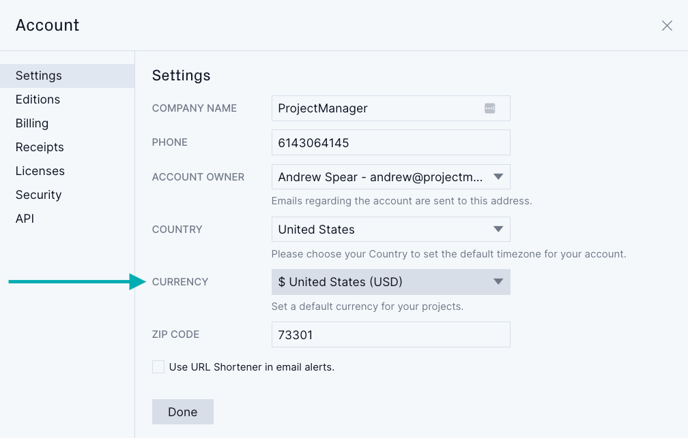
You can change the global account currency if you have access to account settings. If you don’t have access, you won’t be able to see the link.
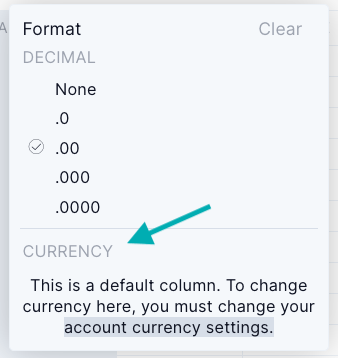
Clicking the link takes you to the account settings popup where you can use the dropdown to select account currency.
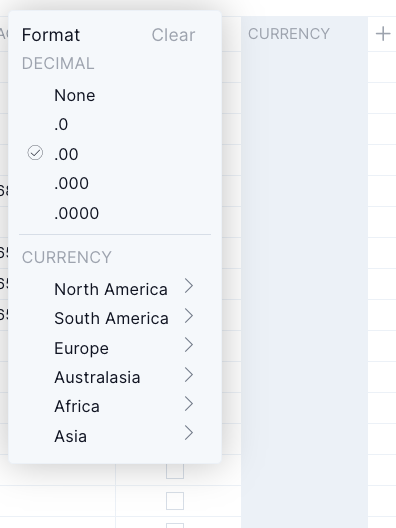
For custom columns, you can select a currency different from your account currency. To do this, create a custom column and select "currency." Highlight the column and click the 123 icon. You can then toggle the country by continent.
Looking for more Gantt chart articles? Visit the Gantt chart category.
Email us at support@projectmanager.com with any questions!