---
title: Gantt Timeline Overview
description: Use the Gantt timeline to keep track of essential project timelines and data.
---
[Skip to content](https://learn.projectmanager.com/gantt-timeline#main-content)
English
Show submenu for translations
[Ask a Question](https://learn.projectmanager.com/kb-tickets/new)

- [ProjectManager Knowledge Base](https://learn.projectmanager.com/)
Open main navigation
Close main navigation
- [ProjectManager Knowledge Base](https://learn.projectmanager.com/)
- English
Show submenu for translations
- [Ask a Question](https://learn.projectmanager.com/kb-tickets/new)
How can we help you today?
- There are no suggestions because the search field is empty.
1. [ProjectManager Knowledge Base](https://learn.projectmanager.com/)
2. [Project views](https://learn.projectmanager.com/project-views)
3. [Gantt View](https://learn.projectmanager.com/project-views#gantt-view)
# Gantt Timeline Overview
## Use the Gantt timeline to keep track of essential project timelines and data.
| [Adjustable Task Information](https://learn.projectmanager.com/gantt-timeline#adjustable_task_information) | [Gantt Bar Settings](https://learn.projectmanager.com/gantt-timeline#bar_settings) |
| --- | --- |
Watch our short video below on how to plan your projects using the Gantt chart.
The [Gantt chart](https://learn.projectmanager.com/the-gantt) is the graph on the right-hand side of the page that shows the duration, sequencing and relation of tasks to one another. Instead of changing task information on the data graph, you can adjust task information by dragging and dropping.
**Tip:** Looking for information on the Gantt data grid? Navigate to this article [here.](https://learn.projectmanager.com/gantt-columns)
### **Adjustable Task Information**
Here's the task information you can adjust on the Gantt chart.
#### **Duration**
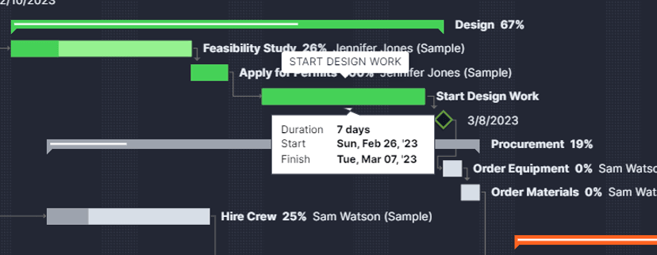
Hover over a taskbar and drag right at the end of a task when an arrow appears to change the planned finish date. A popup will appear as you drag it to tell you the new duration finish dates. (The start date will remain the same.)
#### **Task Dates**
You can keep the duration the same, but move the planned start and finish dates by hovering over the task and dragging it. A popup will appear as you drag to tell you the new start and finish dates.
#### **Progress**
You can change the progress by holding down on a task's current percent complete indicator (the far left of the task if the progress is 0%) and dragging it. Dragging right will increase the percent complete, and dragging left will decrease the percent complete.
#### **Task Links**
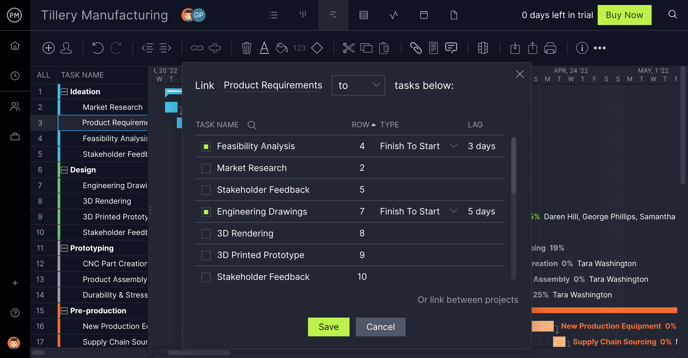
You can easily create a dependency by holding down on a taskbar until a dotted line appears. Simply drag down to create a finish-to-start dependency. You can also create any type of dependency by clicking the link icon on the Gantt ribbon.
#### **Timescale **
You can see how the task and overall project span over months and weeks by looking at the Gantt chart. You can change the timescale by clicking the calendar icon to the right of the columns button. If your project is particularly long, you may benefit from changing the timescale to years and quarters.
**Note:** If you change the date range displayed, you are changing the visible Gantt timeline, not the project dates.
#### **Dependencies**
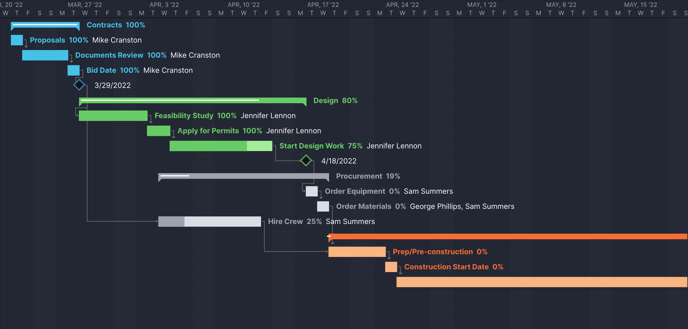
You can visually see task links by looking at the Gantt chart. This can help you visually see how tasks relate to each other so you can make important project decisions.
#### **Summary and Sub-Tasks**
A Summary Task is always the darker bar above the lighter bars. The summary taskbar changes as you adjust dates and task duration.
You can do the following to customize your Gantt view:
#### **Hide the Data Grid and Gantt**
You can hide the data graph by unchecking Gantt within the [Gantt settings](https://learn.projectmanager.com/gantt-menu). In addition, you can hide the data grid by unchecking the data grid in the same popup.
#### **Settings**
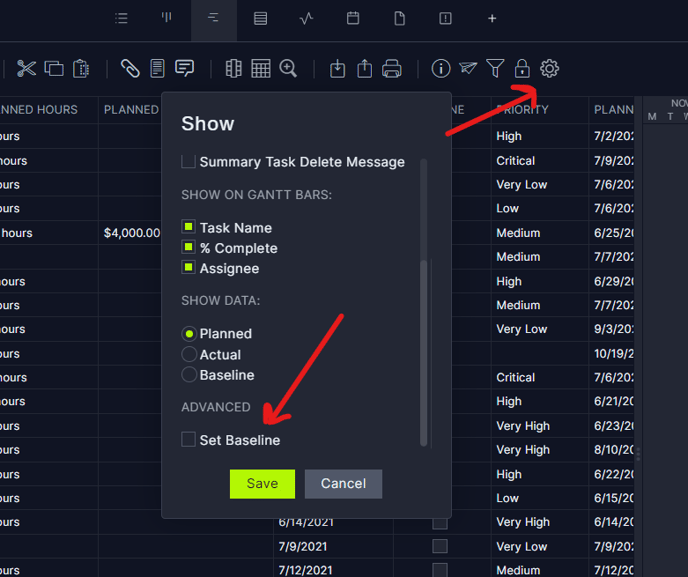
In addition to hiding the data grid and Gantt chart, you can adjust your view, including setting and seeing your baseline in [Gantt settings](https://learn.projectmanager.com/gantt-menu).
#### **Zoom**
You can zoom up to 500% by clicking the magnifying glass on the Gantt ribbon.
#### **Filters**
You can see your critical path, milestone tasks and more by clicking the filters icon on the Gantt ribbon.
### Gantt Bar Settings
You can see the following information on the Gantt bar. You can turn these settings on or off by clicking the settings gear on the Gantt ribbon.
- **Assignees: **If you have assigned a task to a team member, you can see the assignee on the taskbar.
- **Tasks:** You can see the task name on the Gantt timeline by hovering over the bar.
- **Percent Complete:** The Gantt bar will display the percent complete of the summary task or the subtask.
Looking for more Gantt chart articles? [Visit the Gantt chart category.](https://learn.projectmanager.com/project-views#gantt-view)
You can email support@projectmanager.com if you have any questions!
- [Training walkthroughs](https://learn.projectmanager.com/training-walkthroughs#main-content)
- [Setting Up Your Account](https://learn.projectmanager.com/training-walkthroughs#setting-up-your-account)
- [Resource Management](https://learn.projectmanager.com/training-walkthroughs#resource-management)
- [Team Management](https://learn.projectmanager.com/training-walkthroughs#team-management)
- [Gantt Chart](https://learn.projectmanager.com/training-walkthroughs#gantt-chart)
- [Dashboards](https://learn.projectmanager.com/training-walkthroughs#dashboards)
- [Portfolio Management](https://learn.projectmanager.com/training-walkthroughs#portfolio-management)
- [Integrations](https://learn.projectmanager.com/training-walkthroughs#integrations)
- [Getting started](https://learn.projectmanager.com/getting-started#main-content)
- [Software Basics](https://learn.projectmanager.com/getting-started#software-basics)
- [Account Basics](https://learn.projectmanager.com/getting-started#account-basics)
- [Making Your First Project](https://learn.projectmanager.com/getting-started#making-your-first-project)
- [Preferences & Notifications](https://learn.projectmanager.com/getting-started#preferences-notifications)
- [Managing projects](https://learn.projectmanager.com/managing-projects#main-content)
- [Project Management](https://learn.projectmanager.com/managing-projects#project-management)
- [Project Settings](https://learn.projectmanager.com/managing-projects#project-settings)
- [Templates, Imports & Exports](https://learn.projectmanager.com/managing-projects#templates-imports-exports)
- [Project views](https://learn.projectmanager.com/project-views#main-content)
- [Our Project Views](https://learn.projectmanager.com/project-views#our-project-views)
- [List, Board & Calendar Views](https://learn.projectmanager.com/project-views#list-board-calendar-views)
- [Gantt View](https://learn.projectmanager.com/project-views#gantt-view)
- [Sheet View](https://learn.projectmanager.com/project-views#sheet-view)
- [Risk View](https://learn.projectmanager.com/project-views#risk-view)
- [Tasks & teams](https://learn.projectmanager.com/tasks-teams#main-content)
- [Task Management Basics](https://learn.projectmanager.com/tasks-teams#task-management-basics)
- [Advanced Task Management](https://learn.projectmanager.com/tasks-teams#advanced-task-management)
- [Team Organization](https://learn.projectmanager.com/tasks-teams#team-organization)
- [Team Management](https://learn.projectmanager.com/tasks-teams#team-management)
- [Resource management](https://learn.projectmanager.com/resource-management#main-content)
- [Resource Availability](https://learn.projectmanager.com/resource-management#resource-availability)
- [Time Management](https://learn.projectmanager.com/resource-management#time-management)
- [Dashboards, reports & PPM](https://learn.projectmanager.com/dashboards-reports-ppm#main-content)
- [Dashboards](https://learn.projectmanager.com/dashboards-reports-ppm#dashboards)
- [Project Portfolio Management](https://learn.projectmanager.com/dashboards-reports-ppm#project-portfolio-management)
- [Reports](https://learn.projectmanager.com/dashboards-reports-ppm#reports)
- [Account, security & users](https://learn.projectmanager.com/account-security-users#main-content)
- [Account and Project Security](https://learn.projectmanager.com/account-security-users#account-and-project-security)
- [User Management](https://learn.projectmanager.com/account-security-users#user-management)
- [Account Management](https://learn.projectmanager.com/account-security-users#account-management)
- [Integrations](https://learn.projectmanager.com/integrations#main-content)
- [ERP / Accounting](https://learn.projectmanager.com/integrations#erp-accounting)
- [Collaboration](https://learn.projectmanager.com/integrations#collaboration)
- [Development](https://learn.projectmanager.com/integrations#development)
- [Analytics](https://learn.projectmanager.com/integrations#analytics)
- [API](https://learn.projectmanager.com/integrations#api)
- [Customer resources](https://learn.projectmanager.com/customer-resources#main-content)
- [Training Academy](https://learn.projectmanager.com/customer-resources#training-academy)
- [Listen & Learn Videos](https://learn.projectmanager.com/customer-resources#listen-learn-videos)
- [By industry](https://learn.projectmanager.com/by-industry#main-content)
- [Construction](https://learn.projectmanager.com/by-industry#construction)
- [Manufacturing](https://learn.projectmanager.com/by-industry#manufacturing)
- [Professional Services](https://learn.projectmanager.com/by-industry#professional-services)
- [Latest releases](https://learn.projectmanager.com/latest-releases#main-content)
- [Phased Releases](https://learn.projectmanager.com/latest-releases#phased-releases)
- [2026 Releases](https://learn.projectmanager.com/latest-releases#2026-releases)
- [2025 Releases](https://learn.projectmanager.com/latest-releases#2025-releases)
- [2024 Releases](https://learn.projectmanager.com/latest-releases#2024-releases)
- [2023 Releases](https://learn.projectmanager.com/latest-releases#2023-releases)
- [2022 Releases](https://learn.projectmanager.com/latest-releases#2022-releases)
- [Mobile app](https://learn.projectmanager.com/mobile-app)
[](https://www.projectmanager.com)
Get organized. Do amazing things.
[mailto:support@projectmanager.com](mailto:support@projectmanager.com)
[Login](https://software.projectmanager.com/login) | [Ask a Question](https://learn.projectmanager.com/kb-tickets/new) | [Tutorial Videos](https://www.projectmanager.com/product-videos)
```json
{
"@context" : "https://schema.org",
"@type" : "VideoObject",
"contentUrl" : "https://6111124.fs1.hubspotusercontent-na1.net/hubfs/6111124/Marketing%20Content/Training%20Academy/Training%20Academy%20-%20Understand%20Gantt%20Columns.mp4",
"dateModified" : "2024-01-09T15:04:34.094Z",
"duration" : "PT4M8.96S",
"height" : 720,
"name" : "Training Academy - Understand Gantt Columns",
"thumbnailUrl" : "https://6111124.fs1.hubspotusercontent-na1.net/hubfs/6111124/Marketing%20Content/Training%20Academy/Training%20Academy%20-%20Understand%20Gantt%20Columns.mp4/medium.jpg",
"uploadDate" : "2023-09-25T17:22:27.134Z",
"width" : 1280
}
```