
ProjectManager allows you to change a user’s role or deactivate them at any time. However, it’s not possible to delete a user completely. To free up an email address for re-use, you must switch the user's role to "none" and clear the email from their profile — then optionally deactivate the profile, which means that their email address remains stored in our system.
If the email address remains associated with your account, the deactivated user won’t be able to create a new account with that email address.
This article shows you how to remove the email address associated with the user's profile.
How to remove the email address
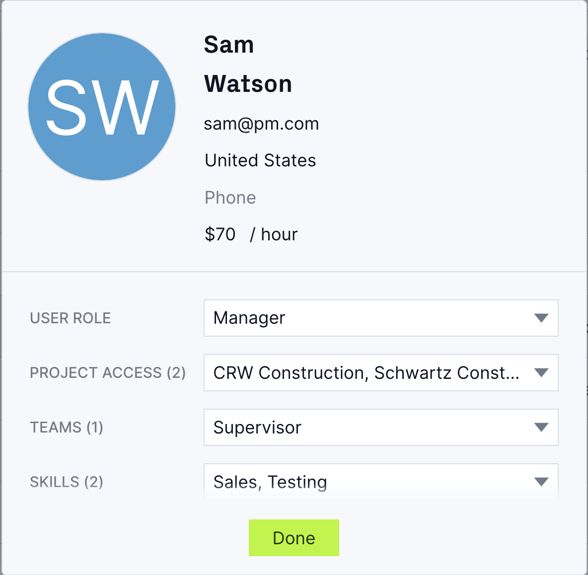
To remove the email address associated with a user’s profile, navigate to the users and teams page and use the search function to find the user profile whose email address you want to remove.
To remove their email address: 1. Open the user's profile. 2. Switch their role to "None". 3. Click the email address field, clear the address, and save your changes. This removes the user’s access to ProjectManager and allows that email address to be used for another user's account.
The user can no longer log in, but you may also want to fully remove them from your Manage Users list by following the deactivation steps below.
How to deactivate a user
To deactivate a user: 1. Click the three-dot menu icon to the right of the user’s profile. 2. Click "Make inactive” to deactivate the user.

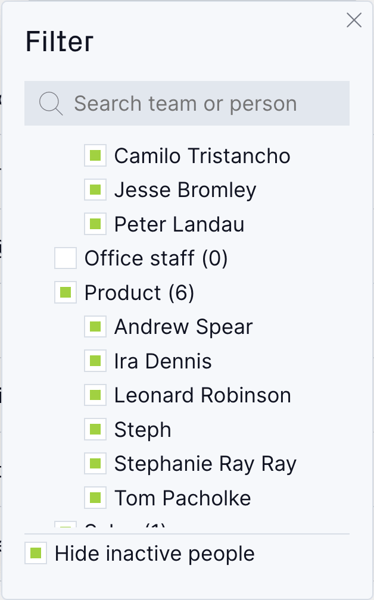
To prevent confusion, make sure you select "Hide inactive people” from the filter menu.
The process for deactivating a sample (demo) user follows the same steps.
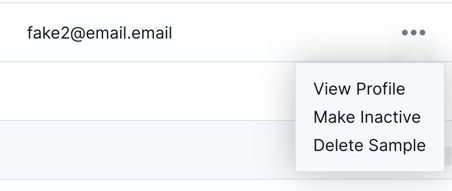
You can reactivate the user at any time without creating a new profile by finding the deactivated user, clicking the three-dot menu icon next to their profile, and selecting "Make active".
Got questions? Join a live demo to get a real-time walkthrough of ProjectManager and get your questions answered in a Q&A session.
User licenses
When you deactivate a user, your total number of paid licenses remains the same, allowing you to add a different user in their place without affecting your monthly bill. To reduce your number of paid licenses after deactivating a user (or at any other time), follow these steps:
- Open the Account & Billing
- Find the "User Licenses" section and click "Manage licenses"
- Change the number of licenses
- Save your changes