Acumatica Integration: Troubleshooting
Use this page to solve issues, track job runs, learn about how fields map between the two systems.
This page contains technical details and troubleshooting steps for our Acumatica integration, it's recommended that you read the Setup and Feature guides first.
Check the Job History first
If something does not synchronize as expected, open Job History from the Acumatica integration page. Job History gives you a high-level view of recent synchronization jobs. Click the Technical Details button to see more detailed information if an error occurs.
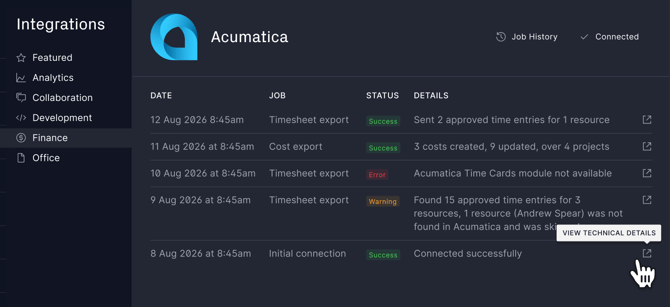
When testing a configuration change, use Run Now instead of waiting for the next scheduled synchronization. This makes it much easier to confirm whether the change resolved the issue.
If a timesheet does not synchronize
Check that:
- The ProjectManager project is linked to Acumatica.
- The task has synchronized to an Acumatica Project Task.
- The resource is linked to the correct Acumatica employee.
- The timesheet is approved.
- Send Approved Timesheets to Acumatica is enabled.
- The synchronization has run since the timesheet was approved.
If costs do not appear
Check that:
- The project is linked.
- Receive Actual Costs from Acumatica is enabled.
- The Acumatica costs are associated with a Project Task.
- The synchronization has run since the costs changed.
- Your Cost Calculation setting matches what you expect to see.
Remember that Actual Cost Only excludes open commitments, while Committed + Actual includes them.
Set up links before turning on your schedules
When first implementing the integration, link and verify your projects and resources before relying on scheduled synchronization.
A useful approach is to configure one project first, run each synchronization manually, verify the results in both ProjectManager and Acumatica, and then enable your preferred daily, weekly or monthly schedules.
Make changes in the system that owns the information
For the cleanest workflow:
- Manage operational schedules, progress and approved time in ProjectManager.
- Manage accounting transactions, commitments and actual financial costs in Acumatica.
The integration gives each team visibility into the information it needs without requiring both teams to maintain the same information manually in both systems.
Everything was working but now it's stopped
This usually indicates that your Connected Application has expired in Acumatica (by default Connected Applications expire after a certain number of days). We will try and detect this and automatically show a message on the Acumatica Settings screen inside ProjectManager, you'll also see a connection error inside the Job History.
You can also click Settings on the Acumatica screen in ProjectManager to change the Connected Application settings at any time, if a new secret has been created by your IT team for example.
Field Mapping
The tables below show how ProjectManager and Acumatica fields connect.
Project fields
| ProjectManager | Acumatica | Direction | Live Updates |
|---|---|---|---|
| Project name | Description | Used when creating/importing | No |
| Earliest planned task start | Start Date | ProjectManager → Acumatica | Yes |
| Latest planned task finish | End Date | ProjectManager → Acumatica | Yes |
| Project Status | Status | ProjectManager → Acumatica | Yes |
| Project Manager | Project Manager | ProjectManager → Acumatica | Yes, if employee is linked |
| Project Budget | PM Budget attribute | ProjectManager → Acumatica | Yes |
| Project Short ID | PM Project ID attribute | ProjectManager → Acumatica | Reference only |
| Project URL | PM Project URL attribute | ProjectManager → Acumatica | Reference only |
| ACU Project ID custom field | Project ID | Acumatica → ProjectManager | Reference only |
The Acumatica Project Manager can only be updated when the corresponding ProjectManager resource is linked to an Acumatica employee.
Project Task fields
| ProjectManager | Acumatica | Direction | Live Updates |
|---|---|---|---|
| Task name | Description | Used when creating/importing | No |
| Percent Complete | Completed (%) | ProjectManager → Acumatica | Yes, when Acumatica uses manual completion |
| Planned Start Date | Start Date | ProjectManager → Acumatica | Yes |
| Planned Finish Date | End Date | ProjectManager → Acumatica | Yes |
| Status | PM Status attribute | ProjectManager → Acumatica | Yes |
| WBS | PM WBS attribute | ProjectManager → Acumatica | Yes |
| Task Short ID | PM ID attribute | ProjectManager → Acumatica | Reference only |
| Task URL | PM URL attribute | ProjectManager → Acumatica | Reference only |
| ACU Task ID custom field | Task ID | Acumatica → ProjectManager | Reference only |
| ACU Cost Codes custom field | Cost Code | Acumatica → ProjectManager | Updated from cost data |
| Actual Cost | Actual and/or committed cost-budget amounts | Acumatica → ProjectManager | Yes |
Acumatica can either calculate Completed (%) automatically from quantity or cost consumption, or allow it to be updated manually. ProjectManager only updates this field when the Acumatica project is configured for manual completion.
ProjectManager task Status is stored in the PM Status attribute rather than replacing Acumatica’s own Project Task status, because the two status systems have different meanings.
Timesheet fields
Approved ProjectManager time creates Acumatica Employee Time Activities.
| ProjectManager | Acumatica |
|---|---|
| Project | Project |
| Task | Project Task |
| Date | Date |
| Hours | Time Spent |
| Hours | Billable Time |
| Earning Type | Earning Type |
| Notes and attachment links | Description |
| Approver | Approver, if mapped |
Other Acumatica Time Activity fields use the applicable Acumatica defaults.
Cost fields
The integration reads Acumatica project cost-budget information to calculate the Actual Cost shown against each ProjectManager task.
| Acumatica | ProjectManager use |
|---|---|
| Project | Linked ProjectManager project |
| Project Task | Linked ProjectManager task |
| Cost Code | ACU Cost Codes custom task field |
| Actual Amount | Included in Actual Cost |
| Open Committed Amount | Included when Cost Calculation is set to Committed + Actual |
| Account Group | Used as part of the Acumatica cost-budget data |
| Inventory ID | Used as part of the Acumatica cost-budget data |
Planned Acumatica budget values are not synchronized by this integration.