
Start a new project using any of our 13 featured templates that open directly in our software. They include construction schedule, construction proposal, punch list, new product development, IT project plan, agile sprint planner, product launch, marketing campaign, event plan, implementation plan, issue tracking log, and change tracking log.
Each template opens in its default view but can be edited in any view.
Featured Templates Introductory Video
Have an upcoming project but you're not sure where to start? Take advantage of our featured templates to hit the ground running. Follow the steps below to get started.
1. Create a New Project
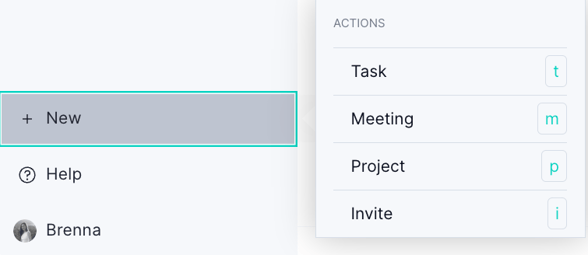
Click "+ New" to open a drop-down menu, then select "Project." You can also use our keyboard shortcut 'p' to create your project.
2. Click on "Start with Template"
Click on "Project" and you'll be prompted to name your project and choose who to share it with. Below these details, you'll see two buttons: "Import File" or "Start with Template."

3. Select Your Featured Template
Once you click "Start with Template," you'll be prompted to choose your desired featured template. If you're a Business or Enterprise customer, you'll have the option to choose between "Featured Templates" and "Custom Templates" at this stage. All other customers will only see the "featured templates" option.
Note: Custom templates are available on Business and above.
Need access? Upgrade your plan today.
On this page, you'll see a list of our featured templates and a description of each. Browse the options to find the template that best fits your project needs, then click the green "Use This Template" button.

That's it! The template will open in its default view but you can use the template in any project view. For more information on our templates, head to our templates overview page.
Have questions? Contact our support team at support@projectmanager.com — we're happy to help.