
You can access the Gantt settings from the Gantt ribbon. The Gantt settings allow you to customize your view. Note that the selected setting will apply across your entire portfolio, not only to the individual project.
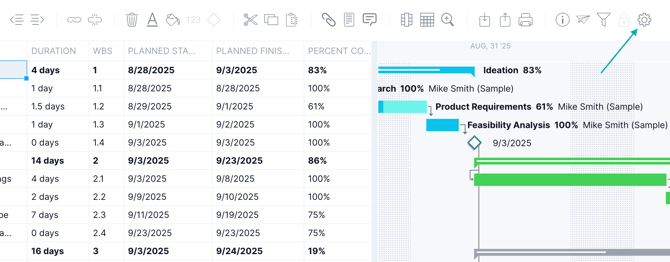
When you click on the gear icon, a pop-up will appear where you can adjust the following.
Show Feature
- Gantt: The Gantt view is made up of two parts: the data grid and the Gantt chart, which is a visual timeline. You can hide the Gantt bars to just view the data grid, or vice versa.
- Data grid: You can hide the data grid by unchecking the box. You can toggle over to the sheet view to work in a data grid view, without the Gantt bars.
- Today line: If the box is checked, a grey highlight will appear to indicate today’s date.
- Non-working day shading: Non-working days are shaded by default as a reminder of which days are available or not. You can deselect this in the settings to remove that shading.
- Overdue task shading: If the box is checked, overdue tasks will appear in orange on the Gantt chart.
- Over-allocation message: A warning will appear once you have assigned more hours to a resource than their availability allows.
- Summary Task Delete Message: A warning will appear once you have selected a summary task to delete to warn you that all of the related subtasks will be deleted.
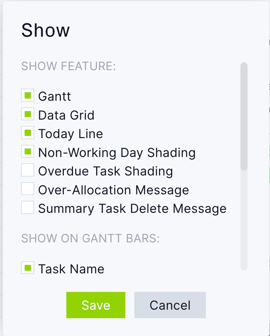
Show on Gantt Bars
- Task name: Show or hide the task name on the Gantt bar.
- Percent complete: Show or hide percent complete on the Gantt bar.
- Assignee: Show or hide the assignee on the Gantt bar.
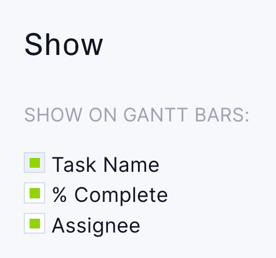
Note: If the task name, percent complete or assignee is hidden, it won't be shown on a printed Gantt.
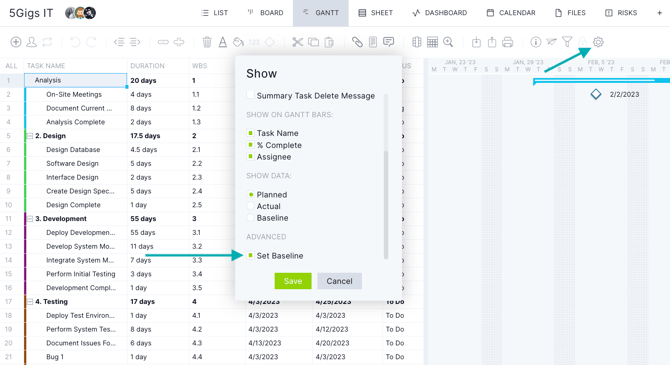
Show Data
You can choose to either see the planned start and finish, actual start and finish or your baseline on the Gantt chart.
Advanced - Set Baseline
Use this box to set your baseline on the Gantt. Your baseline will be saved as the current planned start date and planned finish date. Baseline cells cannot be updated, but the baseline can be reset by unchecking and saving the box, then checking and saving again.
Right-click a Cell to Access More Settings
If you right-click on any cell within the Gantt, you'll get access to more settings. All of the settings options available when you right-click, except for insert task above and below, are available on the ribbon above the Gantt. You can access these same right-click settings from the sheet view as well.
Here's a more in-depth article on Gantt and sheet formatting.
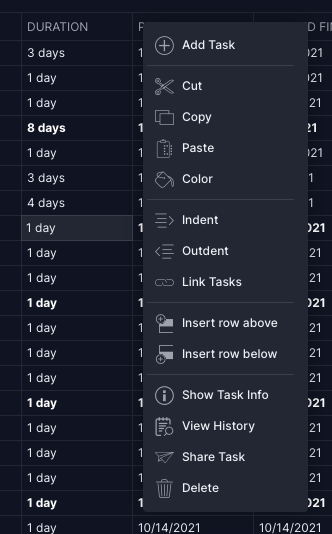
- Add task: Add a task to your project plan. The task will be added above the selected cell.
- Cut: Allows you to cut a task.
- Copy: Allows you to copy a task.
- Paste: Allows you to paste a task
- Color: Allows you to change the cell color or Gantt color of a task.
- Assign: Assign tasks to a team member. When multiple tasks are selected, you can assign multiple tasks to one or multiple resources.
- Recurrence: Allows you to make a task into a recurring task.
- Indent: Allows you to create a summary task.
- Outdent: Allows you to remove a summary task.
- Link task: When this button is clicked, the Link Task pop-up will appear. There are four different ways to link a task: finish to start, start to finish, start to start or finish to finish. Once a task is linked, the planned dates will move automatically as the duration or the planned dates change. The dates will be updated based on the type of link.
- For example, say you link two tasks with a finish-to-start dependency. If you change the date of the second task to start before the first task, the date will instantly revert to the original date. You would need to remove the link to make this change to the planned start date for the second task.
- Milestone: Allows you to create a milestone.
- Insert row above: Insert a row above a task. You can enter a new task or create a blank row. If you create a task in the middle of a group of subtasks, the new task will be automatically indented.
- Insert row below: You can insert a row below a task. You can enter a new task or create a blank row. If you create a task in the middle of a group of subtasks, the new task will be automatically indented.
- Show/Hide Task Info: Opens the Task Info panel and the bottom of the page. If the Task Info panel is already open, clicking this hides it.
- View History: Opens the Task History pop-up.
- Lock task: Locking a task prevents users from making changes to task data. When a task is locked, you can still set a baseline, update the progress on a task and change the priority. If a task is linked to another task, link logic still applies. This allows your planned dates to still change automatically based on the link type.
- Share Task: Allows you to send a hyperlink to the task to another user in your account.
- Delete: Allows you to delete a task or the contents of the selected cell.
Looking for more Gantt chart articles? Visit the Gantt chart category.
For further assistance with Gantt settings, feel free to email support@projectmanager.com!