
| Manage processes | Centralize work | Make manufacturing plans |
| Track and report | Resource management | Mobile app |
Some features mentioned below are only available on certain editions, learn more.
ProjectManager loves manufacturing teams! See how we can help you reduce lead times, oversee production cycles and plan time-sensitive projects.
We've outlined common use cases for how manufacturing teams use ProjectManager.
Manage your manufacturing processes
One popular project view for managing manufacturing processes is the kanban board. This is a visual project view where you can customize columns to spot and track bottlenecks at a glance.
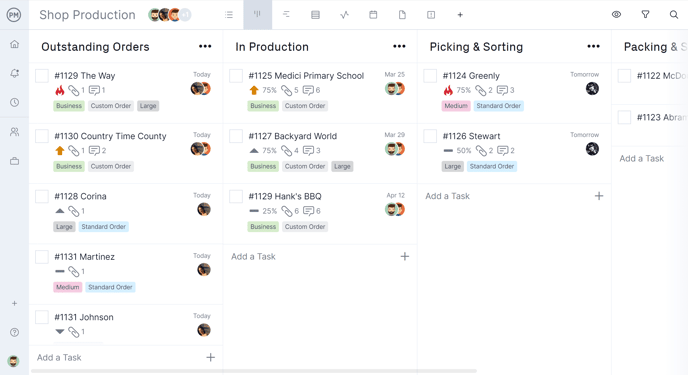
For example, you can create one board for order management, one for inventory tracking and one for the different stages of production. Whatever process you're managing, customize the column names accordingly and use the robust task cards to keep track of relevant details. As tasks progress, drag them into the next column.
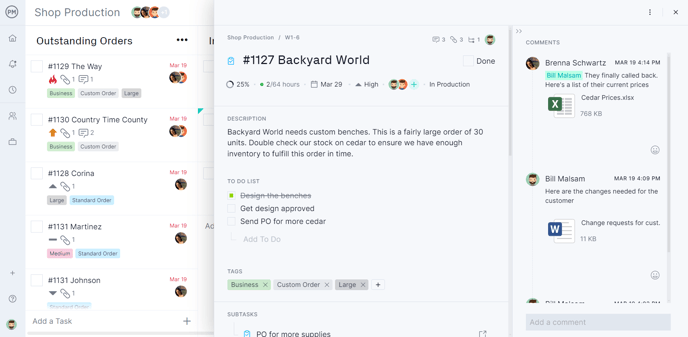
As you manage these processes that are integral to the success of your project, you'll be able to centralize the work and highlight important details.
Centralize work
Open the task card on the kanban board where you can track progress, add assignees, set priority levels, add descriptions, add tags, make comments, attach files and work orders, distinguish subtasks, set recurrence and more.
Our rich task card makes it easy to visually see how tasks are moving across various phases of your processes. Simply drag and drop tasks as they move between phases and your team will be automatically updated. This is a simple and effective way to keep stakeholders informed of progress.
All of this data is available across project views including the list view, which we've included below. If needed, you can open the corresponding task in the list to see the details on the task card.
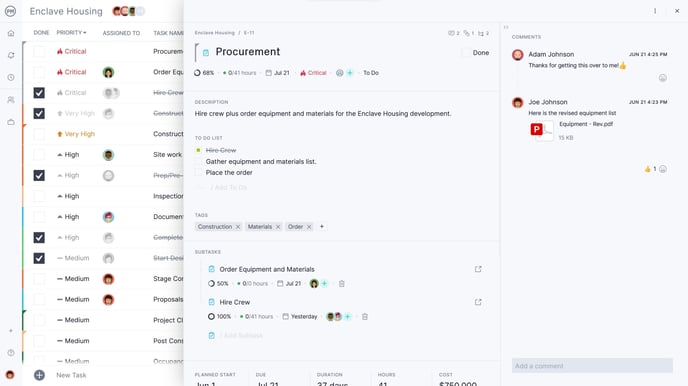
With unlimited file storage and the ability to tag team members, it's easy to collaborate and ensure everyone on the team has the information they need.
For example, the list view is a great way to:
- Determine if the product is working as intended
- Check the color, visual, size, weight and materials used
- Examine the packaging for damage or deformities
- Log product defects
- Assign corrective action
Innovative manufacturing companies need the ability to manage projects in addition to processes. This is where the Gantt chart is useful.
Build your manufacturing plan on the Gantt chart
The Gantt chart is a helpful tool for planning and tracking manufacturing projects. Use it for new product development, product roadmaps and waste mitigation. Manufacturing teams often use Gantt charts to:
- Plan and track production to mitigate bottlenecks and waste
- Adapt to project changes
- Create product roadmaps and production schedules
- Identify key data points for stakeholders
- Ensure quality at every phase
If you want to build your project from scratch, start by creating a new project and giving it a name.
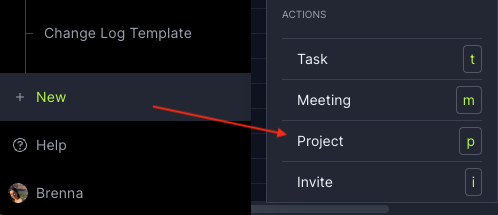
Update project settings and set working days
After entering your project name, you can click on the gear icon as pictured below to update your project settings. Here, you can add a project description, set working days, add a target end date and more.
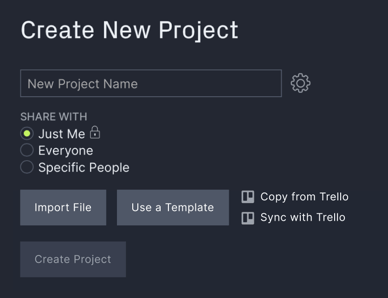
The default project working days are Monday-Friday, but you can add Saturday and Sunday as working days if needed.
Note: Project working days can ONLY be updated when you're creating a project. Don't skip this step!
Now that the project outline is in progress, let's explore the different areas the Gantt offers.
Enter tasks into the data grid
Enter your tasks and assign them to relevant team members. To access the Gantt, locate the menu on the top portion of the software and click on "Gantt."
The left side of the Gantt chart is the data grid. Here, you can enter your task details including the task name, assignee, planned hours, planned resource costs, planned start date, etc. Below, you'll see sub-tasks such as "market research" and "engineering drawings" housed under parent or summary tasks.
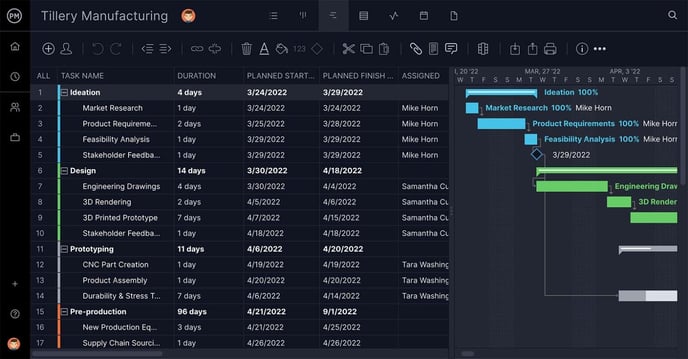
The data on the data grid automatically reflects in the bar chart on the right-hand side of the Gantt chart. For example, if you need to adjust how long the feasibility takes, you can simply hover over it so you can drag and drop the timeline. Any dependent tasks will automatically update.
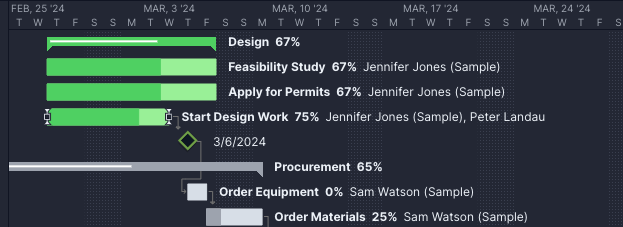
Note: Gantt is only available on Team and above.
Need access? Upgrade your plan today.
Set dependent tasks
Our Gantt chart supports all four types of dependent tasks to help improve the quality of your manufacturing project. When creating a task dependency, start by clicking and holding on a taskbar and moving your mouse until you see a dotted line.
Then, drag the dotted line to link the dependent task. When you let go of your mouse, you'll see a solid line that shows that the dependent task was created.

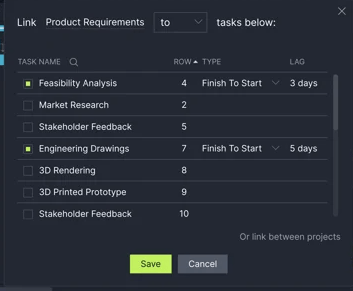
Another way to set dependent tasks is by clicking on the link button on the Gantt chart. Highlight the task that you want to link to or from and click on the link button (in the menu). You'll see the below popup appear and display the task you're linking to or from on the first line. If needed, you can also link tasks between manufacturing projects.
Customize columns
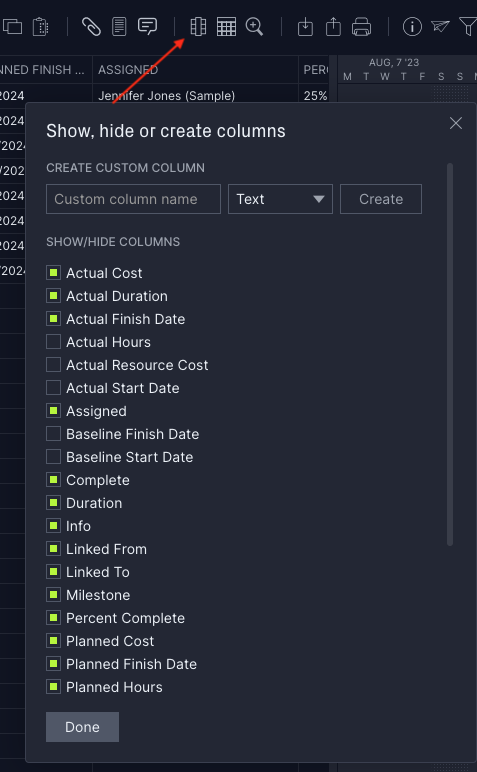
You can show or hide columns as well as create custom columns. Below is an image of how to access this setting on the Gantt.
Add summary tasks
In the above manufacturing example, tasks such as ideation, design, prototyping and pre-production are summary tasks (also referred to as parent tasks).
These allow you to report on the phases of your project at a high level. To add a summary task, begin by adding your tasks to the Gantt chart. Once you've added your tasks, decide which one(s) will be the summary task.
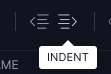
Select all rows simultaneously below the desired summary task and click the indent button.
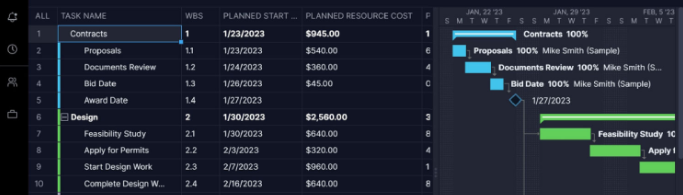
The summary task will turn bold and a plus button will appear next to it, allowing you to hide or show the sub-tasks. In the example below, "contracts" and "design" are both summary tasks.
When a task becomes a summary task, you'll lose some data such as dates, assigned hours and duration name. The task name, assignees, description, files and comments will all be retained.
Add a work breakdown structure
It's easy to add a work breakdown structure in the Gantt chart. When customizing columns, make sure that the "WBS" column is checked. You'll be able to indent and outdent as many times as needed to break down your tasks. In the Gantt image below, the WBS column is directly to the right of the "task name" column.
If needed, you can also:
- Add summary tasks or recurring tasks
- Change planned start and finish dates
- Link dependent tasks to avoid bottlenecks
- Customize the Gantt as needed by adding colors
Tip: Alternatively, you can add your tasks to the list view. Read more about Gantt and sheet formatting here.
Print the Gantt
Once you're done making your schedule, you can print it if needed. Locate the print icon on the upper right-hand portion of the Gantt chart.
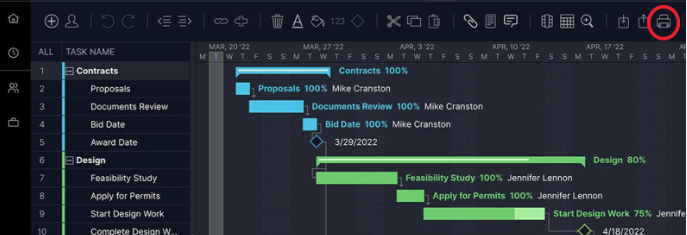
You'll be able to print it exactly as it appears or make modifications. For more information on printing the Gantt, you can view our corresponding page.
From there, you can use tracking and reporting tools to stay informed of progress.
Track and report on project plans
Track production with dashboards and reports
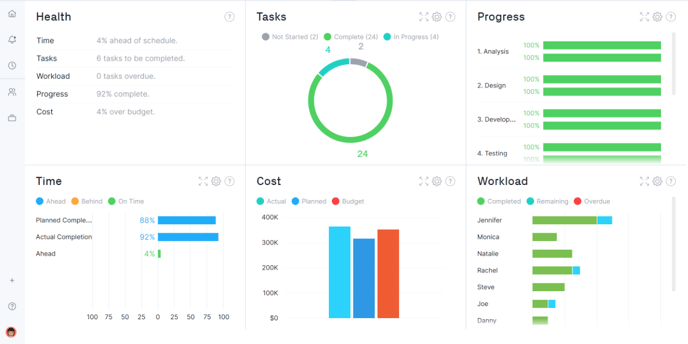
As your processes and projects progress, you can use our real-time dashboards and reporting tools. Both project dashboards and portfolio dashboards give you a high-level overview of project data and allow you to monitor cost, tasks, progress, workload, time and overall health.
Note - many teams also love using the kanban board as a way to track progress. It's a visual representation of the various processes you're tracking for your projects.
Set and track baselines
If you need to report on variance later in your manufacturing project, you can set a baseline on the Gantt. Ideally, you'll set the baseline at the start of your project before you need to adjust your planned dates.
To set a baseline, click on the settings button on the Gantt. You'll see the ability to set a baseline under the advanced settings.
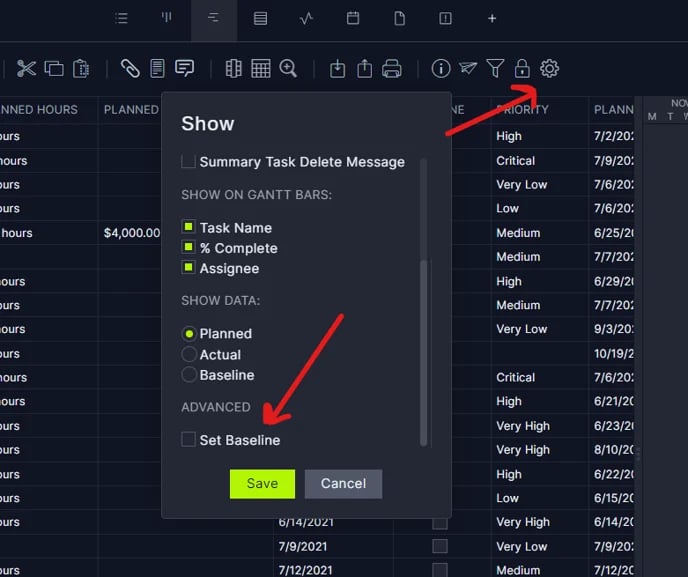
Once a baseline is set, you'll see your planned start and finish dates populate under the baseline start and finish columns. These dates are frozen unless you set your baseline again which will override your previous baseline.
Printing the dashboard
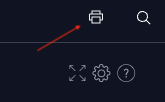
Just like the Gantt, you can print the project dashboard. Locate the print icon in the upper right-hand corner of the page.
Generate reports
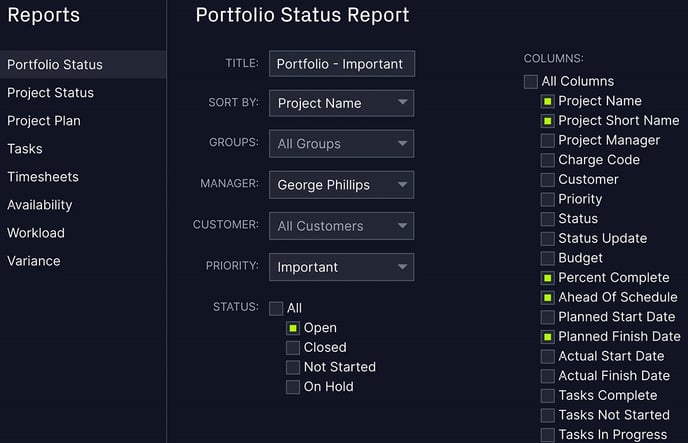
One-click reports make it easy to filter for the data you want to see. Generate data on timesheets, workload, status reports, variance and more. Customize your report columns and share them with stakeholders.
Manage risks
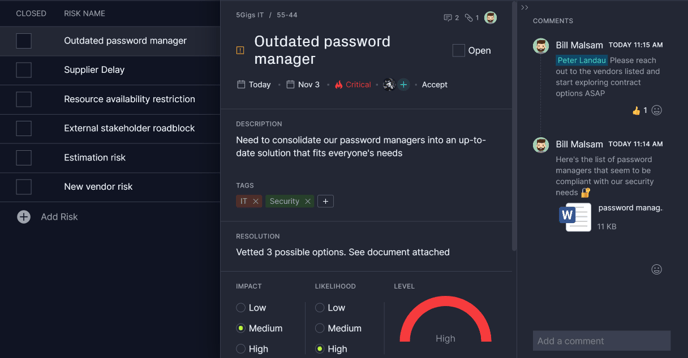
Those on the Business edition and above can track risks using our risk management feature. Set the impact and likelihood of the risk occurring and the risk level will automatically calculate. You can also set priorities and add comments and files to prevent risks from causing bottlenecks.
Manage resources with workload charts and timesheets
Use the data from dashboards and reports to keep track of resources such as team workload or supplies. While we briefly touched on resource tracking using the Gantt chart above, there are other ways to do so in ProjectManager.
Invite and onboard your team
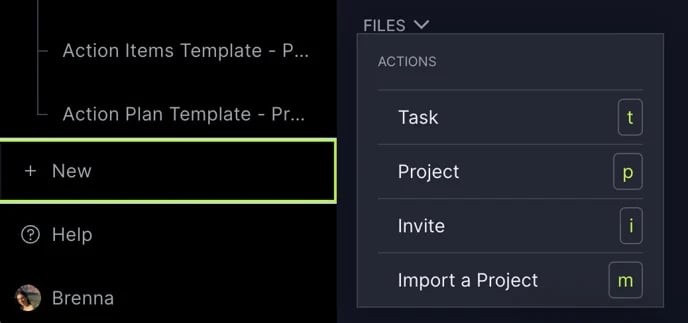
To track your team's time, you'll need to add them to the software. Start adding your team members so they can collaborate on the project. Visit our corresponding article for more in-depth information on how to invite users.
Team management
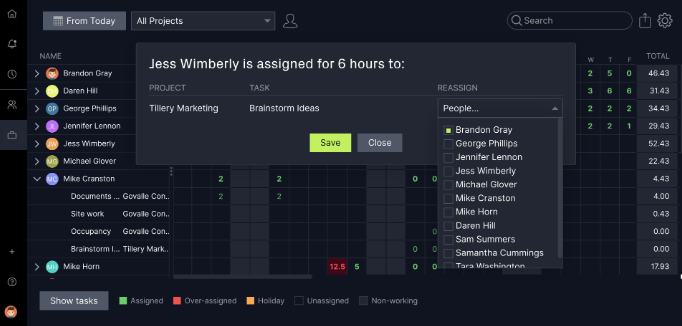
Use our color-coded workload charts to see what your team members are working on. You can reallocate resources as needed directly from this page.
Time tracking
Time tracking is another important part of manufacturing projects. Your team can log hours on Gantt charts, tasks lists and kanban boards, and all data automatically updates across the software. Automated timesheets make it easy to track hours on single projects or across your portfolio, and you can authorize who can and can't approve timesheets.
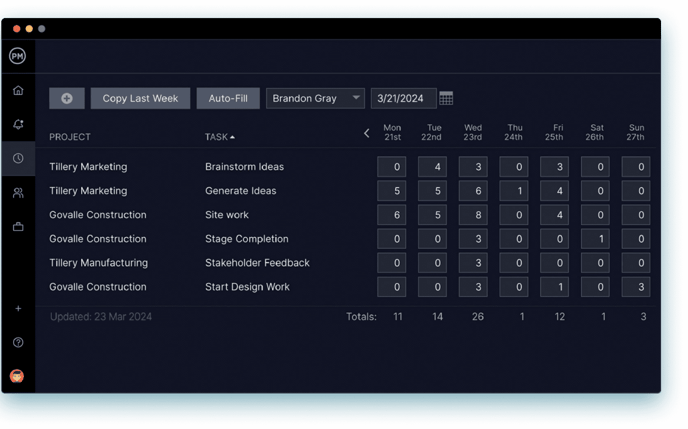
Balance workloads
If you want to assign your team to tasks using real-time availability, click on the "assigned" column in the Gantt chart's corresponding column. A popup will appear where you can search for the desired team member.
Their availability will automatically populate based on the information in the user setting and always reflects information such as holidays. Hover over the "availability" number for more information. In the example below, Brandon Gray has 16 available hours. Learn more about resource management.
Upload photos and stay connected using the mobile app
Your team can stay connected even when working across job sites. The ProjectManager mobile app allows teams to manage tasks, log time, track progress and collaborate on the go.
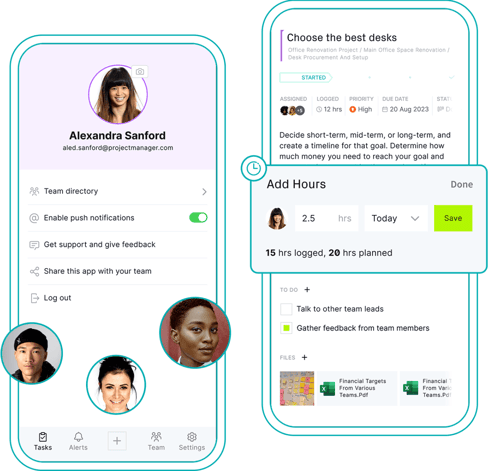
Use the mobile app to stay connected, ensure quality, upload photos and centralize work. If a customer submits a change request and you need to adjust the production schedule, it's easy to do so directly from your phone or tablet.
If you have any questions about how to get started with your manufacturing project, you can email support@projectmanager.com.