
Getting started
Project version control in ProjectManager lets you browse, restore, copy, and export historical snapshots of any project. Use version control to roll back unwanted changes, create backups, or share a point-in-time copy of a project. To access project version control, you must meet both of the following requirements:
- On the Business or Enterprise edition
- The Creator or Manager of the project
Version control is enabled for every project automatically. To use the feature, click the project name (top left of any project view).
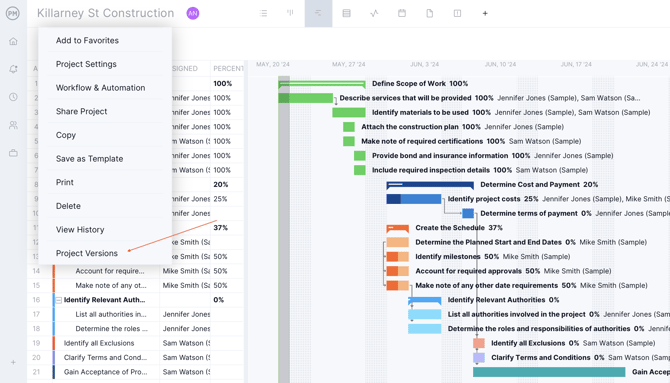
Then choose Project Versions from the list.
Version history is grouped by day, showing every tracked change in chronological order.
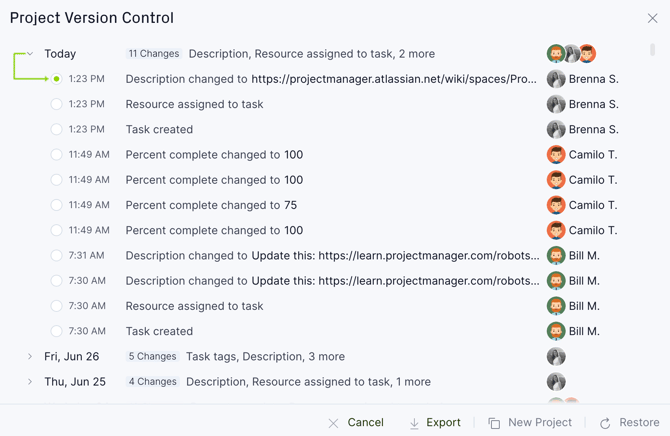
The version control window lists critical changes made to the project: task creation and deletion, links, schedules, assignments, priorities, dates, and more. A small number of elements — such as task to-do list items and RAID Log entries — are not tracked as change items and therefore cannot be restored.
Business plan users can view up to 90 days of change history. Enterprise plan users can view the full change history from the date the project was created.
Changes made by the same person in quick succession will be grouped to make it easier to browse. If you see text like "8 more" beside an entry, you can click to see additional changes. You can hover over the date/time to see an explanation of exactly what was changed.
Once you've selected a version, you can choose to:
- Restore the project to this version
- Create a new project starting from this point in time
- Export this version of the project to your computer
Each of these options is explained in more detail below.
Restore a previous version of a project
ProjectManager includes project access controls so you can manage who can view, edit, and manage your projects. Version control adds an extra layer of protection: at any time, you can quickly roll back to a previous version.
To restore a project to a certain point in time:
- Open the version control window
- Select the version you want to revert to
- Click the Restore button at the bottom
Important: Restoring a version reverts every change made between that point and now — not just the single selected change. This action cannot be undone. Think of it as traveling back to that point in the project's history.
Copy a version to a new project
If you don't want to alter the active project, you can create a new one matching your selected version. This can be useful for creating a backup project, comparing historical and live versions of a project, or experimenting with project timeframes without affecting the live project.
To copy a version to a new project:
- Open the version control window
- Select the version you want to copy
- Click the New Project button at the bottom
- The new project will be created and you will be taken to it automatically
The new project will have the same name as the original one but with the current date and time appended to it.
Export a project version
The export feature lets you download a historical copy of a project to your computer. This can be useful for keeping a local backup, sharing a past project version with someone else, or importing a version of the project into another tool.
To export a specific version of your project:
- Open the version control window
- Select the version you want to export
- Click the Export button at the bottom
- The file will begin downloading to your computer automatically
If the Export button is disabled, make sure your role has "Export Projects" enabled.
The exported file is in Microsoft Project XML format (.xml), which contains detailed information about the project and its tasks. This format is widely supported by project management tools and can be used with ProjectManager's import function.
Frequently Asked Questions
Does restoring a project in ProjectManager replace everything?
Version control tracks changes to tasks within a project. When you restore a version, most task fields are reverted to the chosen point in time, and tasks that were deleted since that point are also restored. However, there are a few exceptions.
The following items are not altered when you restore:
- Files attached to tasks
- Comments on tasks
- Timesheet entries
- High-level project settings such as the project name, description, or client
While a restore does not directly alter comments or files, if you revert to a point before a task was created, that task — and any comments on it — will no longer exist. Note that files attached to tasks are also saved to the project's Files page, so they are retained even if the task they were attached to is removed by the restore.
How does this differ from the audit log?
The project history feature — and its siblings, task history and audit log — focuses on discovering when changes were made and who made them; it offers powerful search tools and detailed before/after values for each change. Version control focuses on restoring the project to a specific point in time.
How does this differ from undo?
The undo/redo buttons on the Gantt chart are well suited for quickly reverting a change you just made. Undo is similar to version control but has the following limitations:
- Only goes back one step at a time
- If you leave the Gantt your undo history is lost
- Undo is only for your changes, it won't affect changes by others
To go further into the past, revert other people's changes or undo multiple changes at once, you'll want to use the more powerful version control feature. Learn more about undo.
How do I get help?
If you have any other questions, please contact our support team or visit the ProjectManager Help Center.