
Some features mentioned below are only available on certain editions, learn more.
In this article, we will show you how to use ProjectManager as a ticketing system, covering the basics of tracking ticket numbers, workflow automation best practices and tips for a variety of different use cases.
Ticketing Use Cases
ProjectManager is used everyday for Ticketing by countless teams across many industries such as IT & Software Development, Construction & Facilities Management teams, HR & Legal departments, Marketing teams and many more.
With ProjectManager you can: centralize requests, track issues in real time, automate ticket routing, customize alerts, categorize tickets with tags and collaborate across teams. Here are just some examples of how different teams use ProjectManager for Ticketing, starting with our own internal Development teams!
Agile Software Development - How our Dev Team uses PM
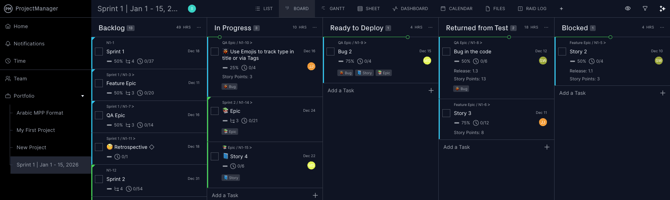
Our Product, QA & Engineering teams use ProjectManager every day for lots of different projects, including as a Ticketing system for our Software Development work. We run our Sprint Retrospectives, roadmap plan longer projects, manage operational work, track customer tickets and feature requests and deliver every release to you using ProjectManager.
How we got off JIRA
Prior to using ProjectManager, our teams were using JIRA to manage our software delivery. It was easy for us to switch to PM via the JIRA integration. We were able to use both systems simultaneously during the transition period, by syncing our JIRA board to a PM Project. We then set up a Github integration leveraging our Public API, so we can track all pull requests with links back to Github into the Task Comments panel for associated Tasks.
We spent about a month training our internal teams on using ProjectManager. We defined our internal processes for sprint management, ticket management, prioritization and tagging. We use Tags for Release tracking numbers and additional data context on bugs and stories. We also set up the following Task Statuses:
- New
- Doing
- Ready to Test
- Testing
- Done
- Blocked
- Discarded
- Backlog
We then mapped our JIRA statuses to those for the final sync. Since then we have managed all our Release planning and Ticket delivery using ProjectManager. We also use our own software to manage other aspects of our team's work like Agile ceremonies and product requirements.
Daily Standups with ProjectManager
Every day we hold a 15-minute daily standup with our dev teams. On a video conference call, we screenshare the Active Sprint board and we filter the view by team member as each are giving their update. We also filter tickets related to each release and track release progress via the Gantt and external integrations for documentation.
Sprint Retrospectives with ProjectManager
Every two weeks we hold our various Agile ceremonies, including our Sprint Retrospectives. We discuss as a team what we can improve upon and provide structured feedback collaboratively on a screenshare with a dedicated board with Statuses like Start, Stop & Continue.
Backlog Grooming with ProjectManager
Our team created a checklist custom column for our Sprint projects called "Story Points" with the standard predefined options of the Fibonacci sequence (1, 2, 3, 5, 8, 13). We use this as a system for estimating our User Stories.
When we are holding a Backlog Grooming session, we will screenshare the Backlog in the List or Board view, which the Product team has previously organized via rank sort order. The Product team has also already tagged various stories with the tag: "Backlog-Grooming", so the team can easily filter them. Then the team reviews each of the User Stories and discussed the level of effort associated.
When we are agreed on the Story points, we update the Custom field and remove the tag. Then our team knows which stories are groomed and ready for development.
Story Development & Roadmap Planning with ProjectManager
Our Product org defines all of our Epics, User Stories and Bugs in ProjectManager and is able to plan our Roadmaps too. Epics are defined as Summary Tasks in story-driven development and the stories are created as subtasks underneath. After Backlog Grooming we are able to assess Roadmap adjustments in our regular planning sessions.
IT Help Desk
A number of IT Teams and companies are using ProjectManager for their software and hardware projects, as well as for their internal Help Desk tickets. Throughout this article, we use this as an example use case, as well. Here are some of the ways IT Teams can use PM as a Help Desk or Internal Ticketing System:
IT Help Desk Example Tickets
Teams can submit new tickets anytime they want to report an IT-related incident, such as:
-
Bugs
-
Internal systems/intranet bugs
- Broken company website or 404 pages
-
-
Software or Hardware issues
- Loading or login issues
- Broken computers, cables or monitors
-
Equipment Requests
- New hire equipment provisioning
- New servers, computers, printers
-
Security Issues & Monitoring
- SPAM attacks or hacking reports
- Security Committee requests
-
Planned Maintenance or Upgrade Requests
- 3rd party apps or services upgrades
- Website certificate updates
And more, of course, according to your businesses needs. Jump to the Set Up & Workflow section below for examples of Statuses for IT Help Desk projects.
Facilities & Maintenance
Facilities and Maintenance teams use ProjectManager to track Tickets for work order management, preventative maintenance or issues related to building services and support.
Facilities & Maintenance Example Tickets
Teams can submit new tickets anytime they want to report an issue, such as:
-
Work Order Management
- Repair requests
- Room setups or move-outs
- Conference or event support
- Preventative Maintenance Scheduling
- Inspections needed
- Cleaning & Pest Control
- Equipment Maintenance
- Compliance
- Inventory & Supply Management
- Parts requests for Repairs/maintenance
- New tools & equipment
- Materials and Supplies Requests
- Compliance & Audit Management
- Governmental agency requirements (OSHA, EPA0
- Updating systems or processes with new standards or regulations
These are just a few examples, of course. Larger projects, like major construction repairs or building renovations might best be managed with separate projects. See the RAID + Changes log section below, as well, for ideas for leveraging that feature alongside ticketing.
Sample Statuses for Facilities & Maintenance Ticket Tracking
These are just an example to start with. You can customize as you see fit!
-
New/Submitted
-
Open or Reviewing
-
Scheduled
-
In Progress
-
Pending
-
Resolved
-
Closed
You might also consider including: Cancelled or Rejected or On-Hold or Delayed.
Human Resources & Legal Department Ticketing
Both HR and Legal teams use ProjectManager to plan and execute on operational projects and everyday work. While dedicated HR, Benefit and Payroll systems are better suited for managing sensitive employee data or confidential legal matters or requests, ProjectManager is ideal for tracking the Legal and HR-related projects that are operational in nature and collaborate with team members across an org already using the tool. Here are some example use cases for HR teams to use PM for Ticketing:
-
Onboarding & Offboarding
- Software Provisioning and System Access from IT
- Requests for New Equipment by hiring manager
- Requests for documentation
- Equipment return processing
- Policy Changes
- Requests for updates to Handbooks or other documentation
- New processes requests and signoff
- Internal or Client Counsel Requests
- Intellectual Property review
- Terms of Service updates
- Employment law updates
- Contract reviews
- Training & Compliance Management
- Requests for access to training modules or programs
- Manage data privacy requests (GDPR)
- Audit-related requests
- Social & Entertainment requests
- Room reservations for parties or events
- Request to send flowers or gift cards
These are just examples, again, but using standardized workflow statuses are ideal for tracking a variety of requests. Statuses like:
-
New/Submitted
-
Reviewing
-
Pending
-
Awaiting Client Input
-
Escalated
-
Resolved
-
Closed/Rejected
Tracking your HR, Operations and Legal team work can streamline communications and maximize your team's efficiencies.
Digital Agencies & Marketing Ticketing
Our own Marketing team uses our software daily to manage everything from content production, campaigns, coordinating events and internal requests. Many of our customers do too, and some are agencies that develop work for clients. Here's some of the use cases that digital agencies and marketing teams have for using ProjectManager for Ticketing:
- Creative Asset Requests
- Brand assets
- Digital content like images or videos or copywriting
- Website or Mobile app design updates
- Proofreading and review
- Campaign Management
- New Product Launches
- Email Marketing
- Content calendar requests
- Cross-channel, cross-team engagements
- Social Media & Omnichannel Support
- Opportunities for engagement
- Messaging and asset assistance
- New channel requests
- Event Planning & Coordination
- Logistics planning for webinars or trade shows
- Booth design and promos
- Speaker coordination
- Martech support requests
- Data fields in CRMs
- Marketing automation requests
- Website content or plugin updates
- Client Feedback & Requests
- Changes to engagement or campaigns
- New assets or content
- Project Risk Management
Marketing teams and digital agencies can track so many different types of work, from technology services to creative asset development it's hard to fit each Ticketing project into one neat workflow. Get creative and define the statuses that work best for your unique team.
Professional Services Ticketing
Many of our customers deliver Professional Services across a wide swath of industries, from Engineering, Architecture & Construction, to IT Consultants, Accounting firms, Financial advisors and Project Consultants. The one thing they all have in common is a commitment to delivering value as efficiently as possible to their clients. They use ProjectManager to centralize and track client or internal requests, issues and inquiries. PM is ideal for Professional Services teams and companies because of our embedded portfolio and resource management features, our easy-to-use automation and our rich integrations to other software like DevOps, JIRA, Teams, Slack, PowerBI and Acumatica.
Here are some use cases for Professional Services teams using ProjectManager for Ticketing to manage their client-centered work:
- RFP & RFI Tracking
- Client requests
- Project Specifications
- Internal change management
- Technical support and validation
- Submittals
- BID Management
-
Client Support & Managed Services
- Incident Management
- Bug reporting
- Service requests
- Implementation support
- SLA Management
- Design Reviews & Requests
- Track revisions or changes
- Signoffs and Approvals
- Audit & Compliance Tracking
- Tracking document requests
- Governance & Board meeting requirements
- Internal document revisions
These are just examples, again, but using standardized workflow statuses are ideal for tracking a variety of requests. Statuses like:
-
New/Submitted
-
Assigned/Reviewing
-
Pending Client Input
-
Resolved
-
Closed
- Reopened
As long as you keep statuses aligned with your internal processes, and seek feedback from relevant teams, you can find what works best for you.
See below for more on how to use ProjectManager for Ticketing.
Set Up Projects & Workflows for Ticketing
Different teams or processes may require different workflows to track their requests or issues. Maybe your team already has defined processes for tracking tickets or you're setting up process from scratch. Either way, it's easy to get started with Ticket tracking in PM.
If you have an existing process, you can create a project either by importing an existing Ticketing project (from Excel, CSV, MPP or XML files) or leveraging either our Azure Devops or JIRA integration to import or sync projects directly between those ticketing systems. Click the links to learn more about those integrations or check out our Integration FAQ article for more information.
If you are starting from scratch, you can create a blank project and we can walk you through some basics of Ticket project set up and management. For this example, we will use a basic IT Help Desk Project. Read further on in the article to see examples of other ticketing project use cases.
Define Ticket Statuses
Task Status is a user-defined workflow designation, separate to Task Progress (percent complete). Task Status is most easily visualized on the Board view columns, however Task Status is a field found on the Task Card in all views, as well as a column on the Gantt and Sheet views.
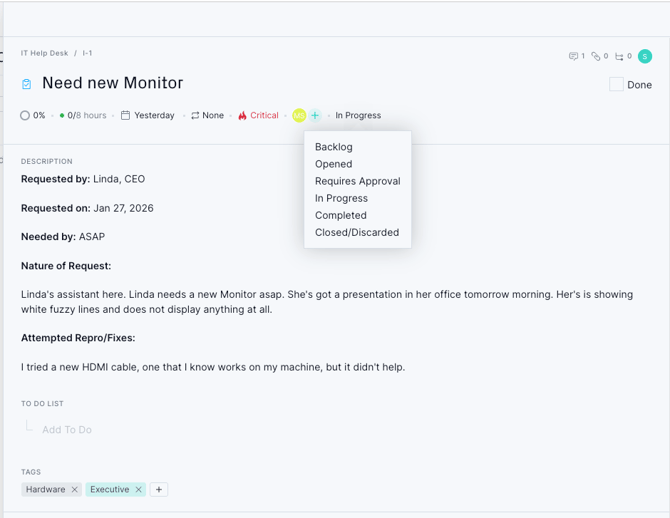
All projects in ProjectManager start with 3 basic Task Statuses: To Do, Doing and Done. Most ticketing projects expand upon those basic statuses to track different aspects of ticketing workflow. In this IT Help Desk example, we have the following statuses defined, and we have given some basic definitions for how this team can understand these statuses:
- Backlog - All new tickets created by anyone in the project default here
- Opened - The IT Team has opened the ticket and is reviewing it.
- Requires Approval - When IT determines an issue requires Approval, such as when finance needs to approve an expenditure or the request needs additional oversight, the ticket is moved to this status.
- In Progress - The IT Team is actively working on the issue/request.
- Completed - The Request/Issue has been fulfulled or resolved and may be moved to Closed status by people with the permissions to do so.
- Closed/Discarded - The Request/issue has been satisfied or is invalid.
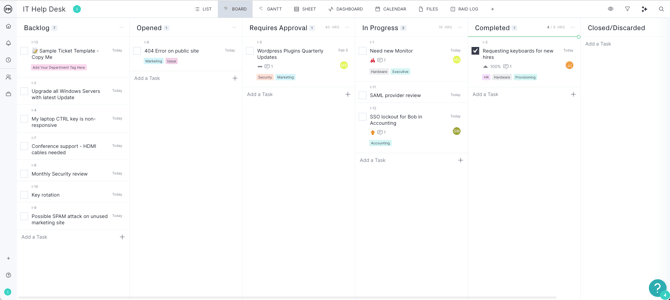
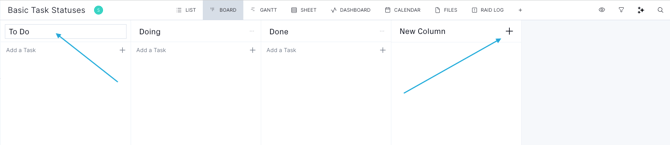
There are two ways to create Task Statuses. In the Board view, you can click right into the column headers to edit existing board statuses or click the "+ New Column" header to create a new Status.
 Alternatively, from any view within the project, you can click on the Project Name to reveal the Project Settings Menu and click on the Workflow & Automation Option:
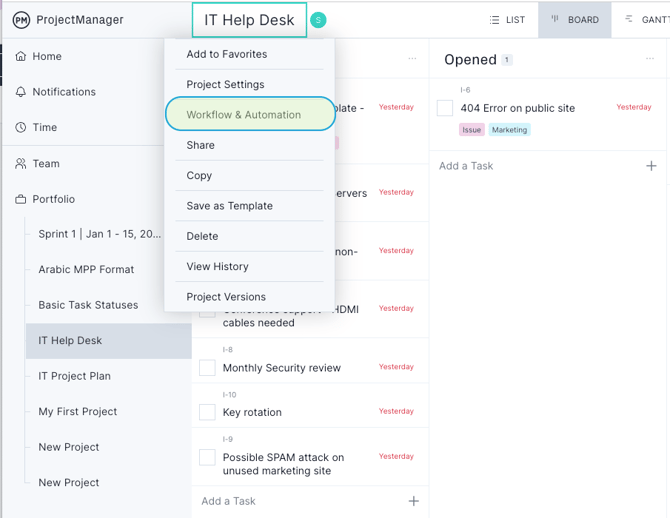
This view gives you control over more of the Workflow settings and automation options to streamline your Ticketing project. You can view current Task Statuses, double-click to edit the names of existing Statuses, and select "Add Status" to define new ones. You can also delete existing statuses via the Trashcan icon on the right side of the page.
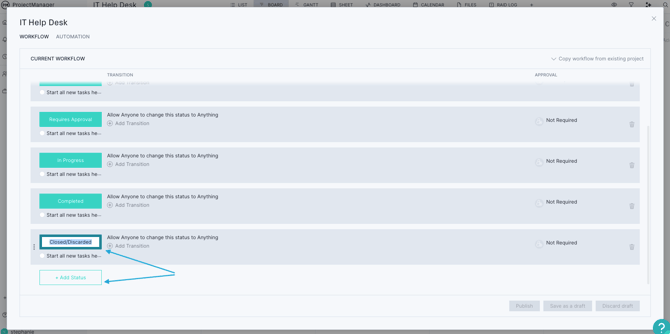
You can also drag and drop Task Statuses to rearrange the order both in this view as well as on the Board page. Additionally, you can set up Transition rules to restrict which people are able to place a Ticket into a particular status, define Ticket Approvals for a specific Status, and more. Learn more about setting up Custom Workflows in ProjectManager.
Define Ticket Automations
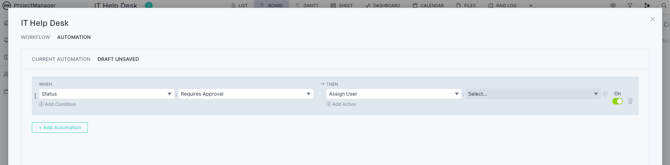
ProjectManager has an easy-to-use, no-code Automation engine that anyone can use to set up triggers and actions for your Ticketing projects. Automations help reduce time to delivery, eliminate errors and improves overall efficiencies across teams.
You can auto-assign someone when a Ticket requires Approval:
Or you can track Budget overruns by alerting the Project Lead with a custom message or Creating a Risk when Actual Costs exceed a certain amount:
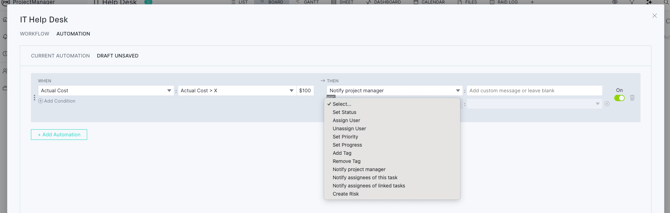
These are just two examples out of endless ways to set up automations for your Ticketing Project. Learn more about Setting up Automations in ProjectManager.
Set up Ticket Tags
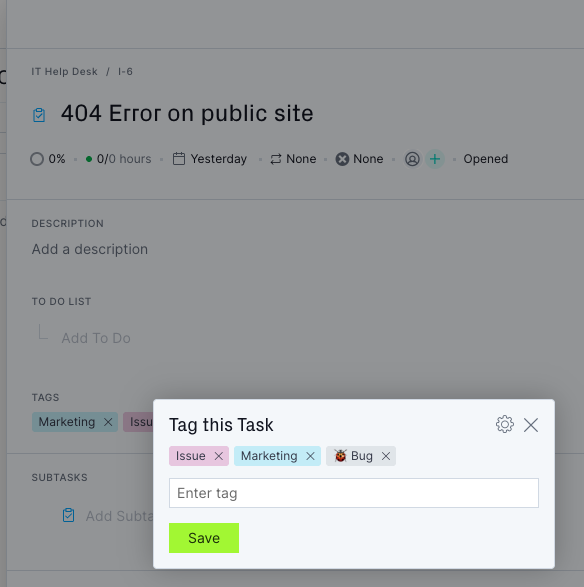
You can leverage the Tags feature to define custom tags for your Tickets, depending on the nature of your Ticketing project. Tags are used globally in ProjectManager, and they can be added and managed directly in the Task Card where you can enter a new tag to create one or click the Settings Gear icon to change color or add/delete new tags:
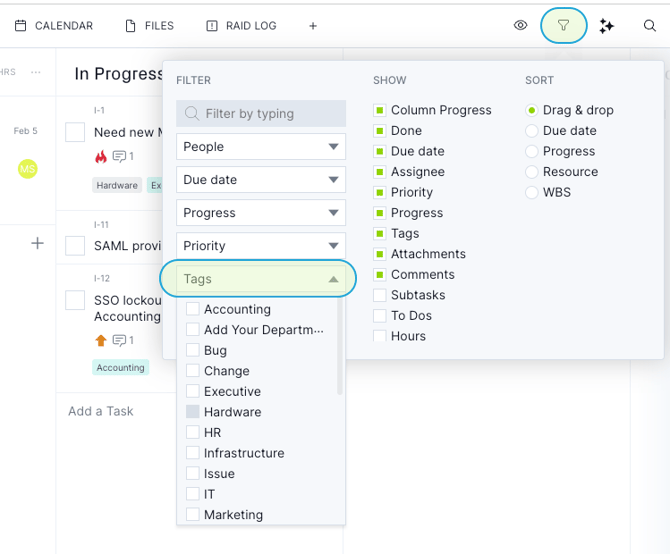
Many teams use Tags to visualize custom data, and sort/filter their Tickets when managing or reporting on their projects. On the Board you can filter by Tags:
Some ideas for Ticketing Tags are:
-
Department/Team
-
Type of Request
-
Type of Issue
-
Bug, Story, Epic
-
Building / Room number
Or whatever makes sense for your team.
These are just the basics of setting up your Ticketing Projects, Basic Workflow & Automations and Tagging. Next, we'll discuss some features for how the teams can work operationally on Tickets within ProjectManager.
Track Ticket Numbers & URLs
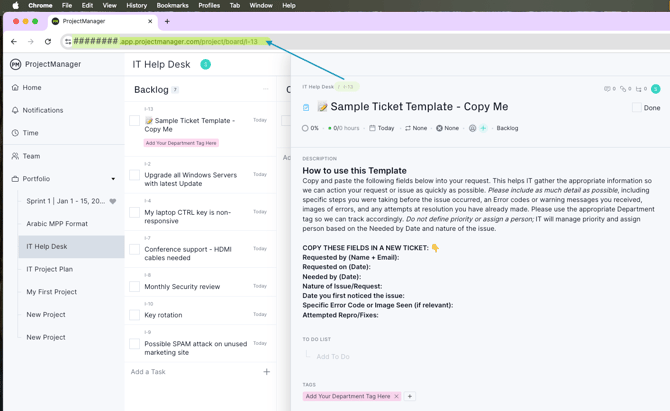
Every task in ProjectManager is automatically assigned a ticket number and a matching, dedicated URL. Each project has a unique URL and a Project URL ID, which is generated from the first letter of the project and, if there are multiple projects that start with the same letter, subsequent projects add a number to the Project URL ID. For example, the first project called "New Project" is identified in the URL string has /project/N. The second project called "New Project" is identified as /project/N2.
The Ticket number consists of a letter (which represents the Project URL ID) and a number, which is hyphenated after the Project URL ID and is generated in sequential order as new tickets are created. So the first ticket created in our "New Project" example would be /project/N2-1. And you can reference that ticket to colleges as "N2-1", for example, or can share the URL of that task.
The URL of each can be copied directly from your Browser search bar:
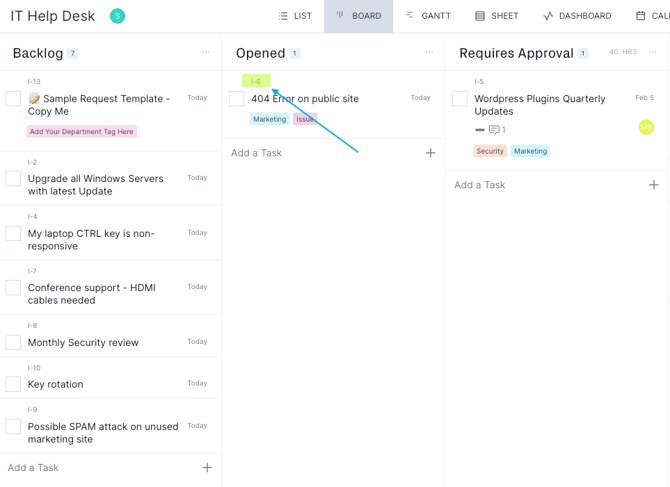
You can view all Ticket IDs on the Board, but opening the Filter menu and selecting the "ID" data field in the "Show" column.
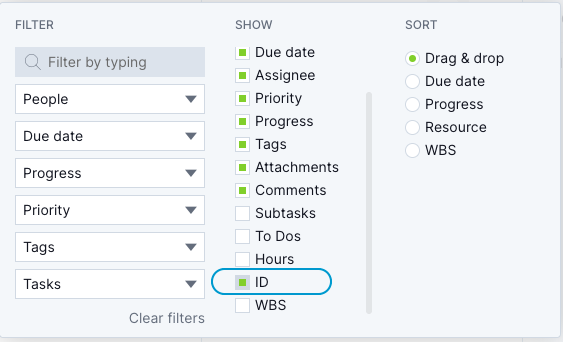
Once selected, you can find the ID at the top of each Cards for easy reference.
Collaborate across Teams
Now that your Ticketing project is set up, you'll need to invite the relevant people who will be able to create new tickets and manage the project.
Set Project Access
Whether individuals are internal to your org or sit outside your org, you can define the appropriate project security roles roles for them. This enables you to directly control the level of access each team member has.
Individuals are invited to the project with the lowest level security (Collaborate) to start. You can select the Edit lozenge next to their name to upgrade their project access.
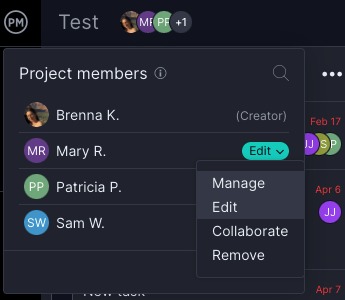
Most people who will be creating new Tickets will be served well with "Edit" access, so they can create new tickets and update existing ones.
Creating new tickets
When rolling out the Ticketing project to new team members, it's helpful to set up a Sample Ticket for your team to use to create a new Requests or Incident / Issue Ticket.
Here's an example:
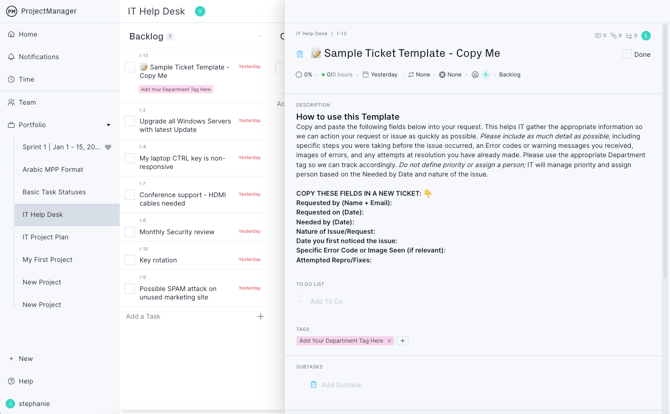
In the Description, the team member is encouraged to fill out specific data that you define as essential to understanding the nature of a request, a bug report, an incident report, etc.
As teams add new Tickets, they can add them directly to any one of the Project Views via the Task Card or by Mobile app.
Collaborate across Project Views
The Board is often used for Ticket management, but it's not the only view that can be used. For our four, primary project views, we have included descriptions of how they can also be used for Ticketing projects, specifically:
- Kanban board
- Monitor & manage Tickets by Status column
- Filter by Progress, Due Date, Priority, Person, Tag
- Track Ticket volume, Progress & Planned vs Actual Hours per Status
- Sort Manually (Rank order) or by Due date, progress, person or WBS per Column
- Drag tickets to a different status as they progress
- Monitor & manage Tickets by Status column
- Calendar
- Monitor & manage Tickets by month
- View Tickets by Due Date or Duration
- View Tickets by Task Name or Assignee
- View by Gantt or Assignee colors
- Monitor & manage Tickets by month
- Task list
- Monitor & manage Tickets in Rank or Sort Order
- Sort by Status, Assignee, Progress, Priority, Start Date, Due Date, Tags, Task Type, WBS and Custom Columns
- Manually sort to define rank order
- Monitor & manage Tickets in Rank or Sort Order
- Gantt/Sheet
- Generate Timelines for Ticket Delivery
- Drag to expand duration and due date
- Create Summary Tasks for tracking work in phases or longer tasks that have many sub tasks
- Create Dependencies for inter-connected work
- Link tasks together that are dependent on each for completion or initiation
- Link tasks to another Project for visibility across teams and managers
- Manage custom columns for additional data types in all views, like cost codes, Story Points, inventory items and more
- Generate Timelines for Ticket Delivery
Update Tickets & Document Issues via Task Card or Mobile
In all views, the Task Card is the primary way team members review and action their Tickets. Team members can also download the mobile app to update Tickets on the go from the job site, facility or maintenance repair shop.
As the team actions the ticket, updating Progress, Actual Hours, Priorities, Status, Subtasks, Planned vs Actual Costs and more, they can also collaborate with the team via the Comment thread on every Ticket. Every comment sends an alert to the person mentioned in-product as well as via email, according to your alert settings.
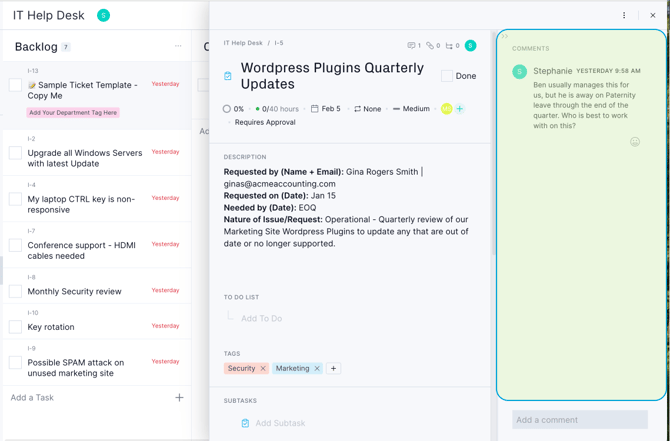
Teams can also update Ticket progress and document progress or troubleshooting notes via image upload or links to videos.
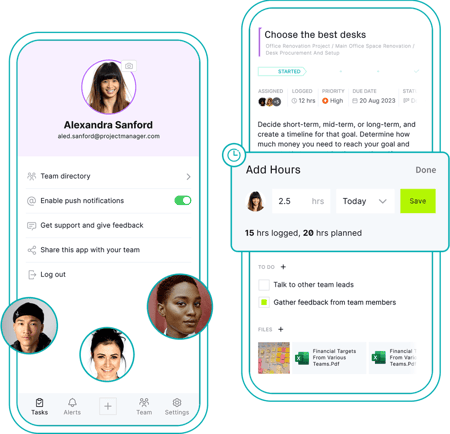
Unlimited file storage makes it easy to be as detailed as you need so that your Tickets are fully documented.
Track & Manage Ticket Workload
Assign your team to Tickets with insight into their real-time availability and resource cost. Click on the "assigned" column in the corresponding task. You'll be able to find resources by Team or the relevant Skills, view that resources availability and track their Planned Resource costs for the work.
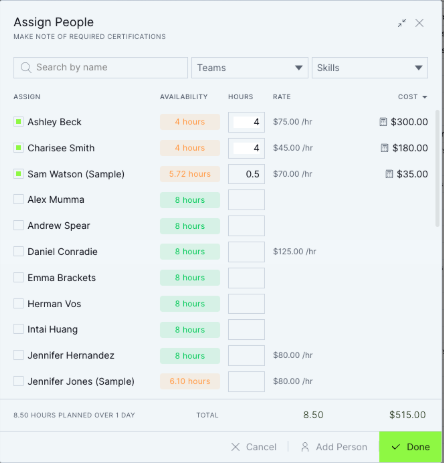
You'll see that the person's availability will automatically populate. Click on the "availability" lozenge for information about their assignments on other tasks across all projects. Learn more about resource management.
Ticket Reporting
Monitor team workload with the Team page
The team page gives you a dedicated view for tracking team workload across all tickets in your ticketing implementation. It aggregates assignments in real time so you can see who is overloaded, who has capacity and how work is distributed. You can review workload day-to-day or switch to a weekly view to plan near-term ticket demand.
Use the team page to:
-
See real-time assignments → View tickets assigned to each person, regardless of project or status; either day-by-day or across a week.
-
Track progress at a glance → Monitor ticket progress directly from the page without needing to open individual items.
-
Identify overloads → Quickly spot team members with too many active assignments then simply drag-and-drop to share the load to others.
-
Capacity planning → See each team member’s current workload to determine who can take on new or urgent tickets.
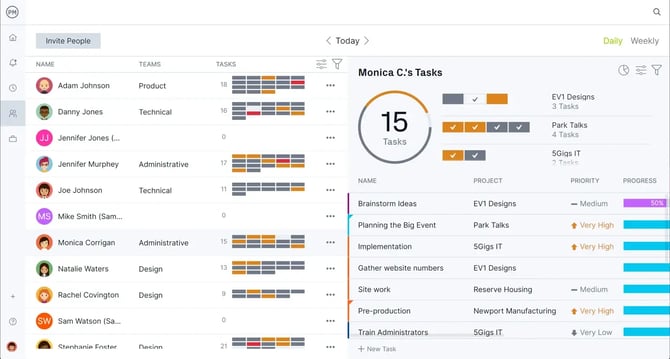
By consolidating ticketing work into a people-focused view, the Team page complements project-level dashboards and reports, helping service, support and operations teams manage ticket flow efficiently while keeping workloads balanced.
Use project dashboards to oversee progress
You can monitor Ticket progress with the project dashboard view. Here, you'll find a summary of essential project data broken out into six different categories: health, tasks (aka Tickets), progress, time, cost and workload.
As Tickets are actioned, the Dashboard automatically updates giving you real-time insights into the progress.
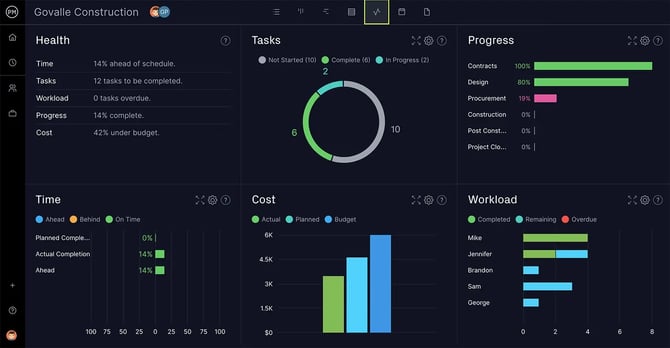
You can hover over each area of the dashboard to get additional information on the data. Feel free to customize the data that appears on each area of the dashboard by clicking the small gear icon.
Export or Report on Tickets
There are several ways to export data about your Tickets. You can view or export the a Task report on the reports page. You can Export the Tickets (aka Tasks) via the Exports icon in the Gantt/Sheet view. You can also leverage our Power BI or Excel integration to export the data with real time monitoring in external reporting tools.
Leverage the RAID + Changes Log
Our embedded RAID + Change Log is a powerful way to track Risks, Assumptions, Issues, Dependencies & Changes related to your Tickets or other Operational work. Some examples for using the RAID + Change Log for Ticketing would be:
-
Change Request Tracking
-
Requiring any changes to requests already in progress to be managed by opening a new Change request ticket in the log.
-
-
Risk Tracking
-
Unplanned expenditures discovered in Tickets for new equipment or services could bloat the Department Budget
- An outage to a server or a facility could generate Risks to ongoing Projects
-
- Issue Tracking
- A Security Breach could have org-wide impacts and could delay progress on other Tasks or Tickets
- A Bug could delay a release and may need to be tracked outside of the primary Ticket board
ProjectManager supports comprehensive Ticketing management and operational work for teams.