
This is gradually being rolled out from December 2025
Overview | Managing Rates | Tips for Existing Users | FAQs
Overview
Industry leading cost management for serious project managers:
- Plan ahead - All rates can be scheduled to change on a specific date.
- Data integrity - Editing rates does not alter costs on closed projects.
- Projections - See how different resources affect task costs in real time.
- Flexibility - Create a unique rates for external contractors or consultants.
- Accuracy - Planned and actual costs automatically adjust with scheduled changes.
Designed for any industry where accurate real-time resource cost tracking is required:
-
A professional services company has base rates which change each year, and may negotiate unique rates for larger projects.
-
An internal IT department offers a specific range of skills to the org, each with their own base rates, and occasionally brings on contractors who need unique rates.
-
A construction company negotiates rates per contractor per project, these change over the lifetime of longer projects.
-
A manufacturing company is tracking machinery by the hour, charged differently per project.
Core concepts:
- Resource Rates - You can set a base rate for each of your resources, this is a good place to get started. This can either be your charge out rate or your internal cost.
- Project Rates - For teams who negotiate fixed rates per project, you can set project base rates. Planned and actual costs will be calculated using this rate instead of individual resource rates (although, if you have exceptions, you can also create an overriding rate for specific resources on this project). The project rate is also used when calculating the cost of unassigned tasks.
- Effective Dates - Plan for the future and while protecting historic data by scheduling rate changes on certain dates. Planned and actual resource costs automatically adjust to the schedule, even if the project spans multiple rate changes.
Managing Rates
The rates page is where you can manage all your rates and effective dates. You can find the rates page by clicking your name (bottom left) > Users & Teams > Hourly Rates.
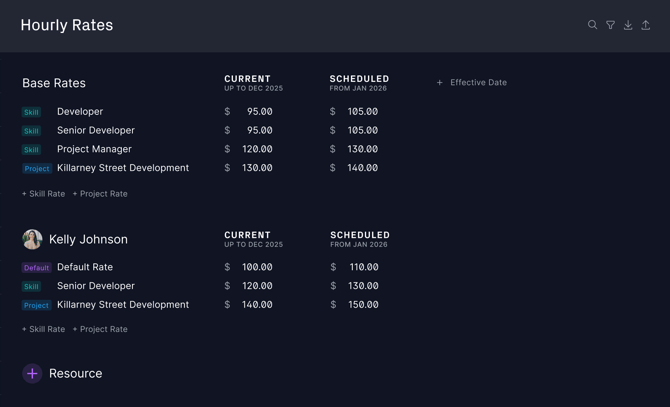
You can only access the Rates page if you have the "See hourly rates, costs & budgets" role setting. Admins and Global Admins have this setting by default and you can create a custom role for more granular control.
Base Rates
The top of the page lists the Base Rates, these rates are shared by multiple resources. There are two types of base rate:
- Project → The rate which will be used on a specific project.
- Skill (coming soon) → The rate used when delivering this type of work.
To add a new base rate click the + Rate button.
Resource Rates
Below the base rates are Resource rates, here you can set unique rates for each resource. There are three types of resource rate:
- Default → The default rate for this resource, this is required.
- Project → Use when a person has a unique rate for a specific project (overriding the project's base rate).
- Skill (coming soon) → The rate to be used when this person provides the specified skill (overrides that skill base rate).
To create rates for an individual resource click the + Resource button. Initially this will only reveal their Default Rate, you can create additional rates with the + Rate button.
Effective Dates
You can schedule an upcoming rate change by using Effective Dates. Simply click the + Effective Date button, then choose the date your rates will change. This will add a new column to the page so you can create new rates for any of your base/resource rates. New rates will match the previous ones until you choose to edit them.
What's Changing for Existing Users
Before 2026 we had a simpler system for managing rates. It was useful but there was no way to manage costs changing over time, protect historic rates, schedule changes for the future, etc. If you used hourly rates previously here are some tips for moving to the new more powerful system.
Important changes to existing features:
- Project Rates → Previously if you set a project rate, it was only used if the resource had no rate of their own. Now, when a project rate is set it will override all resource base rates, allowing you to give a project a fixed rate regardless of who does the work. If you prefer the previous way of working simply give your resources a dedicated rate for this project.
- Allocated Hours → Our Workload system is now smarter about how it automatically re-allocates hours around manual adjustments. If you've made adjustments directly on the Workload page, these may be updated to align with the newer system, which could override some manual workload allocations. This is a one-time adjustment as you move to the new and improved system.
New features to explore:
- Protected Projects → When you close a project its rates are now locked, if you change resource rates in the future your closed project costs are unaffected.
- Assignment Screen → You'll notice that the Assignment view has been overhauled so you can make quicker, smarter allocation decisions: compare the rates of different resources, see other commitments your assignees have during this task's timeframe, and more. This screen is also now available in the List and Board views and can be collapsed to a simple list if you don't need the detail.
- Workload Allocation → We are now smarter about how we automatically allocate hours on the Workload page. For example: If you go to the Workload page and set a specific number of hours a resource should spend on a task on a certain day, then the total number of hours for that task changes, we leave your manually updated day alone and re-distribute the extra hours around it.
- Current Rates → You can still set a project rate via Project Settings and a resource rate via their Profile, however this will only be their current rate. If that's all you need, great! But you can visit the full Rates page at any time to access the latest features like effective dates.
Common Questions
When should I use a project rate?
Project rates are designed for teams who quote a flat-rate for all work on a project. Your project rate is applied to all work on the project, ignoring individual resource rates. You still have flexibility to create exceptions for specific resources.
- Set a project rate if:
- You want to estimate a project’s costs before assigning specific people.
- You charge a flat rate for the project, with occasional exceptions.
- Do not set a project rate if:
- You want all costs to be based on your individual resource rates.
How do I lock a project's rates when the costing phase is complete?
First, set a project rate, this is always locked to the project. If you require different rates for certain people, go to the Rates page and under the resource name add a Project rate. This will create a unique rate for this person's work on the project, even if that person's standard rate changes in the future your project costs remain locked in.
Re-opening Closed Projects
If you re-open a closed or deleted project, and rates associated with that project were changed while it was closed/deleted, be aware of the following:
- Initially the project will show its original rates and resource costs.
- If you edit a task its resource costs will be recalculated using the latest rates.
- If you update the project rate (the base project rate or a project-specific resource rate), all resource costs for the project will be recalculated using the latest rates.
Coming Soon
- Skill Rates - Define rates for services you offer, allowing you to manage an entire team with a handful of shared rates. You can give skills base rates plus you can set custom skill rate overrides for individual resources. Skill rates can also have effective dates.
- Advanced Filtering - For teams with complex pricing structures there will be more ways to simplify the Rates page and find only the rates you need. This includes the ability to hide historic rates, filter by team and by project status.
- Import and Export - Import your existing rates in bulk from other systems. You can even give imported rates an effective date, useful for importing a set of rates for an upcoming price increase.