
In ProjectManager, you can assign a task to one or more users — either while creating it or after — directly from the Gantt, Sheet, Board, List, Calendar, or Team view.
Once a task is assigned, the user will receive an email with their task assignment (unless they have manually turned alerts off).
You can assign tasks to an individual user or multiple users. If a task is assigned to multiple users, each user will get a separate email alert (if alerts are enabled) and can view the task in the List view of their home screen.
Tip: If a task is assigned to multiple users, it'll be marked complete as soon as one user marks it complete.
If you're assigning planned effort, each user can individually log their number of hours on a task, and the total number of hours logged will be visible on the board and list.
On the Gantt, you can see the breakdown of logged hours over multiple users.
In addition, you can run a timesheet report to see the number of hours assigned and logged across your team.
How to Assign a Task to Your Entire Team in ProjectManager
If you have organized your users into teams, you can assign a task to everyone on your team. You may choose to organize your users by department, region or job title.
On the Gantt, you have the option to view everyone, a team, or individual users. Select the team you wish to assign, and only users who belong to that team will appear. You can then select individual team members to assign them to that task.
Note: The Gantt does not support bulk team assignment — you must select each team member individually.
On the list, board and calendar views, users will automatically be organized by team, making it easy for you to select all team members to assign to a task.
Tip: Use the Team Page to quickly see all the tasks assigned to members of your team.
How to Create and Assign a Task Using the "+New" Button
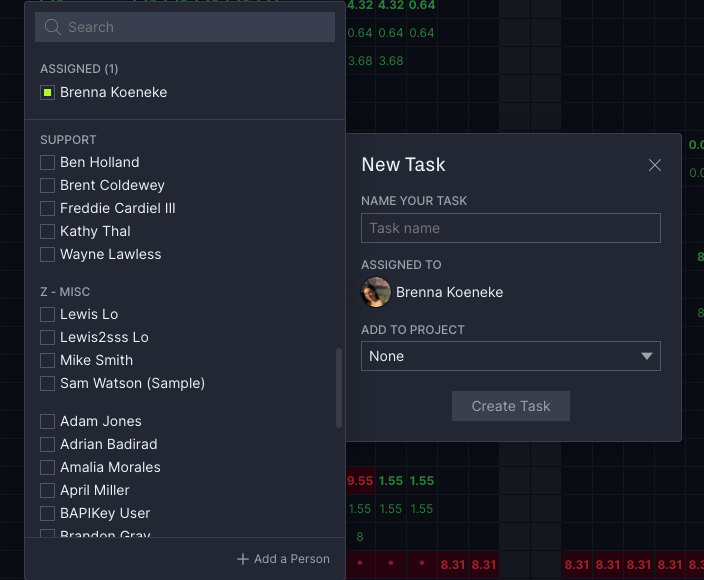
When you create a task using the +New button, you can assign it to a team member directly in the popup. The software will automatically assign you the task. Simply click your name to assign it to another member of your team or invite someone else to work with you.
You can also assign multiple users at once by selecting additional names in the same popup before saving the task.
How to Assign Tasks on the Gantt Chart in ProjectManager
On the Gantt, you can assign a team member a task using the assigned column. Click the cell to open the availability popup. Select the people you want to assign and click Save.
Note: Gantt is only available on Team and above.
Need access? Upgrade your account today.
If you're using planned effort to assign tasks, you can see how many hours the user has available under the availability column. If the user is available, the box will appear green.
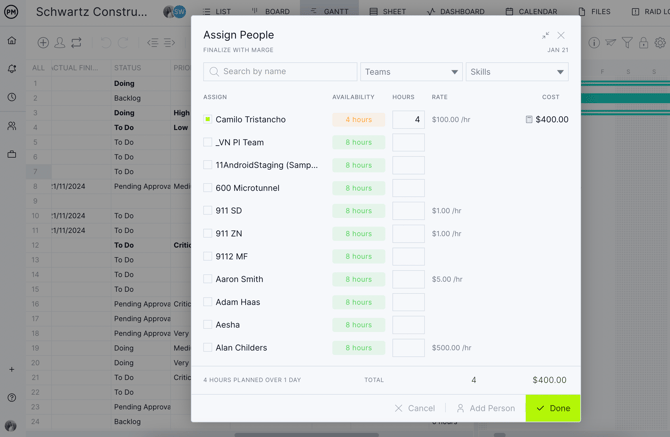
If the user isn't available for the full amount of hours, the hours they are available for will appear. You can hover over the box to see the other tasks that they are assigned during that timeframe.
Tip! If you enter planned effort before assigning tasks, the system will automatically replace it with the default planned hours set in the holidays popup — unless you have configured a per-person default there.
To prevent this, manually override the default hours in the assignee popup before confirming the assignment.
Once assigned, the user will get an email if alerts are turned on. If you assigned planned effort, you will see it reflected in the Gantt column and other areas such as workload and reports. For more information on planned effort on the Gantt, visit our resource management page.
How to Assign Tasks on the List and Board View
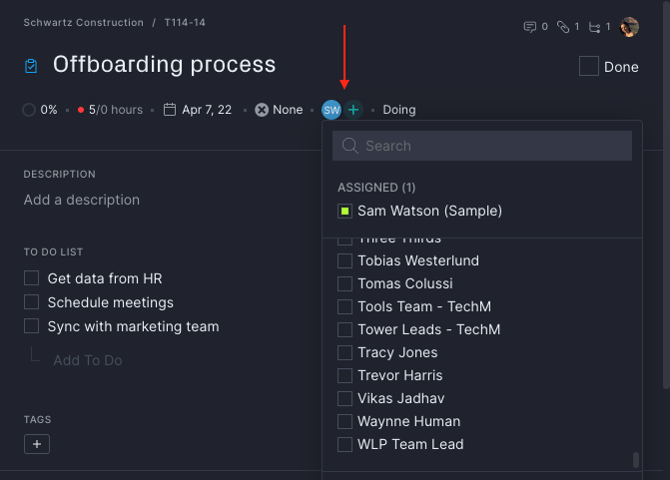
On the list and board, you can assign a task to a member by using the assigned field. On both the list and the board, you will see the user’s avatar or custom color by their name.
To assign a task or reassign it, click the dropdown menu next to their name and check the users you would like assigned. Once assigned, the user will get an email if alerts are turned on and the new user’s avatar will appear next to their name.
How to Assign Tasks on the Calendar
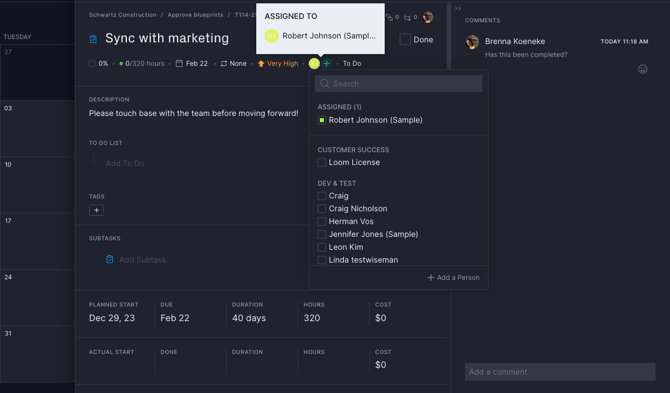
On the calendar, you can assign a team member to an existing task or assign one as you are creating a new task. To assign a team member to an existing task, click on the task and the task detail popup will appear. Choose a team member to assign the task to, just like the list or board views.
To create a new task, hover over a date and click Add a Task. You will be able to fill out the assignee as part of the task creation process.
Need more help? Contact our support team at support@projectmanager.com or visit our Help Center for more resources.