---
title: "Task Dependencies: How to Create Dependencies on the Gantt"
description: For date-driven Gantt projects, many tasks are dependent on one another. Create dependencies to keep work moving.
---
[Skip to content](https://learn.projectmanager.com/how-to-create-dependencies#main-content)
- [English](https://learn.projectmanager.com/how-to-create-dependencies)
- [Español](https://learn.projectmanager.com/es/como-crear-dependencias)
- [Français](https://learn.projectmanager.com/fr/creer-des-dependances)
English
Show submenu for translations
[Ask a Question](https://learn.projectmanager.com/kb-tickets/new)

- [ProjectManager Knowledge Base](https://learn.projectmanager.com/)
Open main navigation
Close main navigation
- [ProjectManager Knowledge Base](https://learn.projectmanager.com/)
- - [English](https://learn.projectmanager.com/how-to-create-dependencies)
- [Español](https://learn.projectmanager.com/es/como-crear-dependencias)
- [Français](https://learn.projectmanager.com/fr/creer-des-dependances)
English
Show submenu for translations
- [Ask a Question](https://learn.projectmanager.com/kb-tickets/new)
How can we help you today?
- There are no suggestions because the search field is empty.
1. [ProjectManager Knowledge Base](https://learn.projectmanager.com/)
2. [Project views](https://learn.projectmanager.com/project-views)
3. [Gantt View](https://learn.projectmanager.com/project-views#gantt-view)
# Task Dependencies: How to Create Dependencies on the Gantt
## For date-driven Gantt projects, many tasks are dependent on one another. Create dependencies to keep work moving.
| [Types of Dependencies](https://learn.projectmanager.com/how-to-create-dependencies#types) | [Creating Dependencies](https://learn.projectmanager.com/how-to-create-dependencies#create) | [Linking Between Projects](https://learn.projectmanager.com/how-to-create-dependencies#project) |
| --- | --- | --- |
Task dependencies are the interrelationships that exist between project activities. They determine the order in which project tasks need to take place. In most projects, some tasks are dependent on one another.
Track all four types of task dependencies on our Gantt chart:
- Finish to finish
- Finish to start
- Start to finish
- Start to start
Task dependencies can be easily created in our Gantt chart or Sheet view in multiple ways. You can also define Lag or Lead (negative lag) and create inter-project task relationships to automate your plan.
Our [Gantt chart](https://learn.projectmanager.com/the-gantt) and Sheet View make it easy to keep track of these types of tasks. Watch the video below for more information on creating dependencies on the Gantt chart.
### Types of Dependencies
The most common type of dependency is finish to start which is our default link type. We also support the three other link types: start to start, finish to finish and start to finish.
- **Finish to Start:** Predecessor must finish before successor can start.
- Example: Baking a cake has to be complete before decoration of cake can begin
- **Start to Start:** The predecessor must start before the successor can start.
- Example: Baking a cake and starting pre-heating the oven can start together.
- **Finish to Finish:** The predecessor must finish before the successor can finish.
- Example: Delivery of the cake can only be done once the decoration of cake is complete.
- **Start to Finish:** The predecessor must start before the successor can finish.
- Example: You need to charge the customer for the cake. The billing process begins when the customer orders the cake but it can’t be fully processed until the cake is delivered.
### How to Create Dependencies
You can create a task dependency by dragging and dropping one task onto another on the Gantt, by clicking the link icon on the Gantt ribbon or from within the Linked To or Linked From Columns in the Gantt or Sheet views. You can also use the Task Info Panel to manage Dependencies, Lag and Lead. We'll explore all the ways to manage dependencies below.
#### **Drag and Drop on the Gantt**
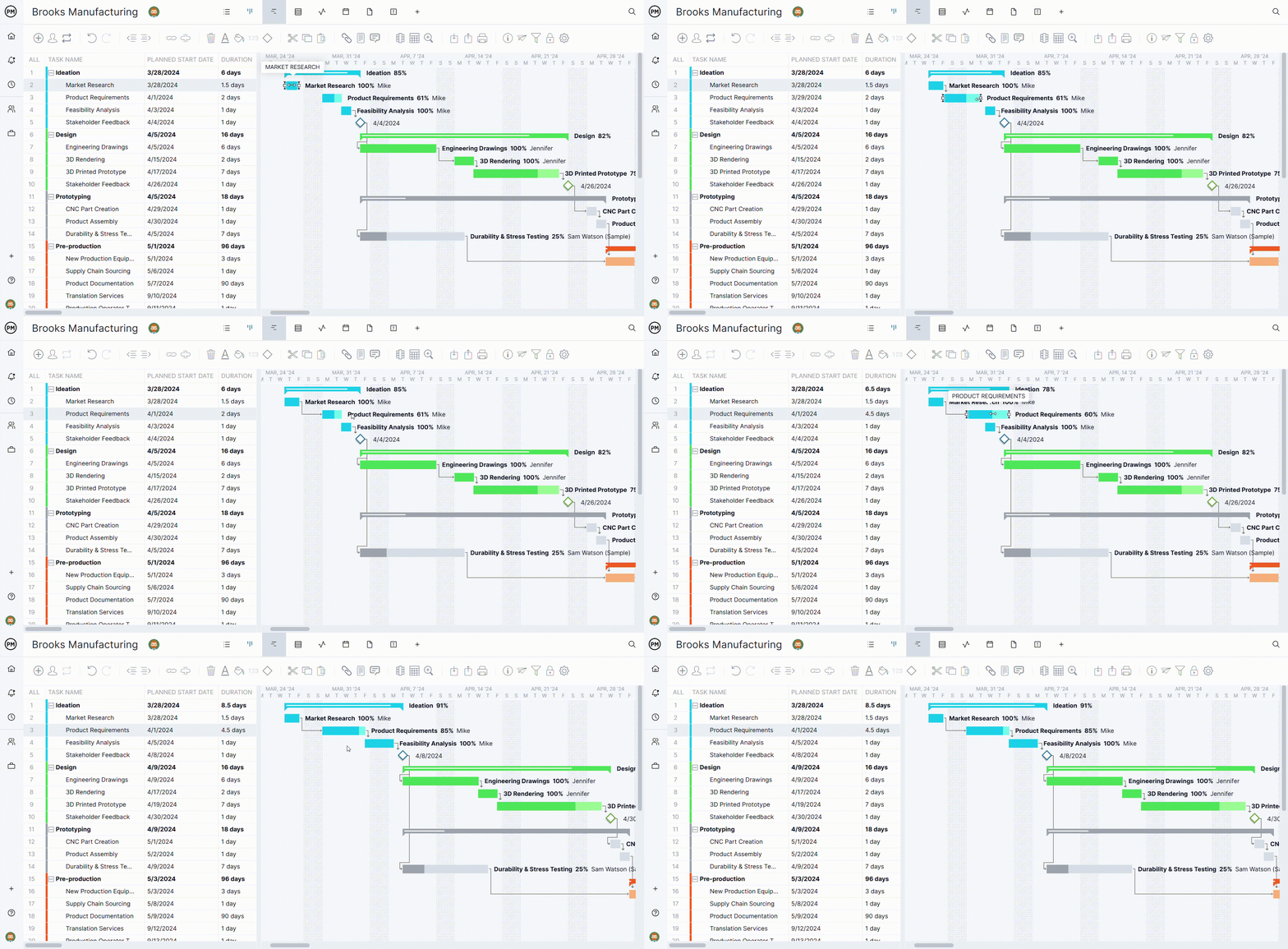
To quickly create a dependency between on the Gantt bars, simply click and hold your mouse on a taskbar and drag your mouse until a dotted line appears. Then drag the dotted line to the destination task and release the mouse click.
Once you let go of your mouse, a solid line shows that a Finish-to-Start dependency has been created between those two tasks. You can remove the dependency by clicking the unlink button to the left of the delete button or the undo button.
#### **Directly from the Linked To or Linked From Columns**
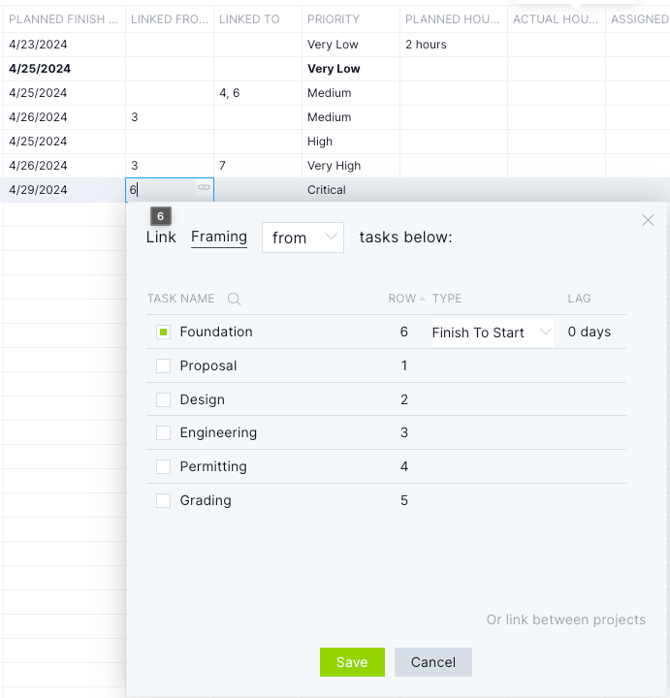
You can enter the relevant Task numbers directly in the Linked To or Linked From Cells. You can type a Task Row number (or several rows, comma delimited) right into the cell and click Enter to save. That will generate a Finish-to-Start link by default.
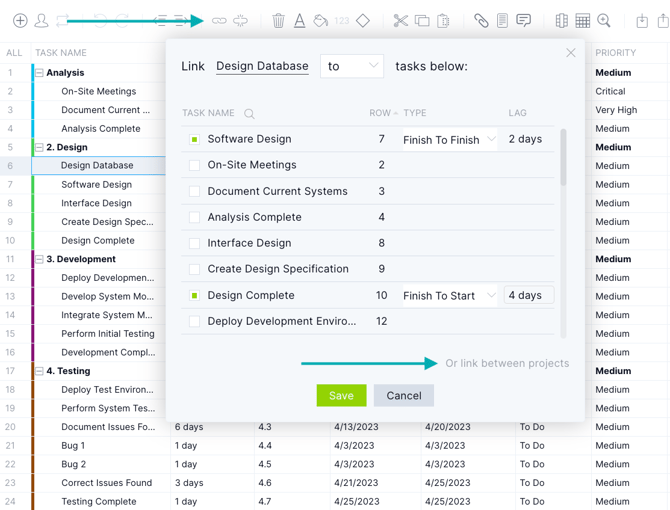
When you click into the cell, you will also see the Link popup appear that offers more advanced settigs. In the popup, you can see the Task you have selected and a default "From" option in the To/From Dropdown. In the table below, you can select the tasks to link to (or from) the highlighted task, as well as modify the dependency type (Finish-to-Start, Start-to-Start, Start-to-Finish or Finish-to-Finish) in the Type dropdown menu. You can also choose to define Lag for the link, which will automatically default to zero. You can enter positive or negative Lag (Lead).
#### **Link Button on the Gantt Ribbon**
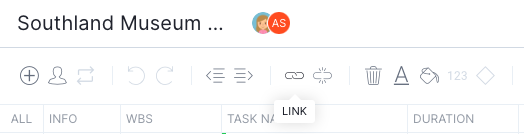
You can also create dependencies by clicking the link button on the Gantt. First, highlight the task you would like to link to or from, and then click the link button. The Link popup will appear and display which task you are linking to or from on the first line.
#### **Task Info Panel - Links Tab**
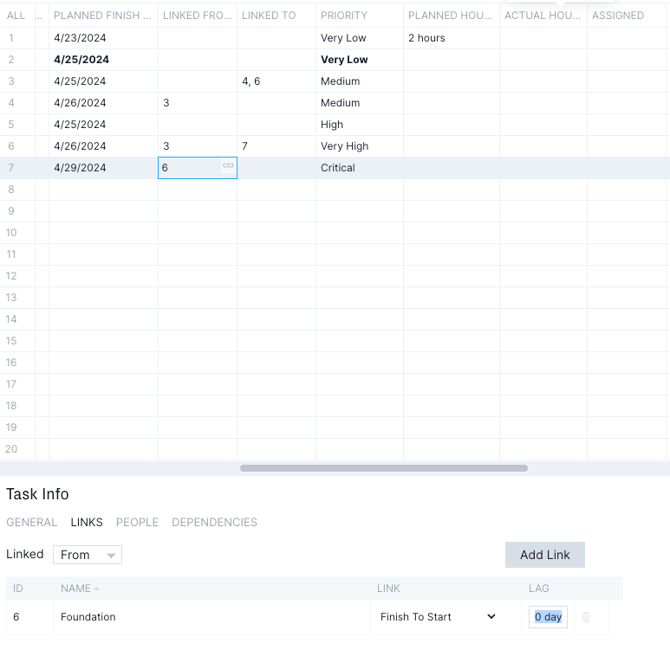
The Task info panel also allows you to create Links. Clicking the the "Info" icon on the Gantt Ribbon opens the Task Info Panel, where many functions for managing tasks can be performed. This includes Links and Inter-Project Dependencies (see below). You can keep the Task Info Panel open as you work through the Gantt/Sheet to review or manage Links and Lag accordingly.
### Linking Between Projects
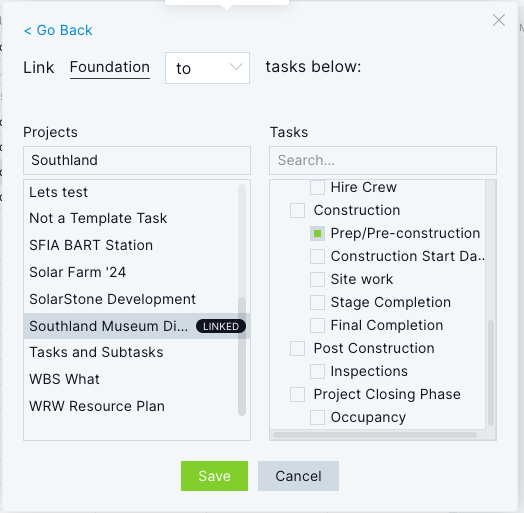
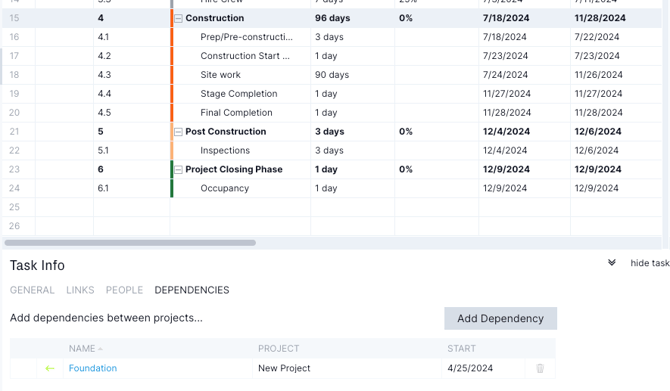
You can also create a Link on tasks between projects (Inter-project Dependencies) on the both the Link popup or the Task Info Panel - Dependencies tab. To link tasks between two projects together, click the “Link between projects” text at the bottom right of the Link popup or by clicking the "Add Dependency" button in the Task Info Panel. Both open this view to manage Inter-project Dependencies.
Here you can first search by projects on the left hand column and then find the relevant tasks in the right hand column per project. You can use the Search box to find your project or scroll through the list.
Selecting a task between two projects will provide a visual indicator in both this popup as well as the Task Info Panel so you know the tasks are defined by a Dependency, but it does not enforce any date changes.
When tasks have Dependencies, your plan is automatically updating the Planned Dates for all the linked Tasks. You can also enable changes to Task Dependencies via the [Planned Dates Setting](https://learn.projectmanager.com/planned-dates-setting).
Looking for more Gantt chart articles? [Visit the Gantt chart category.](https://learn.projectmanager.com/project-views#gantt-view)
### Contact Us with Questions!
Please email support@projectmanager.com if you have any questions about how to create dependencies on the Gantt.
- [Training walkthroughs](https://learn.projectmanager.com/training-walkthroughs#main-content)
- [Setting Up Your Account](https://learn.projectmanager.com/training-walkthroughs#setting-up-your-account)
- [Resource Management](https://learn.projectmanager.com/training-walkthroughs#resource-management)
- [Team Management](https://learn.projectmanager.com/training-walkthroughs#team-management)
- [Gantt Chart](https://learn.projectmanager.com/training-walkthroughs#gantt-chart)
- [Dashboards](https://learn.projectmanager.com/training-walkthroughs#dashboards)
- [Portfolio Management](https://learn.projectmanager.com/training-walkthroughs#portfolio-management)
- [Integrations](https://learn.projectmanager.com/training-walkthroughs#integrations)
- [Getting started](https://learn.projectmanager.com/getting-started#main-content)
- [Software Basics](https://learn.projectmanager.com/getting-started#software-basics)
- [Account Basics](https://learn.projectmanager.com/getting-started#account-basics)
- [Making Your First Project](https://learn.projectmanager.com/getting-started#making-your-first-project)
- [Preferences & Notifications](https://learn.projectmanager.com/getting-started#preferences-notifications)
- [Managing projects](https://learn.projectmanager.com/managing-projects#main-content)
- [Project Management](https://learn.projectmanager.com/managing-projects#project-management)
- [Project Settings](https://learn.projectmanager.com/managing-projects#project-settings)
- [Templates, Imports & Exports](https://learn.projectmanager.com/managing-projects#templates-imports-exports)
- [Project views](https://learn.projectmanager.com/project-views#main-content)
- [Our Project Views](https://learn.projectmanager.com/project-views#our-project-views)
- [List, Board & Calendar Views](https://learn.projectmanager.com/project-views#list-board-calendar-views)
- [Gantt View](https://learn.projectmanager.com/project-views#gantt-view)
- [Sheet View](https://learn.projectmanager.com/project-views#sheet-view)
- [Risk View](https://learn.projectmanager.com/project-views#risk-view)
- [Tasks & teams](https://learn.projectmanager.com/tasks-teams#main-content)
- [Task Management Basics](https://learn.projectmanager.com/tasks-teams#task-management-basics)
- [Advanced Task Management](https://learn.projectmanager.com/tasks-teams#advanced-task-management)
- [Team Organization](https://learn.projectmanager.com/tasks-teams#team-organization)
- [Team Management](https://learn.projectmanager.com/tasks-teams#team-management)
- [Resource management](https://learn.projectmanager.com/resource-management#main-content)
- [Resource Availability](https://learn.projectmanager.com/resource-management#resource-availability)
- [Time Management](https://learn.projectmanager.com/resource-management#time-management)
- [Dashboards, reports & PPM](https://learn.projectmanager.com/dashboards-reports-ppm#main-content)
- [Dashboards](https://learn.projectmanager.com/dashboards-reports-ppm#dashboards)
- [Project Portfolio Management](https://learn.projectmanager.com/dashboards-reports-ppm#project-portfolio-management)
- [Reports](https://learn.projectmanager.com/dashboards-reports-ppm#reports)
- [Account, security & users](https://learn.projectmanager.com/account-security-users#main-content)
- [Account and Project Security](https://learn.projectmanager.com/account-security-users#account-and-project-security)
- [User Management](https://learn.projectmanager.com/account-security-users#user-management)
- [Account Management](https://learn.projectmanager.com/account-security-users#account-management)
- [Integrations](https://learn.projectmanager.com/integrations#main-content)
- [ERP / Accounting](https://learn.projectmanager.com/integrations#erp-accounting)
- [Collaboration](https://learn.projectmanager.com/integrations#collaboration)
- [Development](https://learn.projectmanager.com/integrations#development)
- [Analytics](https://learn.projectmanager.com/integrations#analytics)
- [API](https://learn.projectmanager.com/integrations#api)
- [Customer resources](https://learn.projectmanager.com/customer-resources#main-content)
- [Training Academy](https://learn.projectmanager.com/customer-resources#training-academy)
- [Listen & Learn Videos](https://learn.projectmanager.com/customer-resources#listen-learn-videos)
- [By industry](https://learn.projectmanager.com/by-industry#main-content)
- [Construction](https://learn.projectmanager.com/by-industry#construction)
- [Manufacturing](https://learn.projectmanager.com/by-industry#manufacturing)
- [Professional Services](https://learn.projectmanager.com/by-industry#professional-services)
- [Latest releases](https://learn.projectmanager.com/latest-releases#main-content)
- [Phased Releases](https://learn.projectmanager.com/latest-releases#phased-releases)
- [2026 Releases](https://learn.projectmanager.com/latest-releases#2026-releases)
- [2025 Releases](https://learn.projectmanager.com/latest-releases#2025-releases)
- [2024 Releases](https://learn.projectmanager.com/latest-releases#2024-releases)
- [2023 Releases](https://learn.projectmanager.com/latest-releases#2023-releases)
- [2022 Releases](https://learn.projectmanager.com/latest-releases#2022-releases)
- [Mobile app](https://learn.projectmanager.com/mobile-app)
[](https://www.projectmanager.com)
Get organized. Do amazing things.
[mailto:support@projectmanager.com](mailto:support@projectmanager.com)
[Login](https://software.projectmanager.com/login) | [Ask a Question](https://learn.projectmanager.com/kb-tickets/new) | [Tutorial Videos](https://www.projectmanager.com/product-videos)
```json
{
"@context" : "https://schema.org",
"@type" : "VideoObject",
"caption" : {
"@type" : "MediaObject",
"contentUrl" : "https://learn.projectmanager.com/media-transcripts/136429334026/en.vtt",
"inLanguage" : "en",
"name" : "en Captions"
},
"contentUrl" : "https://6111124.fs1.hubspotusercontent-na1.net/hubfs/6111124/Marketing%20Content/Training%20Academy/Training%20Academy%20-%20Planning%20with%20the%20Gantt%20-%20Critical%20path%2c%20dependencies%2c%20printing.mp4",
"dateModified" : "2026-06-03T20:25:01.560Z",
"duration" : "PT2M53.633S",
"height" : 720,
"name" : "Training Academy - Planning with the Gantt - Critical path, dependencies, printing",
"thumbnailUrl" : "https://6111124.fs1.hubspotusercontent-na1.net/hubfs/6111124/Marketing%20Content/Training%20Academy/Training%20Academy%20-%20Planning%20with%20the%20Gantt%20-%20Critical%20path%2c%20dependencies%2c%20printing.mp4/medium.jpg",
"uploadDate" : "2023-09-25T13:38:27.630Z",
"width" : 1280
}
```