
| Creating a Budget | Cost Types | Resource Costs |
| Non-Human Resource Costs | Planned & Actual Costs | Cost Reporting |
Available on Business and above, learn more.
Budgets and Costs Summary: Benefits & Functions
Budgeting and cost management in ProjectManager include:
- Tracking planned vs. actual cost data
- Setting hourly rates for team members
- Reporting on project costs
Managing budgets and costs are best executed in different views, including the Gantt chart, sheet view, dashboards and reports:
- The Gantt chart and sheet view automatically reflect hourly rates set for each team member and can track planned vs. actual data
- The project and portfolio dashboard have a real-time cost panel that tracks the budget and planned vs. actual data
- Reports like project status or task reports can include budget and cost information
Any budgeting and cost data will appear across project views in real time.
Cost Management Introduction Video
How to Set a Project Budget
Set a project budget when you create a project by clicking the cog icon next to the project name.
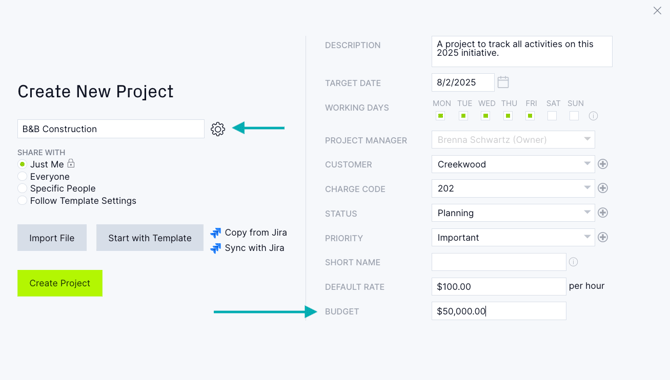
Tip: Set your working days when you create a project, as you can't adjust those once the project is created.
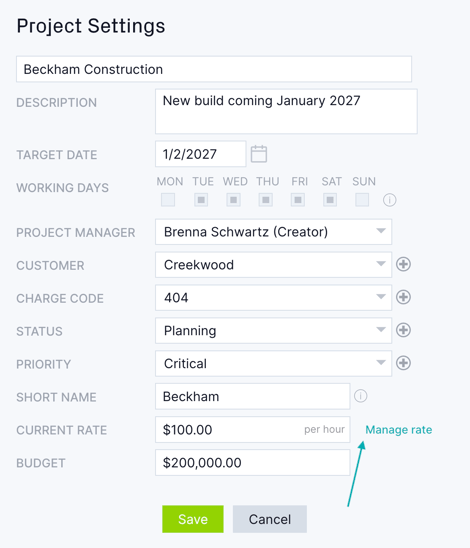
You can also create or adjust your budget at any time throughout your project, from the project settings popup. Click the project name to access project settings and a popup will appear.
If you have the "See hourly rates, costs & budgets" role setting, you can navigate to the Rates page. Admins and Global Admins have this setting by default and you can create a custom role for more granular control.
When a project rate is set, it will override all resource base rates, allowing you to give a project a fixed rate regardless of who does the work.
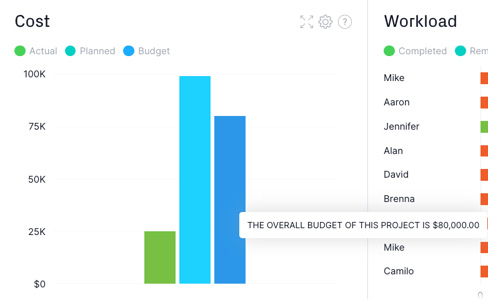
Your project budget will be displayed on the dashboards and reports pages so you can compare your budget to actual costs.
Cost Types
There are two cost types in the software: resource costs and general costs.
- Resource costs are referred to as planned and actual resource costs
- General costs are referred to as planned and actual costs
Planned and Actual Resource Costs
Resource costs are calculated automatically in the software as hours are planned and logged. Set a default resource cost for your team on the project settings popup.
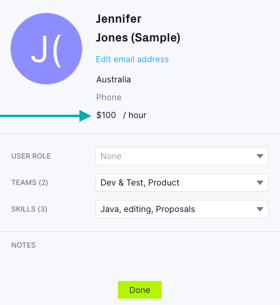
You can also customize each team member's hourly rate on the manage users tab of the "Users & Teams" page. If no individual rate is set, the software will apply the default hourly rate.
Planned resource costs are populated once a resource is assigned hours on any project view if the assignee has an hourly or default rate assigned.
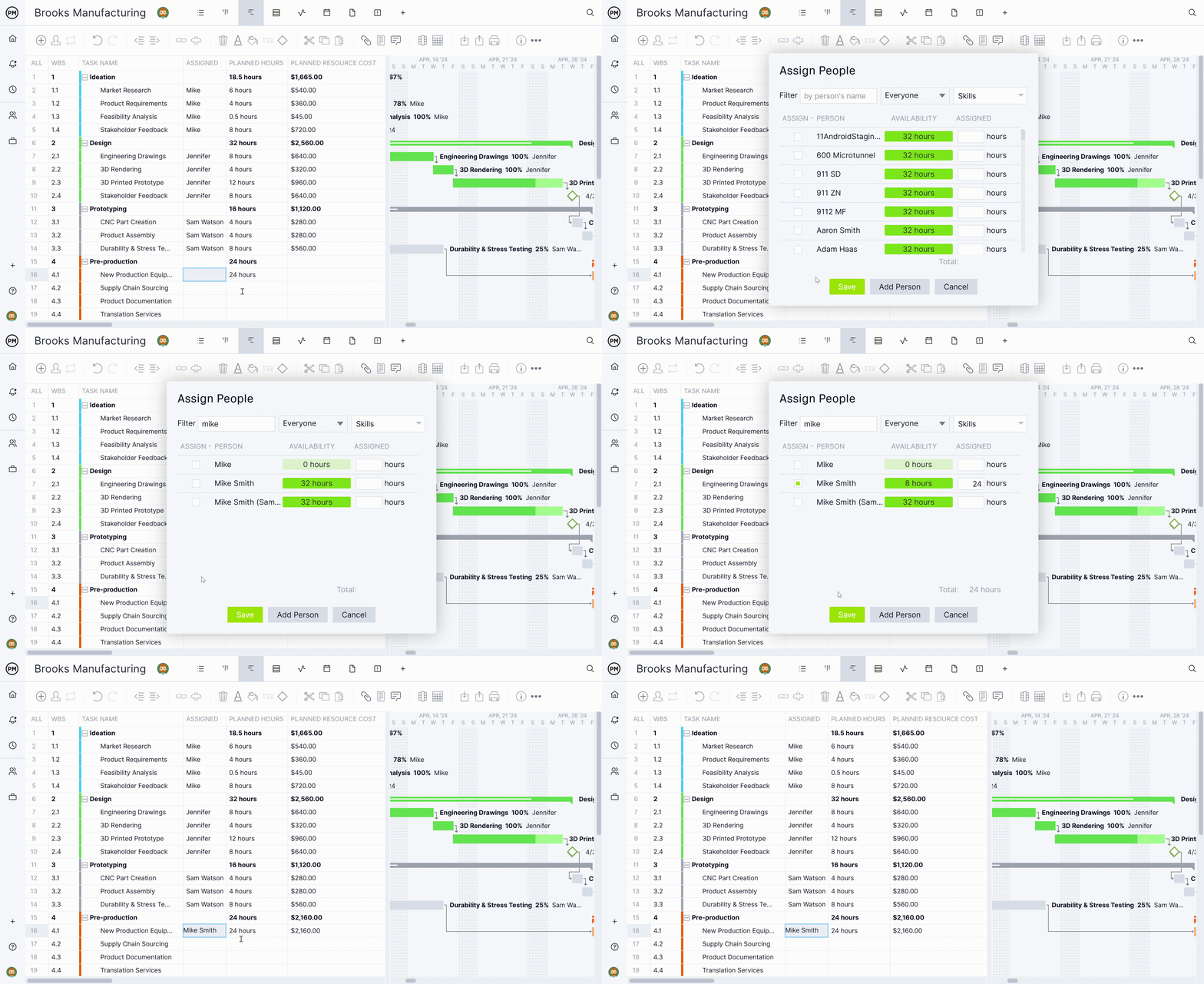
Once assigned, the planned resource cost column will populate on the Gantt and sheet views.
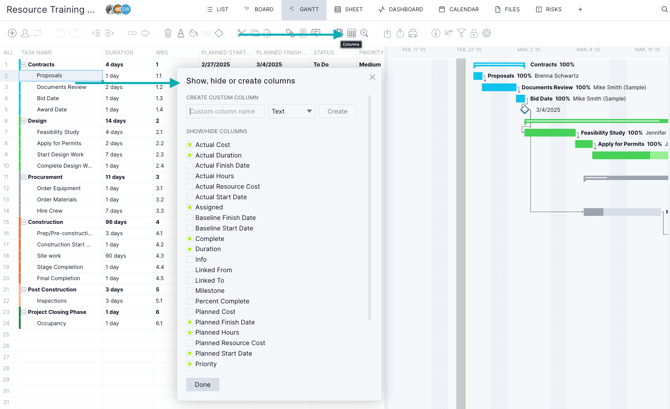
If you don't see the planned resource cost column, click the column icon to the right of the Notes icon. The actual resource cost column will populate when hours are logged in the project itself.
Note: Cost tracking is only on Business and above.
Need access? Upgrade your plan today.
Non-Human Resources Cost Tracking
If you want to track costs for a non-human resource, such as a piece of equipment, you can create a "none" role. Click the account menu icon in the bottom left portion of your screen. Then, click on "manage users" and under role, select "none."
There, you can type the name of the non-human resource into the name field. Since the role is none, you won't need to add an email address.

Planned and Actual Costs
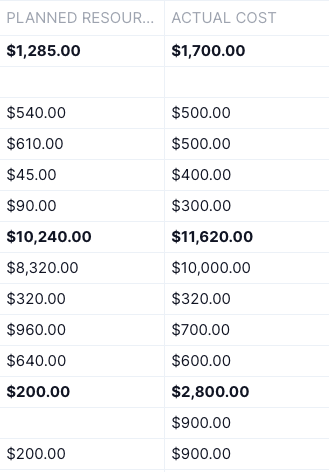
The planned and actual cost columns allow you to track other task costs such as supplies, equipment and more. To track planned and actual costs, turn on these columns by clicking the column button on the Gantt or sheet.
You can input estimated costs into the planned cost column and finalized costs into the actual cost column.
Our Listen & Learn video below has even more information on planned effort.
Cost Reporting
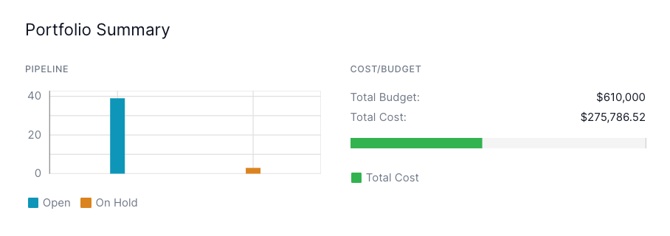
You can track costs on the project dashboard or portfolio dashboard or by pulling several reports. You can also see a quick cost update on your portfolio summary home view.
Project Dashboard
Once you have entered your budget and cost data, the cost widget on the dashboard will populate automatically. The project dashboard page shows your budget compared to the planned and actual costs.
Change the bar graph's color by clicking the small gear icon on the right corner, and the chosen color will be reflected in the reports.

Cost & Budgeting Reports
You can pull cost and budget information into a report that can be downloaded. The following reports will display cost information.
Portfolio StatusThe portfolio status report will display a color-coded cost column so you can quickly see if you are over or under budget. The portfolio status report will also display a budget remaining column if costs are included. To include costs, make sure the box is selected under include> costs.
-JPG.jpeg)
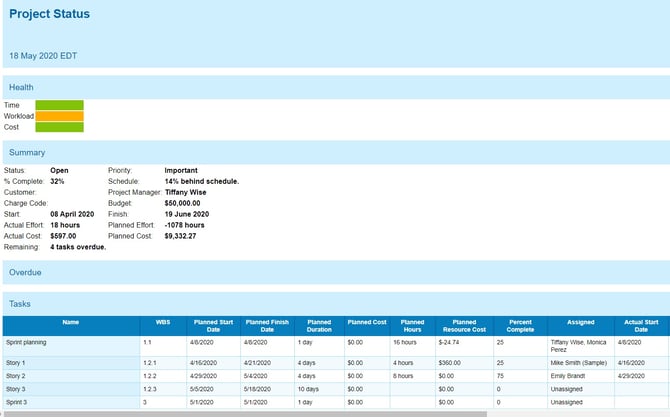
Project Status
The project status report includes the same information as the portfolio status report but for one project instead of multiple projects.
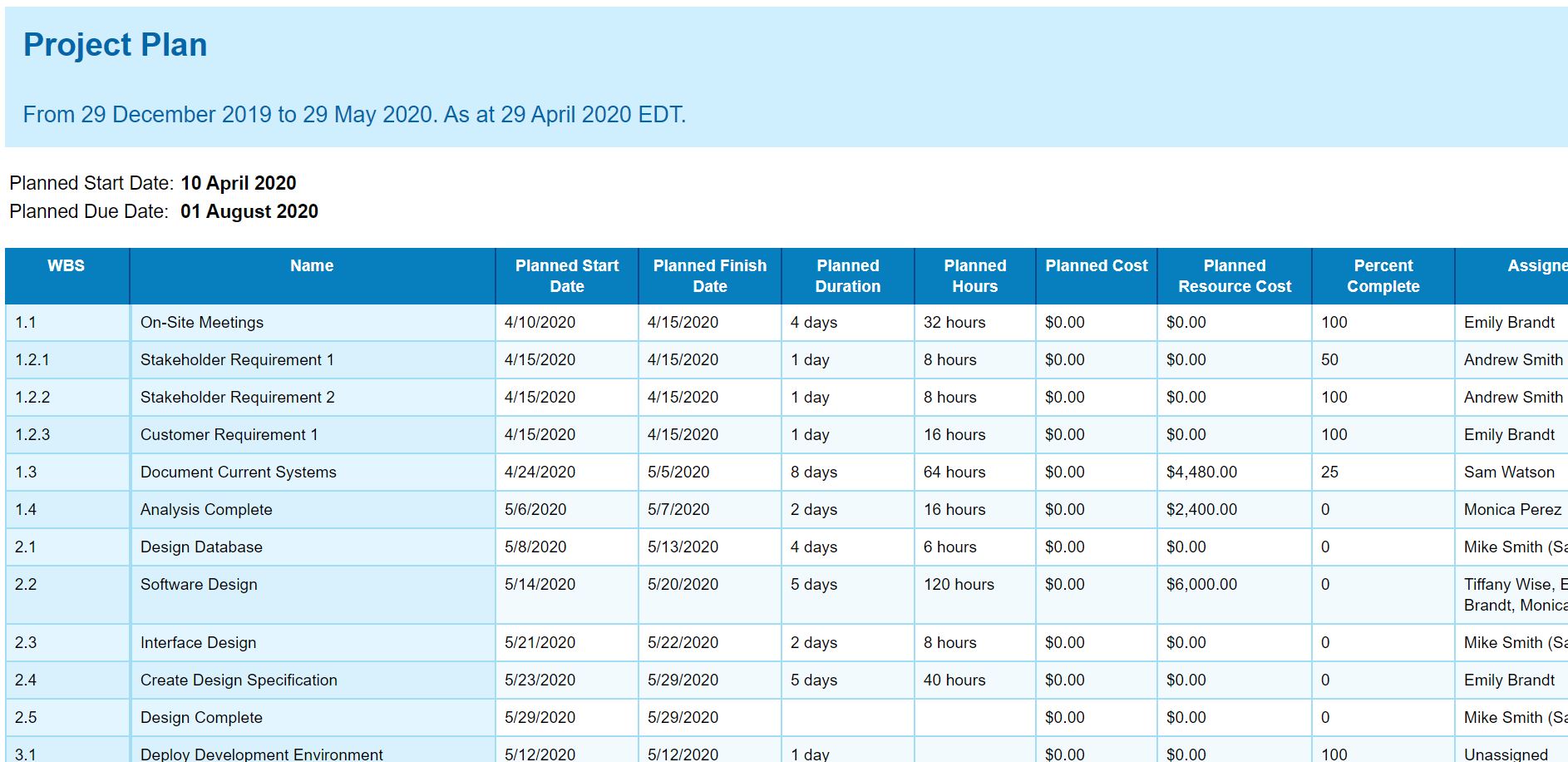
Project Plan
Instead of grouping tasks by status, the project plan shows tasks in relation to the WBS. You will be able to see the budget at the top of the report with the costs spent to date.
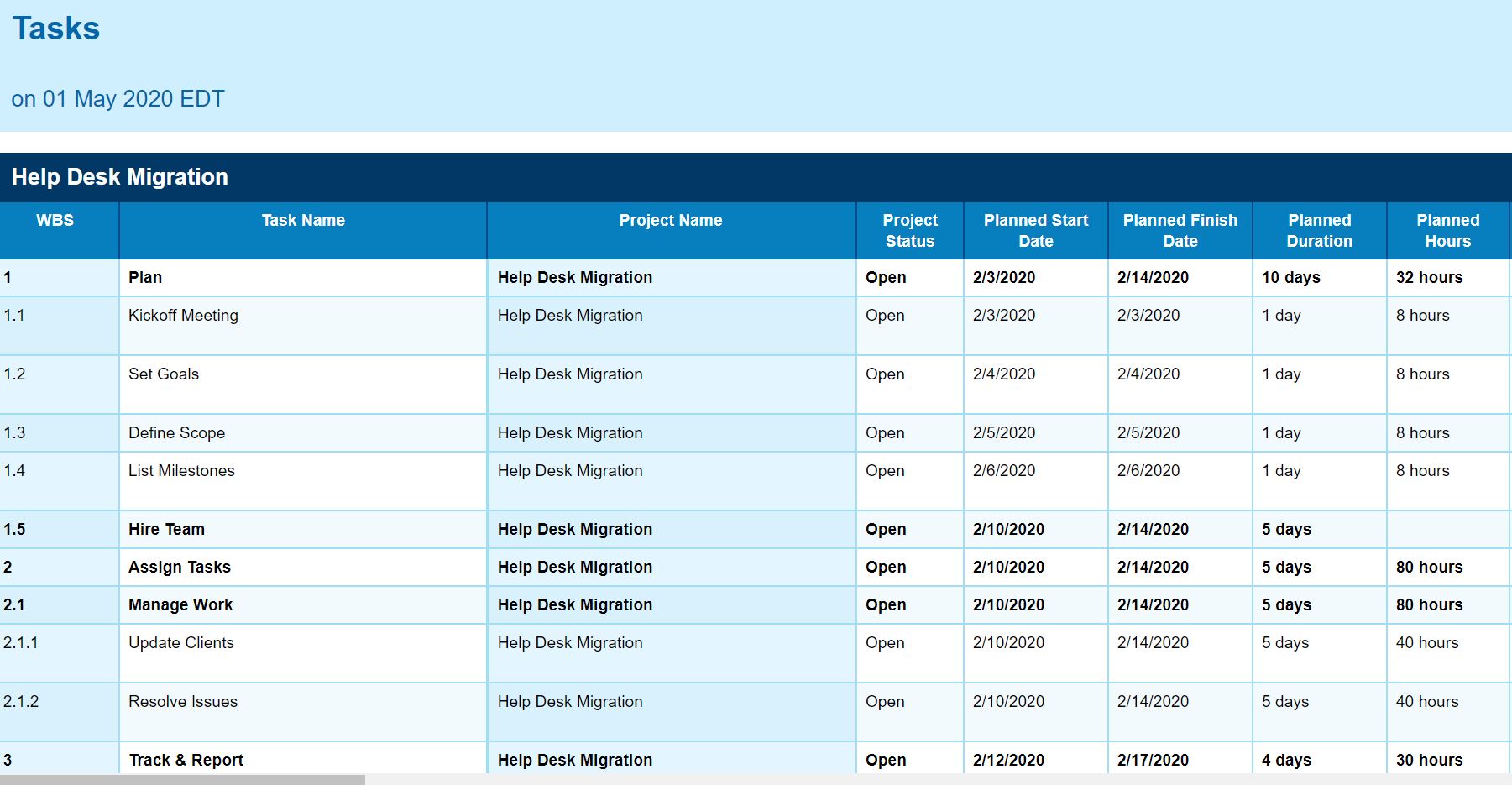
Tasks
The tasks report allows you to group tasks by timeframe and status so you can focus on specific information you want to see and exclude other information.
The tasks report doesn’t include any cost-to-budget information but does display the planned cost, actual cost, actual resource cost and planned resource cost if you choose to include it in your report.
Watch our Listen & Learn video on costs & budgets for even more information.
Tip! Want to learn more about all the reports we offer? Navigate to this article.
If you have questions on how to manage budgets and costs, please email support@projectmanager.com.