
By sending approved timesheets and project costs to QuickBooks you save time on data entry, prevent mistakes, and see exactly how profitable your projects are in real time.
Jump to: Getting Started | Integration Options | Troubleshooting
Key features:
- Send Hours and Rates: Send approved timesheets and rates to QuickBooks. Employees will be automatically matched based on name or email.
- Send Task Costs: Send actual task costs like equipment, overhead or materials to the target QuickBooks accounts. You choose which projects should be synced and which QuickBooks customer or project they link to.
- Job History: Monitor integration health and troubleshoot with the job history log.
- Set and Forget: Schedule time and costs updates to run each day, week or month.
- QuickBooks Compatibility: Works with or without the QuickBooks Projects module.
Getting Started
Check these requirements to make sure your setup goes smoothly:
- Edition: Our QuickBooks integration is part of the Business and Enterprise editions, if you are on the Team edition you'll need to upgrade to gain access.
- Role: To activate the integration, you need administrator permissions in QuickBooks Online and Global Admin permissions in ProjectManager.
- Projects: You do not need the QuickBooks Projects module for this integration to work. You can link your projects to QuickBooks Customers if Projects aren't supported.
Data Governance & Source of Truth
ProjectManager is the authoritative source for Projects, Time Cards, and Project Resources, while QuickBooks Online serves as the system of record for financial transactions, payroll, and statutory accounting. To maintain data integrity, please make all project and time updates in ProjectManager; changes made directly in QuickBooks may result in double-ups or cause synchronization conflicts.
How to Connect
- Open the Integrations tab in ProjectManager.
- Find the QuickBooks Online tile and click Connect.
- Log in with your QuickBooks Online admin credentials.
- Choose your company and click to allow access.
- Now you can toggle on the QuickBooks features you want to use.
Integration Options
There are two QuickBooks integrations available: send hours and rates, send task costs. You can choose to enable one or both of them. In both cases you need to link your ProjectManager projects to QuickBooks projects or customers before any data can be sent.
Send Hours and Rates to QuickBooks
This allows approved timesheets to be sent to QuickBooks Online.
Time entries will be sent if each of the following is true:
- You have linked the associated project to a QuickBooks customer/project, and
- The project status is not Closed or Deleted, and
- There’s a QuickBooks employee with a matching name or email, and
- The timesheet has been approved
How it works:
- Timesheets can be sent to QuickBooks on-demand or scheduled to run automatically each day, week or month.
- We'll automatically fetch your account list from QuickBooks so you can select the default category for new time cards.
- A QuickBooks Customer column will be added the Portfolio Projects view, allowing you to link your projects and customers.
- Time entries must be associated with a QuickBooks employee. We automatically match people based on name or email, if no match is found that person's time won't be sent, details will be logged in the Job History.
- Only new time entries (approved since the job last ran) are sent to QuickBooks. In the rare case where approved and synced time is later unapproved and adjusted, you will need to manually adjust the QuickBooks time cards.
The following data is included in the time card we create:
- Task name
- Employee
- Hours
- Rate
- Notes
- Service
- Customer/project
Send Task Costs to QuickBooks
This allows task-related actual costs to be sent to QuickBooks Online. Changes to a task's actual cost over time will also be sent.
Task costs will be sent if each of the following is true:
- You have linked the associated project to a QuickBooks customer/project, and
- The project status is not Closed or Deleted, and
How it works:
- Once you have linked one or more projects to a QuickBooks Online customer/project, actual task costs for that project will be sent to QuickBooks on the schedule you choose.
- You can schedule the job to run daily, weekly, monthly, or on-demand.
- We'll automatically fetch your account list from QuickBooks so you can select the default category and service for new expenses. You're free to change the category of an expense in QuickBooks, it will not be overwritten by the next job.
- Changes to a task's actual cost will be sent to QuickBooks each run, but if you delete an expense created by us we will not re-create it.
The following data is included in the expense we create:
- Task name
- Amount
- Expense account
- Clearing account
- Customer/project
Linking Projects
Choosing which projects link to which QuickBooks customers/projects is a critical step that ensures your time and cost data are routed to the correct financial container (project or customer) in QuickBooks Online. You will need to do the following before any data can be sent to QuickBooks:
- Navigate to the Portfolio view in ProjectManager.
- If the QuickBooks Customer column is hidden, enable it via the column settings.
- Click the cell in the QuickBooks Customer column for the project you wish to link.
- Select the corresponding QuickBooks customer, sub-customer or project from the list.
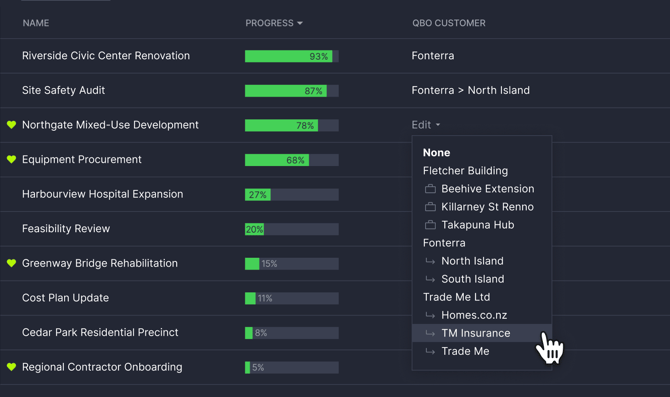
In QuickBooks customers, sub-customers and projects are part of the same customer/job hierarchy. When you link a ProjectManager project to QuickBooks you can choose either a customer, sub-customer, or project from the list.
Troubleshooting
Job History
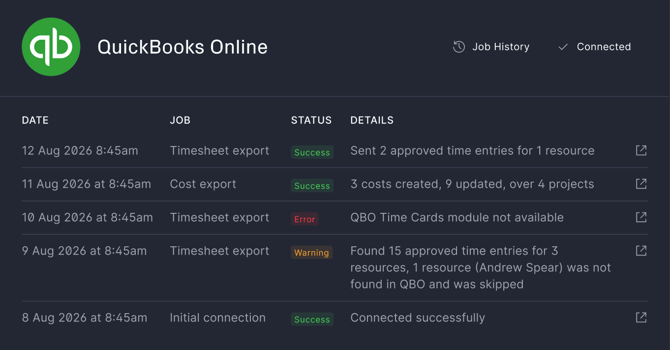
Use the Job History tab to see the status of every sync:
- Success (Green): Everything synced correctly.
- Warning (Amber): The sync worked but some items were skipped, such as unmatched people or a missing project.
- Error (Red): The sync could not be performed. Click the technical details icon to view and download a detailed log file of the sync process. This file provides a comprehensive trace, including raw API responses, timestamps, and specific error codes, allowing you to identify the exact technical cause of the sync failure.
Important Tips
- Summary tasks: To avoid duplicate data, summary task values are not sent. By their nature summary tasks don't have their "own" cost values, they only show the sum of their subtasks. We will send the actual cost of any subtasks.
- Schedules: When you schedule a job it will run at the following time in your workspace's default timezone:
- Daily: 11:30 PM every day
- Weekly: 11:30 PM every Sunday
- Monthly: 1:00 AM on the first day of each month
- Manual adjustments: You can change the value or notes of time entries or expenses in QuickBooks and they will not be overwritten when the next job runs. The only field we will update on subsequent runs is a task's actual cost value.
- Disconnecting: If you turn off the integration, we delete all your data and settings for security and financial regulation. However we do preserve the job history so you can troubleshoot connection issues. You can reconnect later but re-linking to the same projects may cause duplicate entries in QuickBooks.
Common Errors
- Resource Not Found: This error occurs when the system cannot match a team member because their Email or Full Name in ProjectManager does not exactly match an employee record in QuickBooks.
- Resolution: Update the name in either system to ensure an exact Email or First and Last Name match.
- Task Sync Failure: The sync may fail if a task does not have an assigned resource.
- Resolution: Ensure every task, including summary tasks, has a default assignee.
- Project Not Linked: Data will not sync for specific projects if they have not been linked to a QuickBooks customer or project.
- Resolution: Navigate to the Portfolio view, ensure the 'QuickBooks project' column is visible, and select the corresponding customer or project.
- Authentication/Permission Issues: If the integration stops syncing entirely, your access token may have expired or permissions may have been revoked in QuickBooks.
- Resolution: Navigate to the Integrations tab and re-authenticate your QuickBooks connection.